HALO IN 60: Configuring Email in HaloITSM, in two parts
Configuration > Email > General Settings is one screen with two jobs. The Incoming Email section decides how a message becomes a ticket, an update to a ticket, or nothing at all. The Outgoing Email section decides who Halo writes to, as whom, and with what safeguards. We recorded the whole screen: 72 controls in total, 40 under Incoming Email, 31 under Outgoing Email and one under Email threading. That is too much for one carousel, so this episode comes in two parts, one for each direction of travel. Each part picks the ten settings we would check first, and the prose underneath picks up the next tier.
Part 1 of 2: Incoming email
These settings decide how Halo handles a message on arrival: which ticket it belongs to, whether it creates one, and who the user is when the sender is not recognised.
Matching and forwarding
![HaloITSM Email General Settings, Incoming Email checkboxes, with markers on Use "[ID ]" as an additional subject tag check for Ticket matching, Treat Forwarded Emails from Agents as End-User Emails, and Don't allow new Tickets via email.](https://cdn.prod.website-files.com/670abc1928282df978c45758/6abe2c359caf32fcbb1f361f_haloitsm-email-configuration-part-1-slide-1.png)
1. Use "[ID ]" as an additional subject tag check for Ticket matching
Ticked on this instance. Halo finds an existing ticket by the ID between the Email Start Tag and Email End Tag in the subject, which are [ID: and ] here. If you change that format, this setting makes Halo also look for the old [ID: ] format, so replies on tickets that are already in circulation still reach the right ticket. We keep it ticked. The overview guide adds a warning we take seriously: after changing the start tag, it is not recommended to change it ever again.
2. Treat Forwarded Emails from Agents as End-User Emails
Ticked here. When an agent forwards an email to your mailbox, Halo ignores the forwarding details and considers only the original email, as if it had been sent directly. The guide gives the example: if the agent forwards an email from the end user, the update on the ticket includes only what the end user wrote.
3. Don't allow new Tickets via email
Unticked here. Ticked, inbound email stops creating tickets, although updating existing tickets by email still works. The screen is explicit that emails matching email rules and emails from suppliers will still create tickets, and the guide says a further setting, Don't allow new supplier tickets via email, then appears.
Noise control
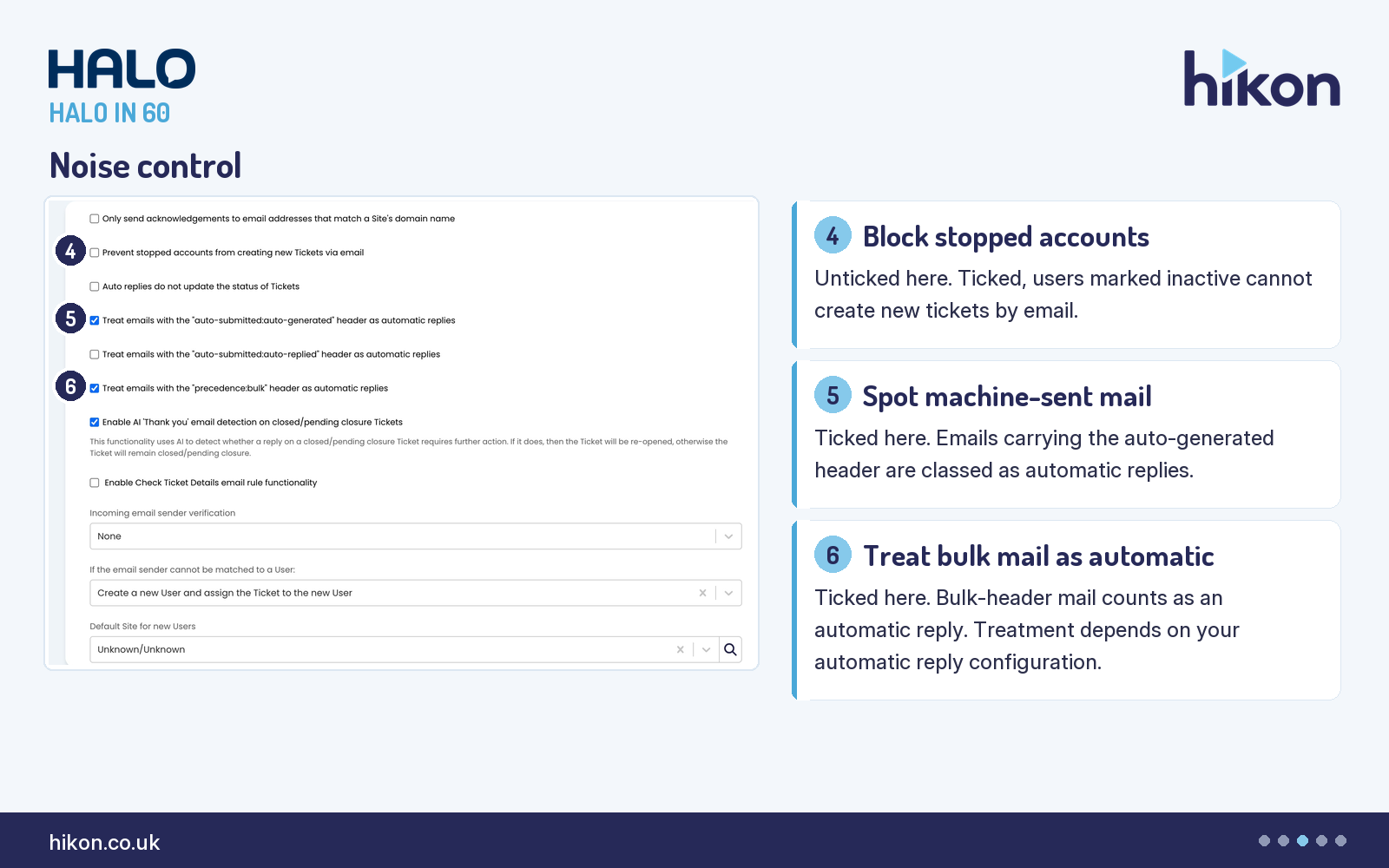
4. Prevent stopped accounts from creating new Tickets via email
Unticked here. Ticked, users marked as inactive, either directly or through Site or Customer level inactivity, cannot create new tickets by email.
5. Treat emails with the "auto-submitted:auto-generated" header as automatic replies
Ticked here. Mail carrying that header is classed as an automatic reply when it enters the system. The guide says you can see this in the backend service monitoring, and that it is easiest to spot on tickets when Auto replies do not update the status of Tickets is ticked. It is unticked on this instance.
6. Treat emails with the "precedence:bulk" header as automatic replies
Ticked here. Mail with the precedence:bulk header is treated as an automatic reply, and how that plays out depends on your automatic reply configuration. The related auto-submitted:auto-replied header setting is unticked on this instance. The guide says that if auto replies are not being caught, one of the auto reply settings may need enabling, so decide the three header settings and the status setting together rather than one at a time.
Unknown senders
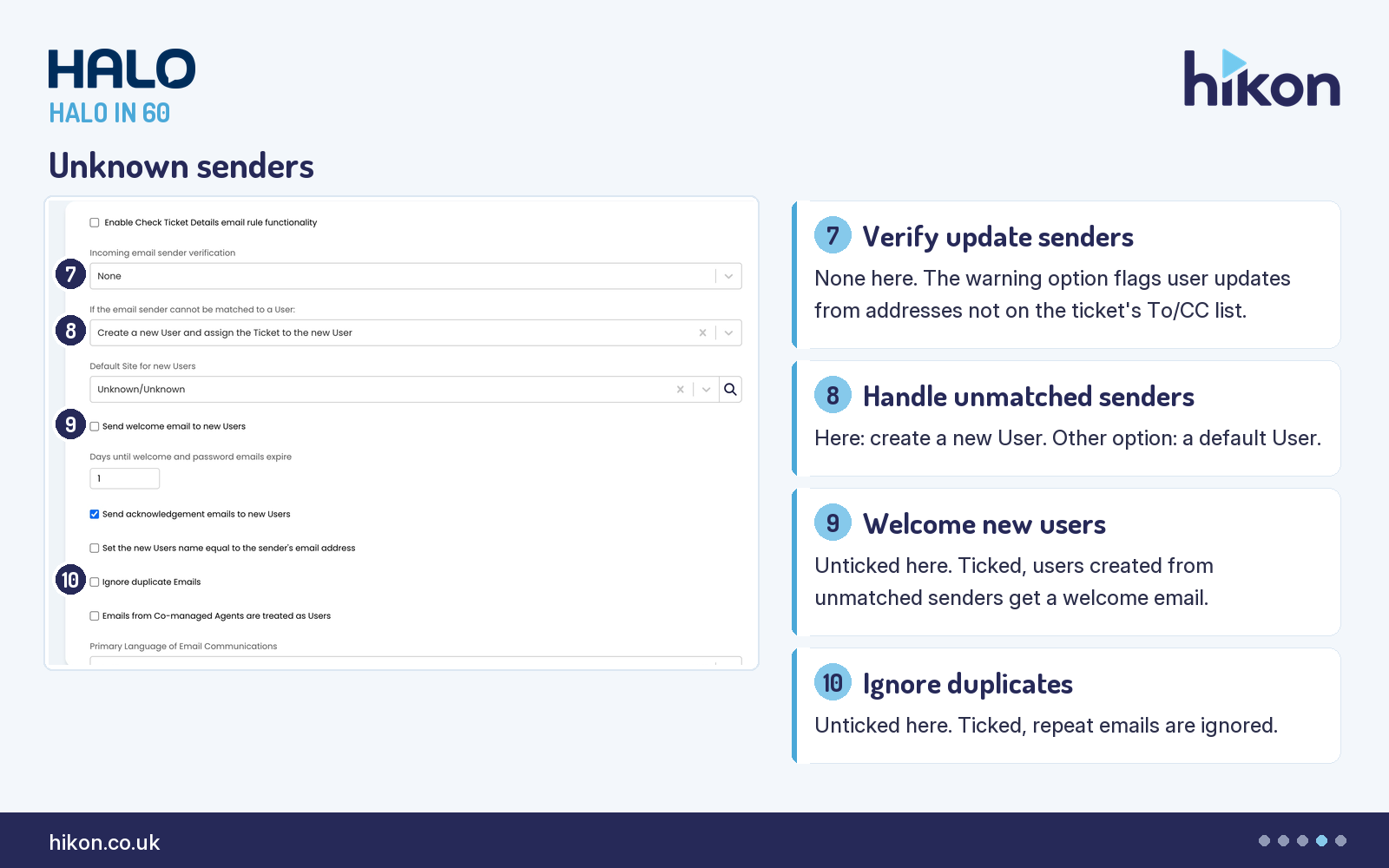
7. Incoming email sender verification
Set to None here. The guide describes the alternative as a warning: an email update from a user displays a warning if it uses an address that is not on the ticket's To or CC list. That is a useful tripwire for updates from addresses nobody expected, at the price of agents having to read the warning.
8. If the email sender cannot be matched to a User:
Here it is set to create a new User and assign the ticket to the new user, with Default Site for new Users set to Unknown/Unknown. The guide describes the other choice, which is to assign the ticket to a default user that you pick. Either way, someone becomes the ticket's end user the moment it is logged, so choose deliberately.
9. Send welcome email to new Users
Unticked here. It only matters when the unmatched-sender setting creates new users: ticked, those newly created users are sent a welcome email. Days until welcome and password emails expire is 1 on this instance, which sets how long welcome emails and passwords last before a new one has to be sent.
10. Ignore duplicate Emails
Unticked here. Ticked, Halo checks whether a ticket has already been created for an email and ignores it if so. The guide notes this works even when the email is sent into two separate mailboxes: the first to arrive goes through and the second is marked as a duplicate.
The rest of Incoming Email
The tags themselves. Email Start Tag and Email End Tag are required fields, shown here as [ID: and ]. Inbound emails update an existing ticket when a Halo ticket ID is found between them in the subject, and the tags are added automatically to the subject of outgoing emails about a ticket. The two Alternative/fall back tag fields, empty here, are matched after the main tags; the guide dates them to v2.240+. Search Email body for tag and match to Ticket if tag is not found in subject is unticked, so Halo does not look beyond the subject.
Matching without a tag. Additional Email matching method is set to Subject and From Address, and applies when tag matching is not successful. The guide says matching on the In-Reply-To header only works with Office 365 or Azure mailboxes, and that subject and From matching only applies to replies and forwards on existing email chains. Only route Emails if received into the same mailbox as the existing Ticket is unticked; ticked, an email arriving in a different mailbox creates a new ticket instead of linking to the original. Use Reply-To address for Ticket User matching is unticked; the guide dates it to v2.250+ and says it matches the end user on the Reply-To address instead of the From address, which helps when a proxy mailbox logs tickets for people.
Forwarding. Forward incoming updates to all recipients, Allow forwarded emails from Agents to also update the parent Ticket, Make Forwarding Agent a Follower, the setting that marks replies from forwarded-to addresses as private, and Agent updates via Email are hidden from End-Users are all unticked here. Each is a single tick, so read the guide's wording for each before changing it.
Loops and prefixes. Response to acknowledgment emails from external Halo instances is set to Ignore acknowledgment, and the screen says it exists to prevent email loops between two separate Halo instances. The Dynamic Email Exclusions button is the guide's other loop defence: it recommends adding your Halo mailbox addresses there. Strip prefixes from email subjects is unticked; ticked, it removes prefixes such as FW: and RE: from the subject of all incoming emails, which helps when rules match on subject.
Part 2 of 2: Outgoing email
The Outgoing Email section opens with a line worth remembering: the default outgoing email settings can be overridden per Incoming Mailbox. The Outgoing Email Defaults button sets the defaults, and the settings below it decide how agents send, who receives, and how large and how long a message can be.
Sender and preview
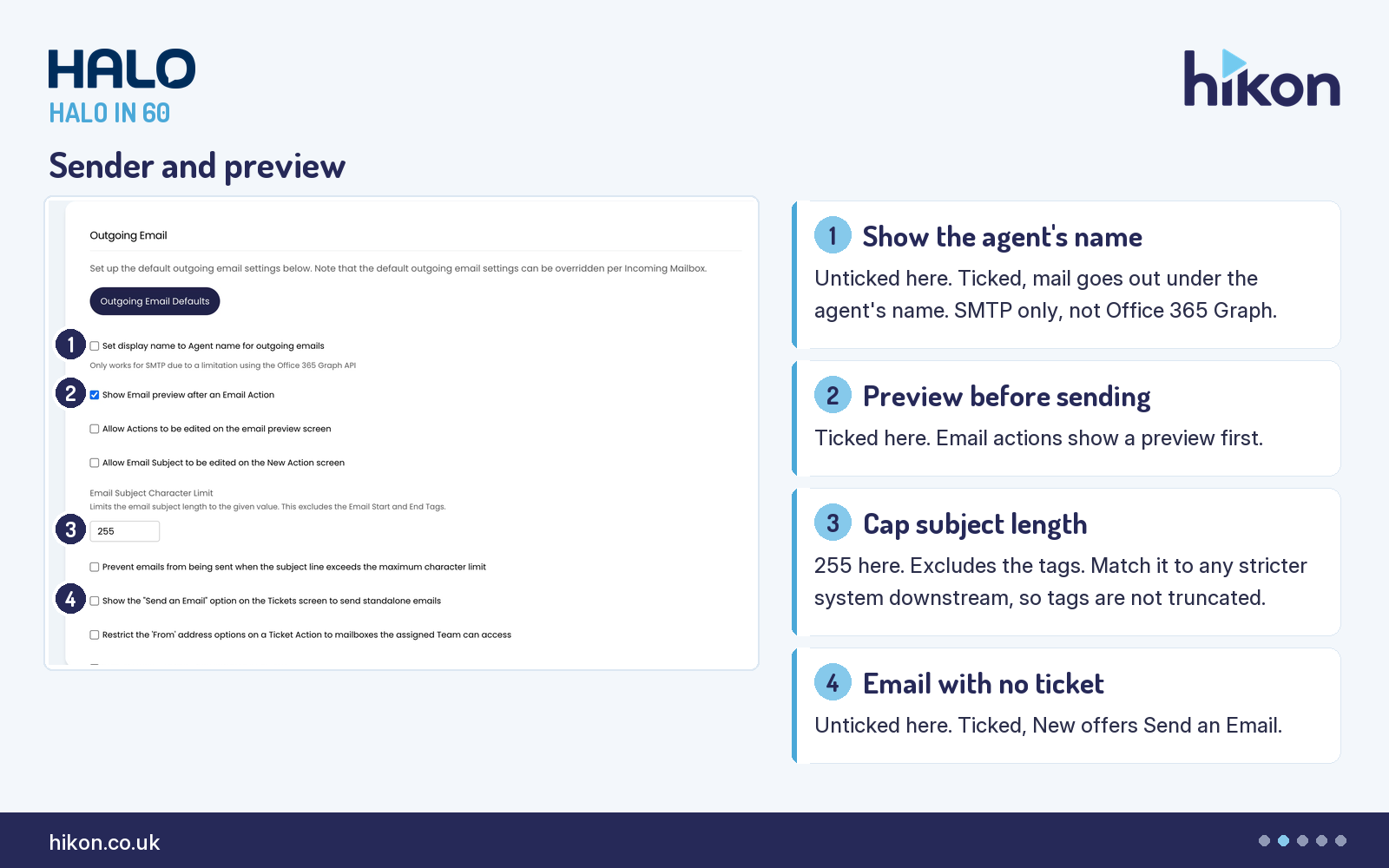
1. Set display name to Agent name for outgoing emails
Unticked here. Ticked, emails go out with the sender marked as the agent who actioned the ticket. The screen warns that it only works for SMTP, because of a limitation using the Office 365 Graph API, so check how your mailbox connects before you rely on it.
2. Show Email preview after an Email Action
Ticked here. Actions that send an email show a preview window first, so the agent can double-check the content before it goes. Allow Actions to be edited on the email preview screen and Allow Email Subject to be edited on the New Action screen are both unticked. The guide notes that from v2.250+ the preview can be set per action using Email Preview Override.
3. Email Subject Character Limit
255 here. The limit excludes the start and end tags, which are always included in the subject. The reason the setting exists is downstream: if another application has a smaller subject limit, the tags can be truncated and replies then come back without them. Set the number to suit the strictest system your mail passes through.
4. Show the "Send an Email" option on the Tickets screen to send standalone emails
Unticked here. Ticked, hovering over New on the ticket list offers Send an Email, which sends an email from Halo without a ticket having to be created. Show stand alone email actions in User Activity Feeds is a separate setting and is unticked here too.
Recipients and replies
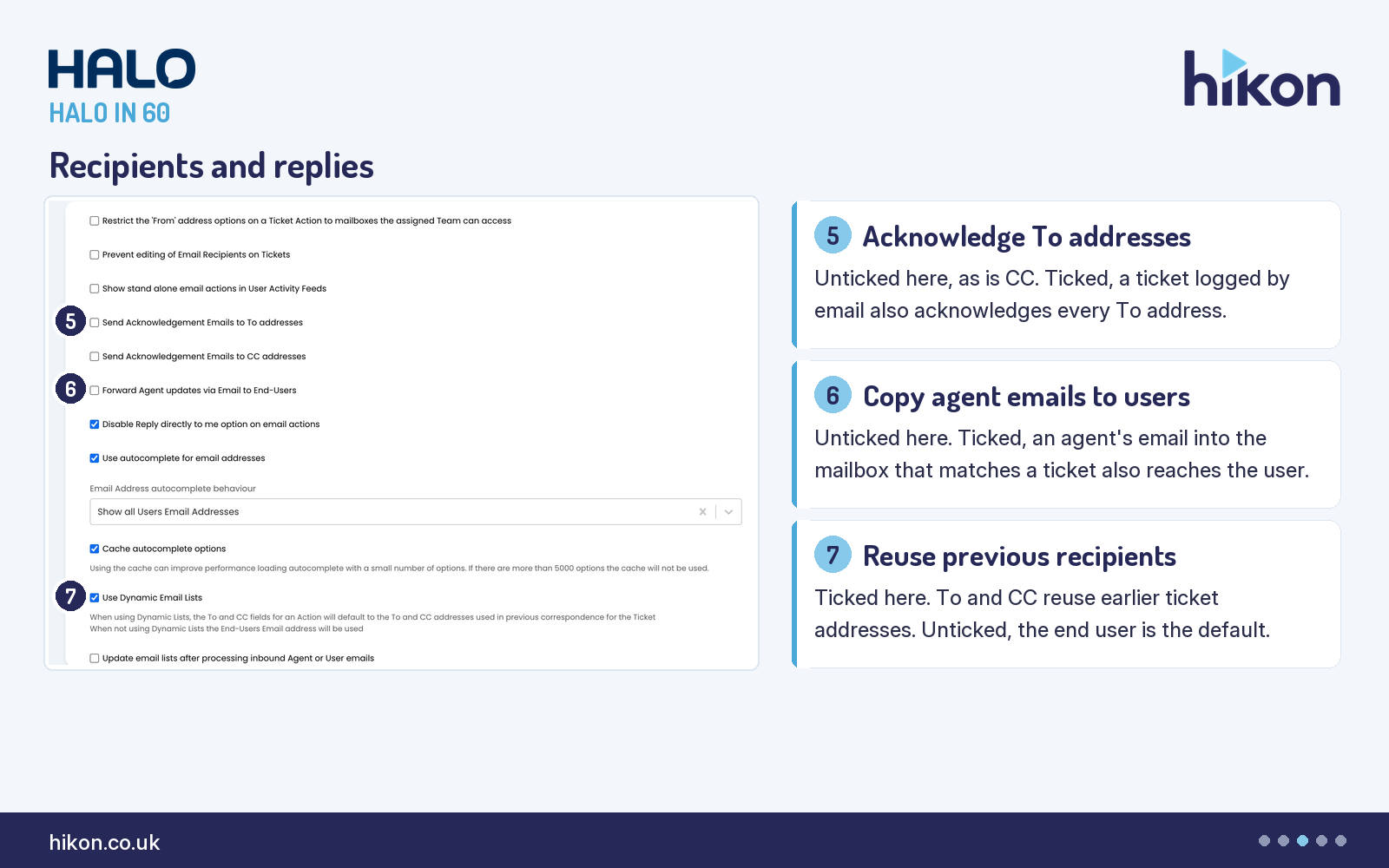
5. Send Acknowledgement Emails to To addresses
Unticked here, and so is the CC version beside it. Together they decide who is acknowledged when a ticket is logged by email. Ticked, every address the first email was addressed to (To), or every address copied in (CC), receives an acknowledgement. Unticked, only the ticket's end user does.
6. Forward Agent updates via Email to End-Users
Unticked here. Ticked, when an agent emails the mailbox with the matching fields present, so that it is linked to a ticket, Halo sends the agent's email to the end user as well as updating the ticket. The end user therefore receives the agent's email as written.
7. Use Dynamic Email Lists
Ticked here. The To and CC fields on an action default to the addresses used in previous correspondence on the ticket. Unticked, the end user's email address is used. Update email lists after processing inbound Agent or User emails is unticked here; ticked, the guide says the ticket's list is updated after public emails in or out, so an address left off a later email is removed from it.
Limits and threading
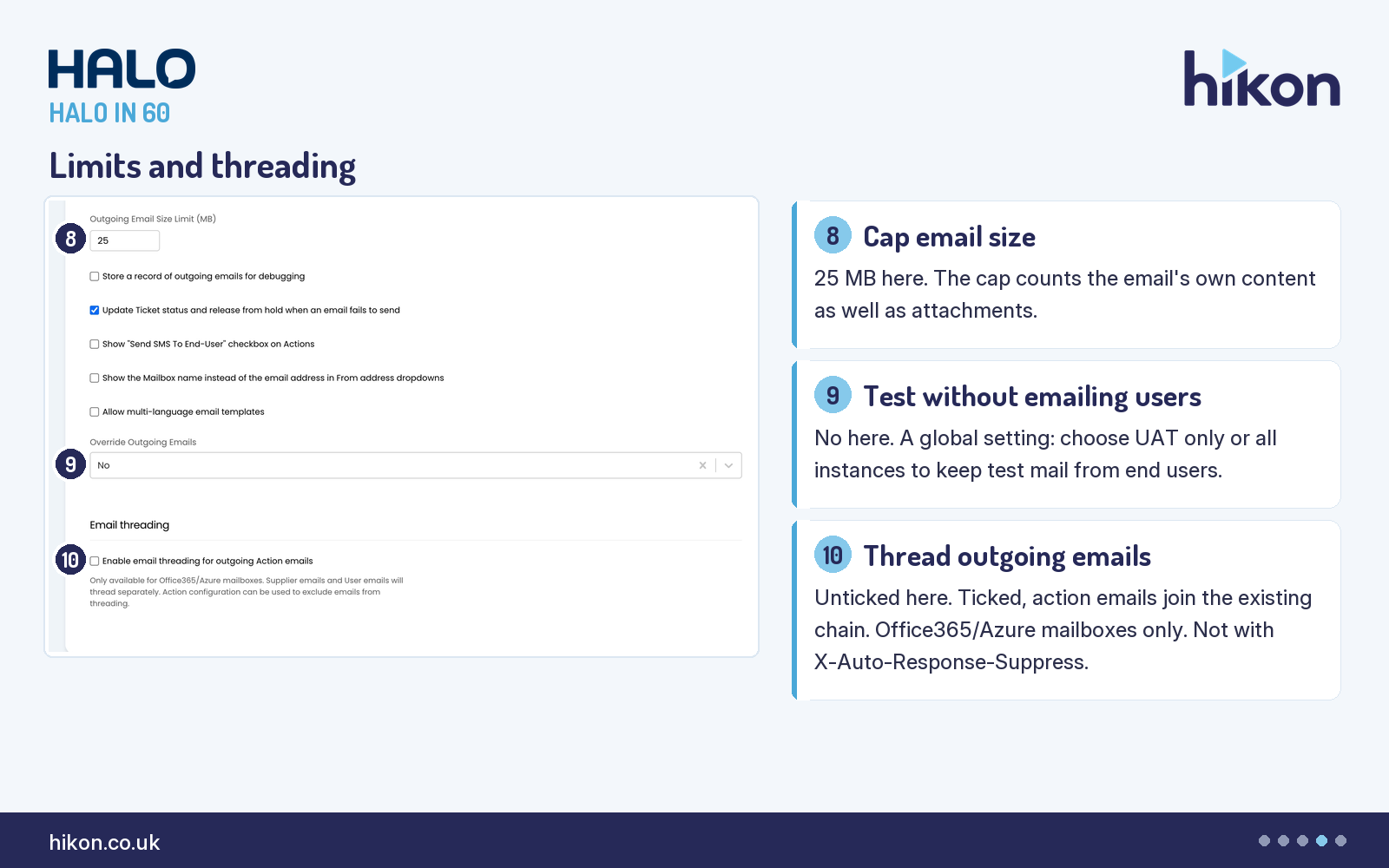
8. Outgoing Email Size Limit (MB)
25 here. It caps the size of files attached to an email, but the guide is clear that the email itself counts too, so an email with too much content can reach the limit without any attachment at all.
9. Override Outgoing Emails
Set to No here. The guide describes it as a global override that applies everywhere in Halo, for testing without any risk of sending to end users, and it can be off, UAT only, or all instances. When it is on, an Override Emails field appears to set where the mail goes. It does exactly what it says, so check it is back to No before go-live.
10. Enable email threading for outgoing Action emails
Unticked here. Ticked, outgoing email actions are sent as part of the existing email chain with the end user. The screen says it is only available for Office365/Azure mailboxes, that supplier emails and user emails thread separately, and that action configuration can exclude emails from threading. The guide adds that it will not work together with Add 'X-Auto-Response-Suppress' header to all outgoing emails, which is unticked here, and recommends not using $-EMAILHISTORY variables when threading, to avoid duplication. It also lists Include System Actions in Email Thread, which did not render on this screen.
The rest of Outgoing Email
Who can send as whom. Restrict the 'From' address options on a Ticket Action to mailboxes the assigned Team can access is unticked. The guide says that, ticked, it is the team assigned to the ticket that limits the choice, not the agent doing the action. Prevent editing of Email Recipients on Tickets is unticked, and the guide says admins can still edit recipients when it is ticked. Disable Reply directly to me option on email actions is ticked, which hides the option that sends replies to the agent instead of the helpdesk.
Autocomplete. Use autocomplete for email addresses is ticked, Email Address autocomplete behaviour is Show all Users Email Addresses, and Cache autocomplete options is ticked. The screen says the cache can improve performance with a small number of options and is not used above 5000.
Acknowledgement plumbing. Create acknowledgement emails in the background using an Automation is ticked. The guide says it replaces the older web application setting when time-sensitive event processing is set to Use Automation/Event Service, so acknowledgements do not slow ticket creation. Allow the Web Application to handle the sending of Emails is also ticked; the guide marks that one as legacy. Add 'X-Auto-Response-Suppress' header to all outgoing emails is unticked, and the screen says it would suppress automatic responses being sent back to the mailbox.
Three things the overview guide adds
The Email Configuration (High Level) guide covers three topics that this screen only points at. Message groups let email templates be grouped, and the guide gives the precedence when more than one applies as Client, Team, Department, Mailbox, Organisation, with the client message group overriding all others. Mailbox overrides change which mailbox sends: the order is Action, Customer, Top Level, Ticket type, Team, Department, Global, with the action mailbox overriding all others, and deleting a mailbox record clears the overrides for clients and departments that used it. Signatures are applied with the $-SIGNATURE variable, and the order is client level, then the mailbox agent signature, then the agent signature, then nothing. The terms are the guide's own.
Where teams get this wrong
The first trap is the email tag. Changing Email Start Tag needs care. The [ID ] additional check keeps old tickets matching, the fallback tags give you a second format to match, and the guide says it is not recommended to change the start tag again, because that can cause complications for email processing and matching. Pick the format once.
The second is treating automatic replies as one setting. They are four: three header settings and the one that stops automatic replies changing ticket status. On this instance the auto-generated and bulk headers are ticked, the auto-replied header is unticked, and the status setting is unticked. Whatever you choose, choose it as a set, and test with a real out-of-office message.
The third is the outgoing combination that cannot work. Email threading and the X-Auto-Response-Suppress header do not work together, and threaded emails should not also carry $-EMAILHISTORY. Turn on threading only after you have decided what your templates contain.
The fourth is terminology. The guide and the screen do not always agree. Mark emails from different domains other than the end User’s domain as private is, in the guide, Mark Emails From Different Domain Than The One Of The End User As Private. Two outgoing settings carry a legacy marker in the guide that the screen does not show. The guide calls the sender verification option Display a warning. Every label in this article follows the screen. Six controls on the recorded screen are not in the guide at all, and seven documented settings did not render: two of them appear only when a parent switch is on, two carry vendor version notes (v2.252+ and v2.244+), and the rest are a team-default From address setting, a legacy acknowledgement setting and the system-actions threading setting.
More HALO IN 60 guides
This episode is part of an ongoing series covering one HaloITSM configuration screen at a time. Related episodes: Tickets, Users, Notifications, Self Service Portal, Service Level Agreements, Asset Management, Reporting, Appointments, Time Management, Knowledge Base and Chat.
Need a hand?
Hikon configures HaloITSM for organisations that would rather it worked properly the first time. If you want a second pair of eyes on your Email configuration, see what we do with Halo.
Vendor reference: Halo — Email Configuration (High Level), with settings detail from its linked reference, Email (General Settings), guide 1454. Screens were captured from a live instance; where the guide and the interface differ, this article follows the interface.
Enjoying this?
Talk it through with the people who wrote it — a free 20-minute call, no pitch.
Let's talk →