HALO IN 60: Configuring the Self Service Portal in HaloITSM
Ask most Halo administrators what their users see and they will describe the portal: the logo, the colour, the buttons. All of that is set here. But Configuration > Self Service Portal also decides whether anyone can reach the portal without logging in, whether the knowledge base is public, what greets a user on the home screen, what search will find, and how much of their own ticket a user is allowed to see. It is a long screen: 148 controls across fourteen sections. Ten of them shape a user's first minute, and those are the ones on the carousel. The rest are covered below, section by section, in the order they appear on the screen.
Access and login
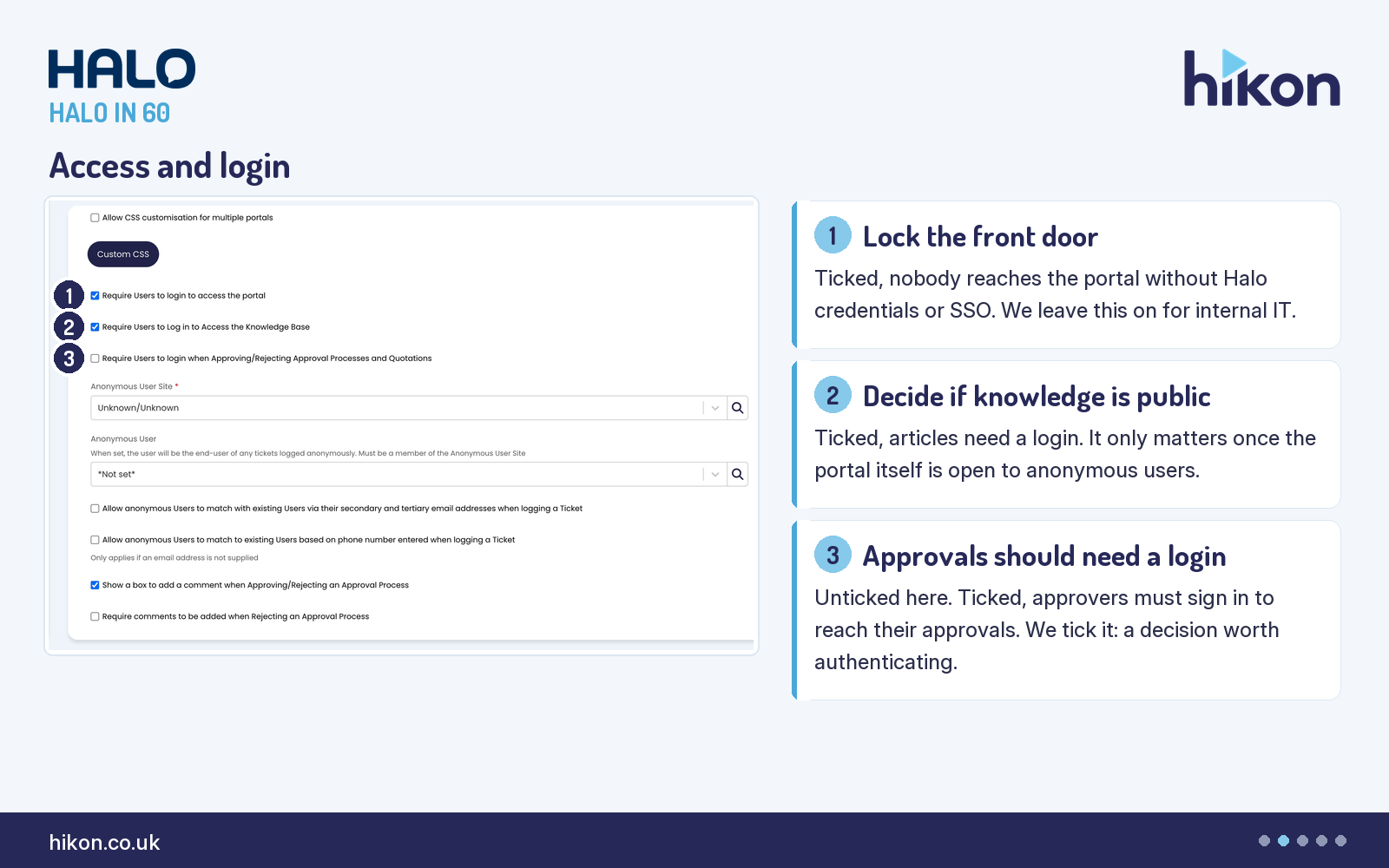
1. Require Users to login to access the portal
Ticked on the recorded instance. Halo's guide is direct: when checked, end users must log in, either with Halo credentials or a configured SSO method, to access the Self-Service Portal. For an internal IT desk we leave it on. The portal then knows who is asking before it shows anything, and every ticket arrives with a real user attached. Untick it only when you mean to run a portal that anonymous visitors can use, and if you do, the anonymous settings further down this section stop being optional.
2. Require Users to Log in to Access the Knowledge Base
Ticked here. When checked, end users must log in to access the knowledge base via the portal, and the guide adds the caveat that matters: it is not applicable if users are required to log in to the portal anyway. So on this instance it changes nothing today. It becomes the deciding switch the moment you open the portal to anonymous users, because that is when it separates a public help centre from a private knowledge base. Decide it now rather than discovering it later. A related setting, Redirect to the login screen if there is no access to Knowledgebase Article, is documented by Halo but did not render on the recorded screen.
3. Require Users to login when Approving/Rejecting Approval Processes and Quotations
Unticked on the recorded instance. Halo documents it under a slightly different name, Require Authentication when Approving/Rejecting Approval Processes: when checked, end users must log in to access their approvals. The interface adds Quotations to the label, and the interface wins. We tick it. An approval is a decision with consequences, and it should be made by someone the system has identified. The controls beneath it decide how much the approver has to say. Show a box to add a comment when Approving/Rejecting an Approval Process is ticked here and does not appear in the vendor guide. Require comments to be added when Rejecting an Approval Process and Require comments to be added when Approving an Approval Process are both unticked; the guide describes each as making a comment or reason mandatory.
The section opens with the branding controls. Web portal URL is read-only on Halo-hosted tenants, the guide says, and hosted customers ask Halo to change it. Portal Title is the name of the portal's browser tab, set to Hikon - User Portal here; the screen notes that if unset the tenant's name is used. Welcome Message is returned above the menu buttons and search bar on the home screen, and the screen warns that updating it applies to all language packs. Portal Theme, set to Halo ITSM Standard, offers dark mode, the standard light mode or the browser default, and the guide notes that users can now change theme themselves from the settings under the user icon in the portal. Portal Colour, #262958 here, sets the colour of the top navigation bar and the button backgrounds, and Portal Logo sits on the left of that bar; the screen says the logo takes the portal colour as its background and that the standard tenant logo is used if none is set. Allow CSS customisation for multiple portals, unticked, lets you style the portal differently per organisation through portal CSS templates, and the Custom CSS button opens the CSS editor, or the list of those templates when the switch is on. Portal logo alt text, which the guide dates to v2.242, did not render on the recorded screen.
Then the anonymous and approval controls. Anonymous User Site is a required field, set to Unknown/Unknown here, and Anonymous User is not set; the guide explains that if users are not forced to log in, their actions are marked as from the anonymous user, who still needs a site and a user record to log things against. Two matching options, both unticked, let an anonymous ticket form match an existing user by their secondary or tertiary email address, or by phone number when no email address is supplied. Hide the 'Accept All' and 'Reject All' buttons on the My Approvals page in the Portal is empty here and, the screen says, overrides the global Approval Process setting. Always show the Ticket details as the approval note on the My Approvals page, Allow new Users to register from the portal, Ignore field visibility restrictions when linking to User Actions via $-LINKTOUSERACTION and Do not show the Agent login option on self service portal login screen are all unticked. Default Site for new Users, which the guide describes for users signing in for the first time, did not render on the recorded screen, where registration is unticked.
Home screen
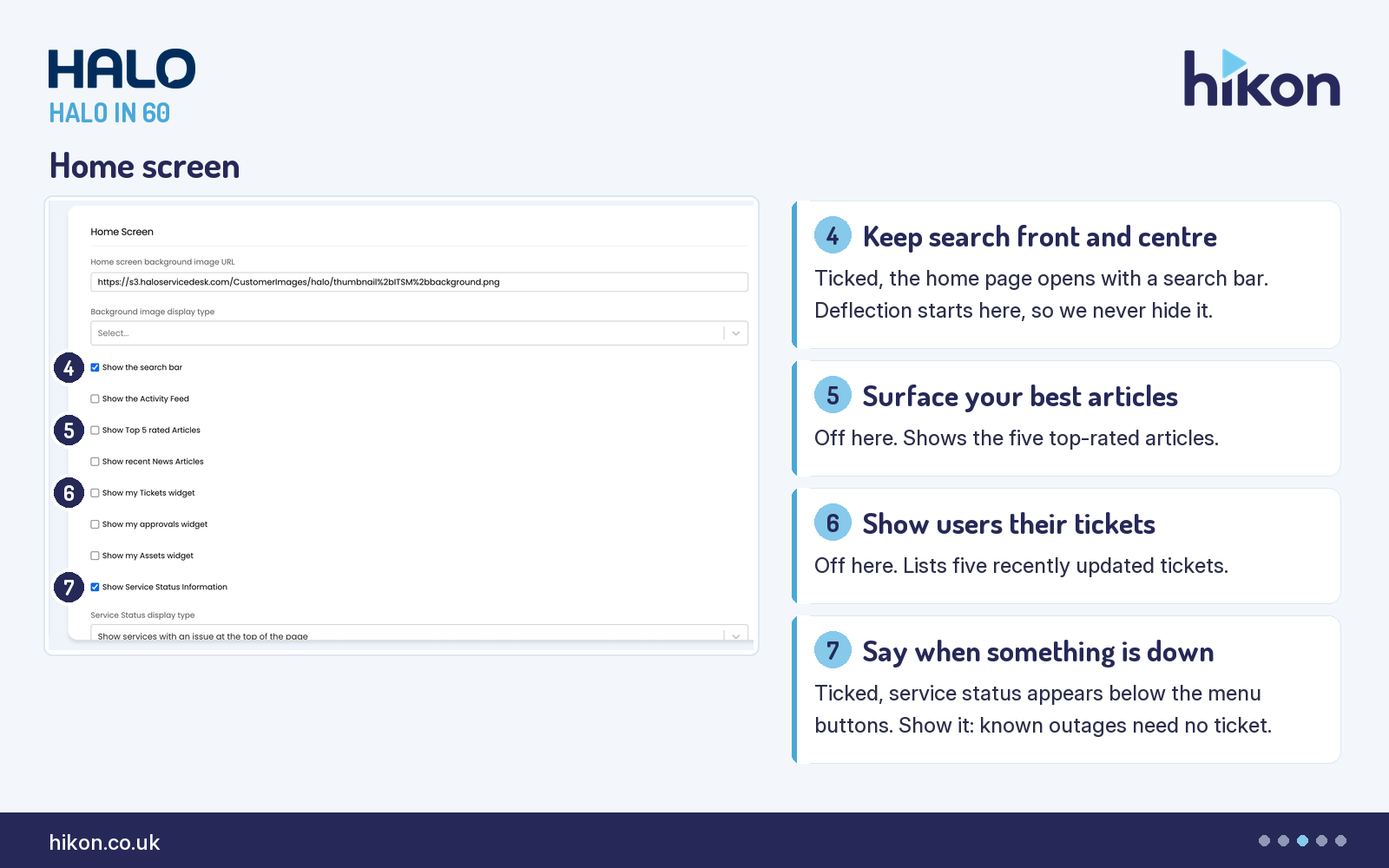
4. Show the search bar
Ticked here. It toggles the visibility of the search bar presented on the portal home screen, and that is the whole of the guide's description, because the setting is simple. Its effect is not. Every deflected ticket starts with a search, so we never hide it, and the Searching section further down the screen decides what that search can actually find.
5. Show Top 5 rated Articles
Unticked on the recorded instance. When checked, your five top-rated knowledge base articles are presented towards the bottom of the home screen. The rating comes from the thumbs up and thumbs down that users leave inside an article on the portal, and the top five are the five with the most thumbs up. It is deflection you have already earned, so we turn it on. A companion setting, Use a custom list of Top 5 Articles, lets you pick and order the five yourself instead of relying on votes; it did not render on the recorded screen, where the parent is unticked.
6. Show my Tickets widget
Unticked here. When enabled, a widget showing the user's five most recently updated tickets appears on the home screen. We turn it on. A user who can see their open tickets on the landing page is a user who does not raise a duplicate. The neighbouring widgets do the same for approvals, showing the five most recent pending approvals, and for assets, showing the user's top five assets, and Show the Activity Feed adds updates on the user's tickets towards the bottom of the page. All three are unticked here.
7. Show Service Status Information
Ticked here. When checked, the status of monitored services is presented on the home screen of the portal, below the menu buttons. Service Status display type, set to Show services with an issue at the top of the page, establishes which services and statuses appear. A user who can see that email is down does not log a ticket to tell you email is down. Two related switches are unticked: Show services with the Requires Attention status on the portal, without which the guide says only services with the Ok, Fault or Planned Maintenance status show, and Display Services and categories in a combined list in the catalogue. Show the status details as a scrolling text animation is documented but did not render; the guide ties it to a specific display type.
The remaining home screen controls are layout. Home screen background image URL is set here, Background image display type, which chooses between a banner towards the top of the page and a full background, is unset, Service catalogue home screen background image URL is empty, and Maximum buttons per row is 4. Show recent News Articles is unticked. Display custom HTML is unticked; the guide says enabling it makes four further fields configurable, the position, the sticky banner option and the two raw HTML boxes with their 4,000 character limit, and none of the four rendered on the recorded screen. Above the Home Screen section sits Menu Buttons, the list the guide calls the main method of navigating through the portal. The recorded instance has seven: Home, Settings, Request Something, Report an Issue, My Tickets, Help Articles and My Approvals, each with the screen's description of its function. Nav button alignment is Right, which the guide gives as the default; set to Left, the search bar and language selection move up to where the buttons were.
The Searching section decides what that home screen search bar can find. Allow users to search KB articles, Allow users to search Services, Allow users to search Tickets and Allow Users to filter search by Status are all ticked here. Show the quick search in the portal navigation bar, Show search totals, Search for Service details and Services, Order Service search by relevance and Show combined results when searching all entities are unticked; the last of those makes the search default to All with an entity label on each result, and Order Service search by relevance is not in the vendor guide. Show a button to raise a Ticket if a search returns no results is ticked, with the radio beneath it set to Ticket Type and the type set to Service Request, so a user whose search finds nothing is offered a service request rather than an incident. Check that choice against what your users actually search for. Use the Knowledge Base Tile Search for Article searching, which the guide dates to v2.246 and warns will disable the All entity search, did not render. One documentation note: the guide's description for Allow users to search Tickets repeats the wording for Services; the label says Tickets and the screen is right.
Ticket visibility
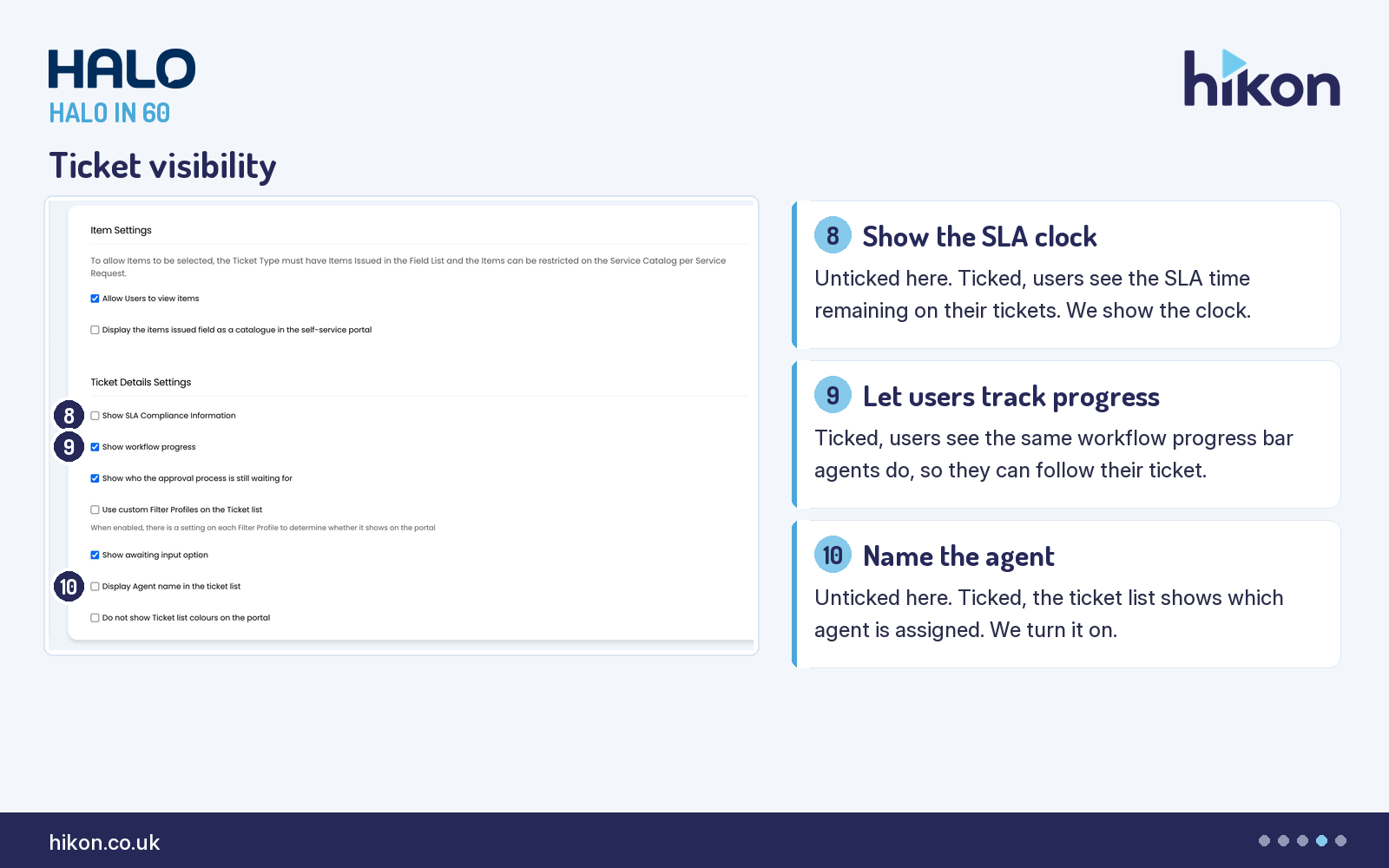
8. Show SLA Compliance Information
Unticked on the recorded instance. When checked, the SLA time remaining is present when viewing tickets via the portal, so end users can see the clock on their own tickets. Teams hesitate here because a visible clock invites questions. Our view is the opposite: a user who can see the target stops asking when it will be looked at, and a desk that hides its targets is a desk that does not trust them.
9. Show workflow progress
Ticked here. When checked, users can see the workflow progress bar that is visible on the agent's ticket view, unless it has been disabled there, so that they can track the progress of their ticket. It costs nothing and answers the most common chaser before it is sent. Its neighbour, Show who the approval process is still waiting for, is also ticked and lets users view the pending approvers on their approval processes.
10. Display Agent name in the ticket list
Unticked here. When checked, users can see which agent is assigned to their ticket from the ticket list view. We turn it on. Nothing says somebody owns this like a name. If your desk would rather present one face, the alternative is on the same screen: Generic Agent name override for Agent Actions on the self-service portal, empty here and not covered in the vendor guide.
Also in Ticket Details Settings: Use custom Filter Profiles on the Ticket list is unticked; the screen explains that when enabled there is a setting on each filter profile to determine whether it shows on the portal, and the guide adds a Default Filter Profile field that did not render here. Show awaiting input option is ticked, adding an Awaiting Input filter to the portal ticket list. Do not show Ticket list colours on the portal is unticked; ticked, the guide says, colour changes on a ticket are visible only on the agent side. Category for grouping roadmap tickets and Date display for Ticket actions are unset; the second chooses between the date an action was created and the date and duration over which it was done. Automatically refresh the Ticket details page if the Ticket is updated is unticked; on, the guide says updates are checked for every minute. Two translation switches, Allow Users to translate Live Chat messages from Agents and Allow Users to translate Actions on the Self Service Portal, are unticked and are not in the vendor guide. New Action Settings holds a single control, Closure Allowed, set to Users can close their Tickets; the guide describes it as determining whether or not users can close their own tickets.
New Ticket Settings governs the logging form. Default Ticket Type is Incident, used when a menu button opens the new ticket screen with ticket type selection. Send Acknowledgment Email is ticked. Message displayed after submitting new Ticket is empty; the screen says $faultid inserts the ticket ID and $symptom the ticket summary, where the guide writes $_faultid and does not mention the second, so follow the screen. Allow logging on behalf of other Users, a required field, is set to Allow logging on behalf of Users at the same Site, and Make the user logging a ticket a follower when logging it on behalf of another user is ticked; the guide's example is Joe Bloggs logging for John Smith and staying a follower while John Smith is the end user. Asset display behaviour for log on behalf is set so that in My Assets only the user's own assets are visible, and during ticket logging their own assets and those of the person logged on behalf of. Followers Field and Delegate Approvers Scope is limited to users at the same organisation, Email CC List Scope is limited based on the user's web access level, and Allow a Tickets Organisation and Site to be different to the End-Users Organisation and Site allows selection from all sites based on the user's permissions. Allow Site Selection, Allow advanced search of Users and Sites, Make Phone number a mandatory field in contact details when user is anonymous and Change Email CC list to a Dropdown are unticked; Show Customer name in Site dropdown, which the guide ties to site selection, did not render. The four Assets field switches, Show Site and Key Fields 1, 2 and 3, are ticked. The column profiles for users' projects, users' tickets and supplier tickets are unset. Only allow logging of Ticket with a specific Ticket Type/template if the User has access to the corresponding portal button is unticked; ticked, the guide says, a direct URL to a new ticket screen works only if the user has also been granted the matching menu button. The Followers field searches Organisation Name first and Site Name second. Allow Users to edit system Fields on the Portal and Allow Supplier Users to edit system Fields on the Portal are unticked, so the Fields pickers the guide documents beneath them did not render.
Item Settings carries Allow Users to view items, ticked and not in the vendor guide, and Display the items issued field as a catalogue in the self-service portal, unticked, which the guide describes as a cleaner, more modern view similar to an online store's product catalogue; its Expand all Products option did not render. Knowledge Base Settings is ten switches, all unticked here: Hide Article view count, Split Article View Count, Disable Article voting, Hide Article ratings, Allow anonymous voting on Articles, and the Created by, creation date, Edited by, edit date and Article tags labels. Split Article View Count and Allow anonymous voting on Articles are not in the guide; the screen says the first shows users only the user view count while the agent side shows agent and user views separately. Tags, the guide notes, can still be searched by when hidden. Asset Settings has Column profile for My Assets on Use Default, with the screen listing the default columns as Asset Tag, Asset Type, Site, Key Field, Key Field 2 and Key Field 3, and Allow all Users to view all Assets at their Site unticked. Approval Settings has three unticked switches: a search bar on the My Approvals screen, the ticket status on that screen, which the guide says also flags mandatory approvers, and Accept and Reject buttons as text instead of thumb icons.
Cookie Consent Screen has one switch, Enable GDPR/Cookie Accept Screen before login, unticked, so the Cookie consent message editor did not render. Footer Content hides or shows the tenant's address, phone number, email address and website, and only Hide Tenant Website is ticked; Hide language selection is unticked, Language selection placement is Below contact information, and the footer has its own Display custom HTML switch, also unticked. Miscellaneous Settings is the longest section. Allow End-Users to upload attachments is ticked, and the guide notes it is separate from the equivalent setting for email. Allow user followers to see tickets on the My Tickets view is ticked. Web Announcement Location is Portal Home and Login Screen; Toggle Off Announcement Icon, Show the web announcement as a scrolling text animation and Show vote total in the My Tickets and Kanban view are unticked. The chat-bot and analytics fields, Continually App ID, Tawk Property ID, Google Analytics Measurement ID, Cognigy URL, Cognigy Endpoint and UserWay Data Account, are empty here apart from Cognigy URL, and Google Analytics Measurement ID is not in the vendor guide. Show back button is ticked. Send welcome email to new Users is unticked, and the screen adds that it includes users created from imports and integrations. All six Web Access Level options are ticked, adding Site, Tenant, Department, Site Contact, Top Level and All to the list an administrator can choose from on a user. Enable higher contrast on the portal for accessibility and Show language selection in navigation bar are unticked, as is Hide the Menu Buttons Page Title and Description Override on the Service screen. User's Department view scope is Department of the Ticket or User, and the requestor field shows Organisation Name first and Site Name second. Use Geo Location Restrictions for Knowledge Base Articles, Use Geo Location Restrictions for FAQ Lists, Allow Users to access Tickets when no Tenants have access to the Ticket Type, Show attachments on a separate tab when viewing a Ticket and Enforce Tenant Ticket Type restrictions are all unticked; the third is not in the guide, and the screen describes the last as applying when multiple portals are configured. Two documented settings about invoices did not render on this ITSM tenant.
Where teams get this wrong
The first trap is believing the knowledge base is public because setting 2 is unticked. It is not, while setting 1 is ticked: the guide is explicit that the knowledge base login requirement is not applicable when the portal itself requires a login. Open the portal to anonymous users and setting 2 suddenly decides everything.
The second is the no-results button. It is a good idea, and on this instance it logs a Service Request. If most failed searches come from people with something broken, that is the wrong type, and the ticket lands in the wrong queue with the wrong SLA. Choose the type deliberately.
The third is terminology. Guide 1862 is written for more than one Halo product, and in places it uses PSA words where the ITSM screen uses others: the guide's Customer is the screen's Organisation, and the guide's Organisation is the screen's Tenant. So Hide Organisation Website in the guide is Hide Tenant Website on screen, and Enforce Organization Ticket Type restrictions is Enforce Tenant Ticket Type restrictions. Where the two disagree, the screen is right, and every label in this article follows the screen. Ten controls on the recorded screen are not in the guide at all, and nineteen documented settings did not render, most of them fields the guide makes available only when a parent switch is on.
More HALO IN 60 guides
This episode is part of an ongoing series covering one HaloITSM configuration screen at a time. Related episodes: Knowledge Base, Chat, Service Level Agreements, Notifications, Appointments, Reporting, Asset Management and Time Management.
Need a hand?
Hikon configures HaloITSM for organisations that would rather it worked properly the first time. If you want a second pair of eyes on your Self Service Portal configuration, see what we do with Halo.
Vendor reference: Halo — Self Service Portal. Screens were captured from a live instance; where the guide and the interface differ, this article follows the interface.
Enjoying this?
Talk it through with the people who wrote it — a free 20-minute call, no pitch.
Let's talk →