HALO IN 60: Configuring Knowledge in HaloITSM
A knowledge base is only worth what people believe about it. The settings that decide whether a HaloITSM article can be trusted sit on one screen, Configuration > Knowledge Base, and most of them sit in the first section, Articles. This is an episode of HALO IN 60, our series that takes one configuration screen at a time, and it covers the ten settings in that section that decide how an article is written, reviewed, challenged and shared. The FAQ Lists section on the same screen is a subject in its own right and is not covered here.
Article lifecycle
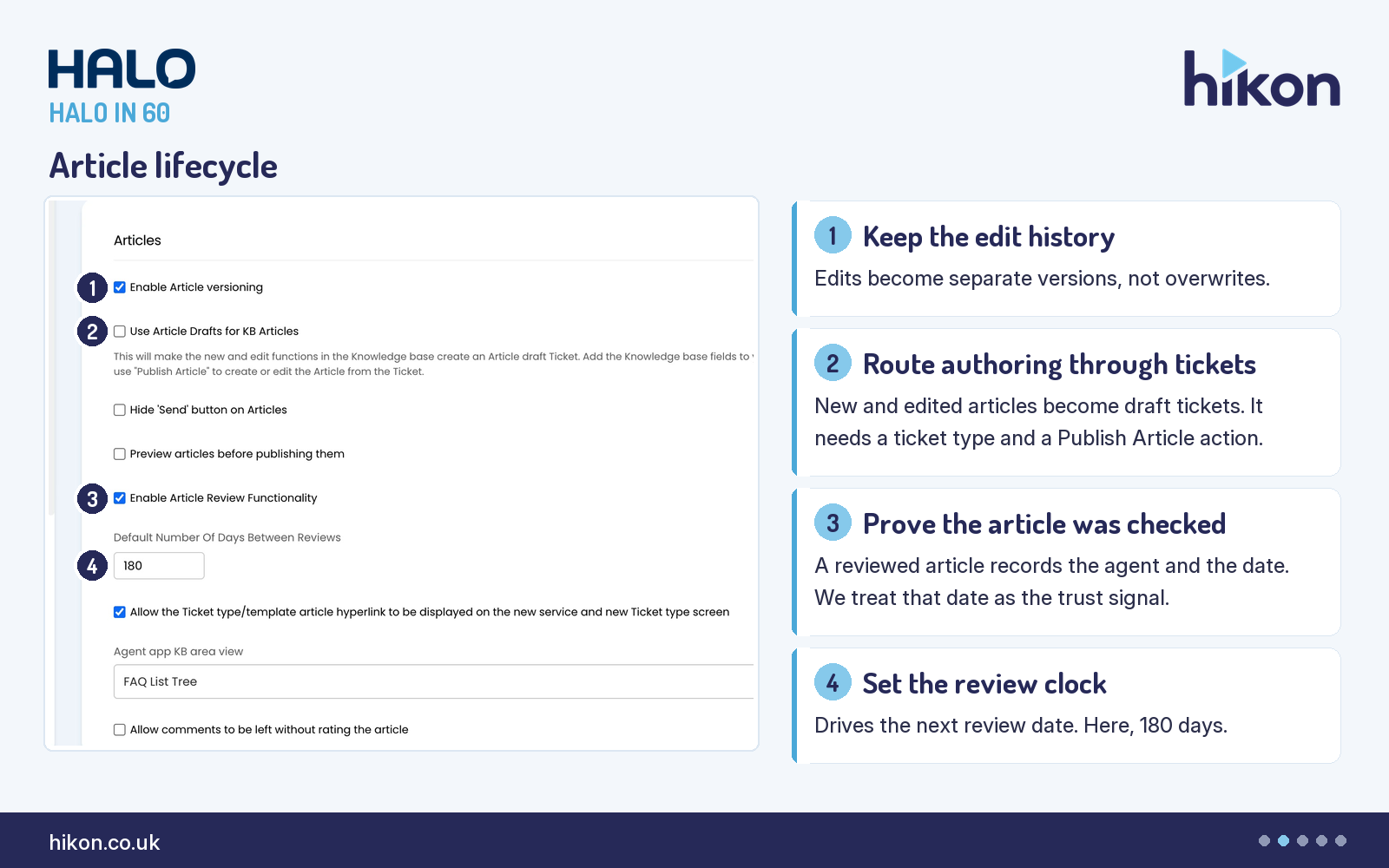
1. Enable Article versioning
Ticked, a New Version button appears at the top of an article. Once a second version exists, the article carries an Other versions of this Article dropdown, the newest version is the one readers land on, and the older ones stay reachable from that dropdown. This is the difference between a knowledge base with a history and one where a well-meaning edit quietly erases the wording that was working.
2. Use Article Drafts for KB Articles
This turns authoring into a ticket process. The new and edit functions in the Knowledge Base stop editing the article directly and create an Article draft ticket instead, which means article changes run through your ticket process, where approval steps can be added. It is not a single tick, and that is where it usually goes wrong: the guide is explicit that you also need to add the Knowledge Base fields to your chosen ticket type and create an action with the system use Publish Article, or there is nothing to publish the draft with. Ticking it also reveals a further set of settings on this screen, including which ticket type to use, whether only article owners may raise drafts, and whether more than one draft can be open at once.
3. Enable Article Review Functionality
With this on, articles can be reviewed, and when one is saved after review the review section in the article details at the top records the agent and the date and time. Nothing here forces anybody to review anything; it makes review visible, which is a different and more useful thing. We take the view that an article nobody has confirmed in over a year is a liability, and this stamp is the cheapest way to find which ones those are.
4. Default Number Of Days Between Reviews
The article details section carries a Next review date, and this setting decides how many days sit before it. The instance in the screenshot runs 180. The guide states no vendor default for this, so treat whatever number is already in the box as a decision somebody once made rather than a safe baseline you have inherited.
Feedback that lands
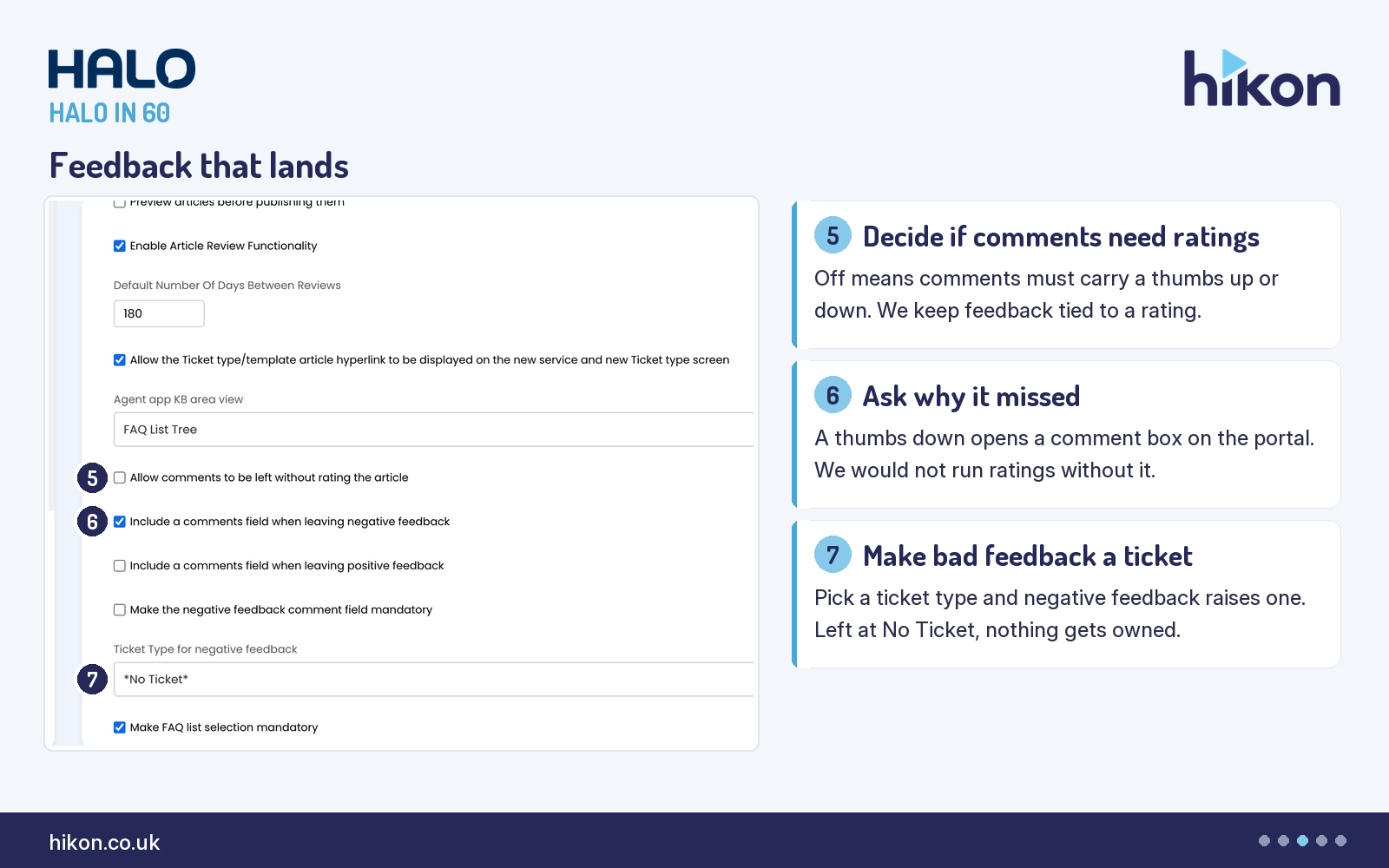
5. Allow comments to be left without rating the article
Ticked, a Leave a Comment button appears under the article and a reader can comment without giving a rating at all. Those comments are still stored, recorded against the article with a vote value of zero. Left unticked, as in the screenshot, you instead choose whether comments are collected for positive and negative feedback only, which keeps every comment attached to a signal you can actually count.
6. Include a comments field when leaving negative feedback
On the end-user portal, clicking the thumbs down at the bottom of an article opens a comments box. The guide is clear that this route is negative only: a reader can leave a comment with negative feedback, and the positive equivalent is a separate setting immediately below it. A thumbs down on its own tells you an article failed. A thumbs down with a sentence attached tells you why, and only one of those two is something a team can act on.
7. Ticket Type for negative feedback
Choose a ticket type here and negative feedback raises a ticket of that type, which gives the problem an owner, a queue and an ageing clock. Leave it at No Ticket, as this instance does, and the feedback lands in the database and waits for somebody to go looking for it. On most of the knowledge bases we are handed, this is the single setting we would change first.
Control and access
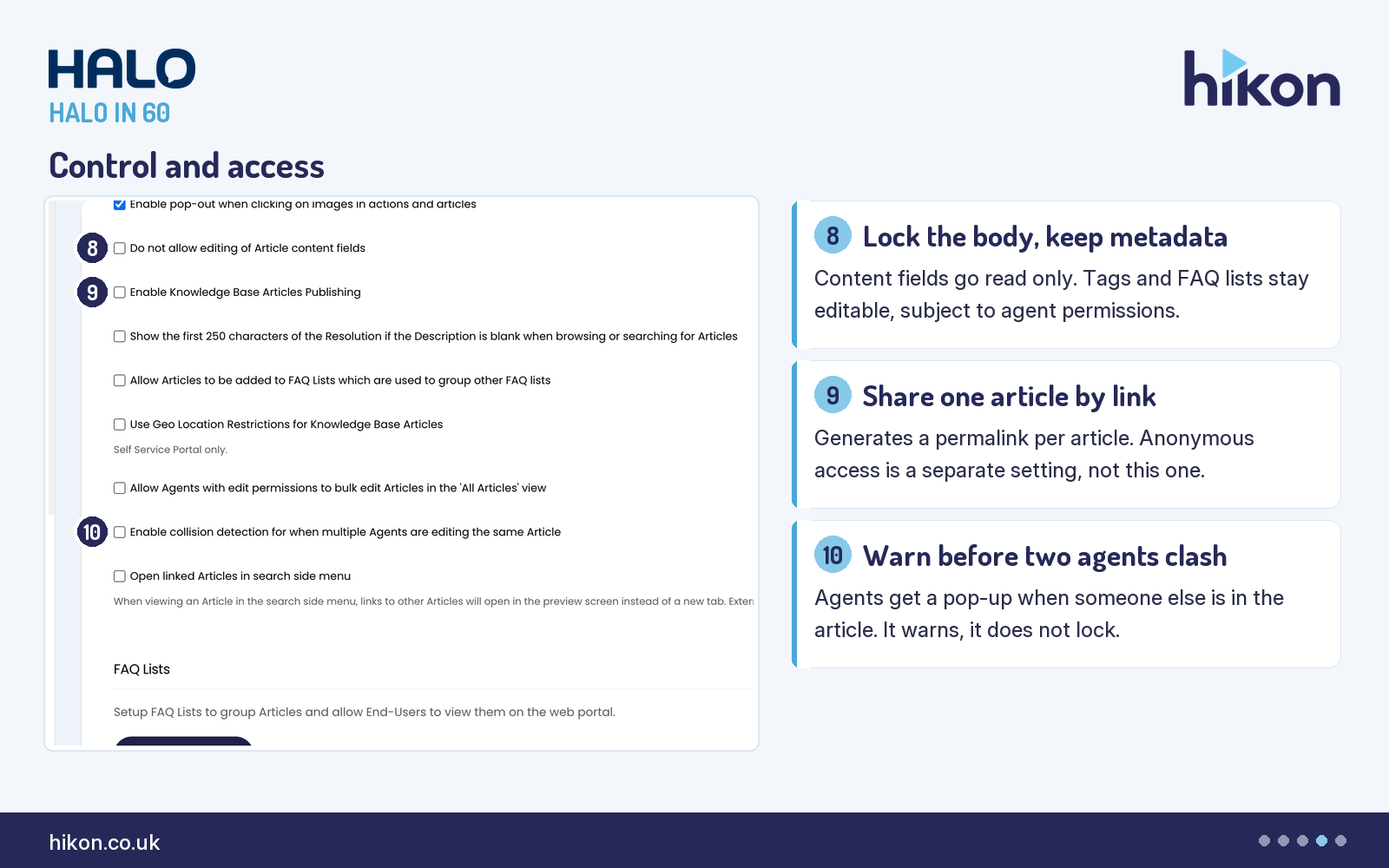
8. Do not allow editing of Article content fields
Ticked, agents keep the Edit button but cannot change the content fields. Options such as the FAQ list, related articles and tags remain editable, subject to the level of permission the agent already has. The guide names the pairing worth knowing: with versioning switched on, this is what pushes an agent into creating a new version instead of editing the current one, which is the behaviour most teams thought they were getting from versioning alone.
9. Enable Knowledge Base Articles Publishing
This adds a Publish Articles tab towards the bottom of an article in edit mode, where generating a permalink produces a shareable link to that one article; in read mode a Permalinks tab lists the links that exist, and creating a new version, where article versioning is enabled, carries them across. Note carefully what this setting does not decide. Whether somebody can open that link without signing in is governed by a separate Allow anonymous access setting, which only appears on this screen once publishing is enabled, so switching publishing on is not the same as making articles public.
10. Enable collision detection for when multiple Agents are editing the same Article
Agents get a pop-up when another agent is viewing or editing the same article, and another when the article has recently been updated. Read the behaviour precisely: it is a warning, not a lock, and nothing here stops the second agent saving over the first. On any knowledge base with more than a handful of authors the warning costs nothing and prevents the kind of quiet overwrite that nobody notices for a month.
Where teams get this wrong
Four patterns come up repeatedly. Article drafts get switched on as a single tick, without the ticket type carrying the Knowledge Base fields or the Publish Article action, and authoring appears to break rather than route. Publishing gets confused with public access, when anonymous reading is a separate setting that only appears afterwards. The review date gets read as enforcement, when it is a marker that somebody still has to act on. And collision detection gets trusted as a lock, when it only warns. There is also a quieter one: versioning is enabled, but content editing is left open, so agents carry on editing the current version and the history that versioning was bought for never accumulates.
The Articles section holds more than the ten settings above. It also decides whether tags and FAQ lists are mandatory at creation, whether the portal welcome message shows, whether an associated article appears as a hyperlink on the new service and new Ticket type screen, whether search results fall back to the first 250 characters of the resolution when the description is empty, whether agents can bulk edit from the All Articles view, and whether articles can be restricted by the reader's location on the self-service portal. Below it, the same screen continues into FAQ Lists, Article Suggestions, Article Creation, News Articles, Tags, PDF Templates, Style Profiles and Imports. Those are episodes of their own.
Need a hand?
Hikon configures HaloITSM for organisations that would rather it worked properly the first time. If you want a second pair of eyes on your Knowledge configuration, see what we do with Halo.
Vendor reference: Halo — Knowledge Base (Configuration > Knowledge Base). Screens were captured from a live instance; where the guide and the interface differ, this article follows the interface.
Enjoying this?
Talk it through with the people who wrote it — a free 20-minute call, no pitch.
Let's talk →