HALO IN 60: Configuring Tickets in HaloITSM, in three parts
Configuration > Tickets > General Settings is the screen that decides how a ticket is born, who ends up working it, and how it dies. It is also the longest screen in the Tickets module: 220 controls across thirteen sections, from the default ticket type at the top to API automation behaviour at the bottom. One carousel cannot carry that, so this episode comes in three parts, each with its own ten settings, in the order the screen presents them and the order a ticket lives them. Part 1 is logging. Part 2 is assignment and the ticket screen. Part 3 is closure, parents, children and merging. The sections that did not make a carousel are covered in prose under each part, and the terminology traps are collected at the end.
Part 1 of 3: Logging tickets
The New Ticket Settings section is 37 controls that fire in the first thirty seconds of a ticket's life: what type it gets, which organisation it lands on, how the agent finds the user, and what the new ticket screen offers by way of templates and shortcuts. Get these wrong and every ticket after them starts wrong.
Defaults
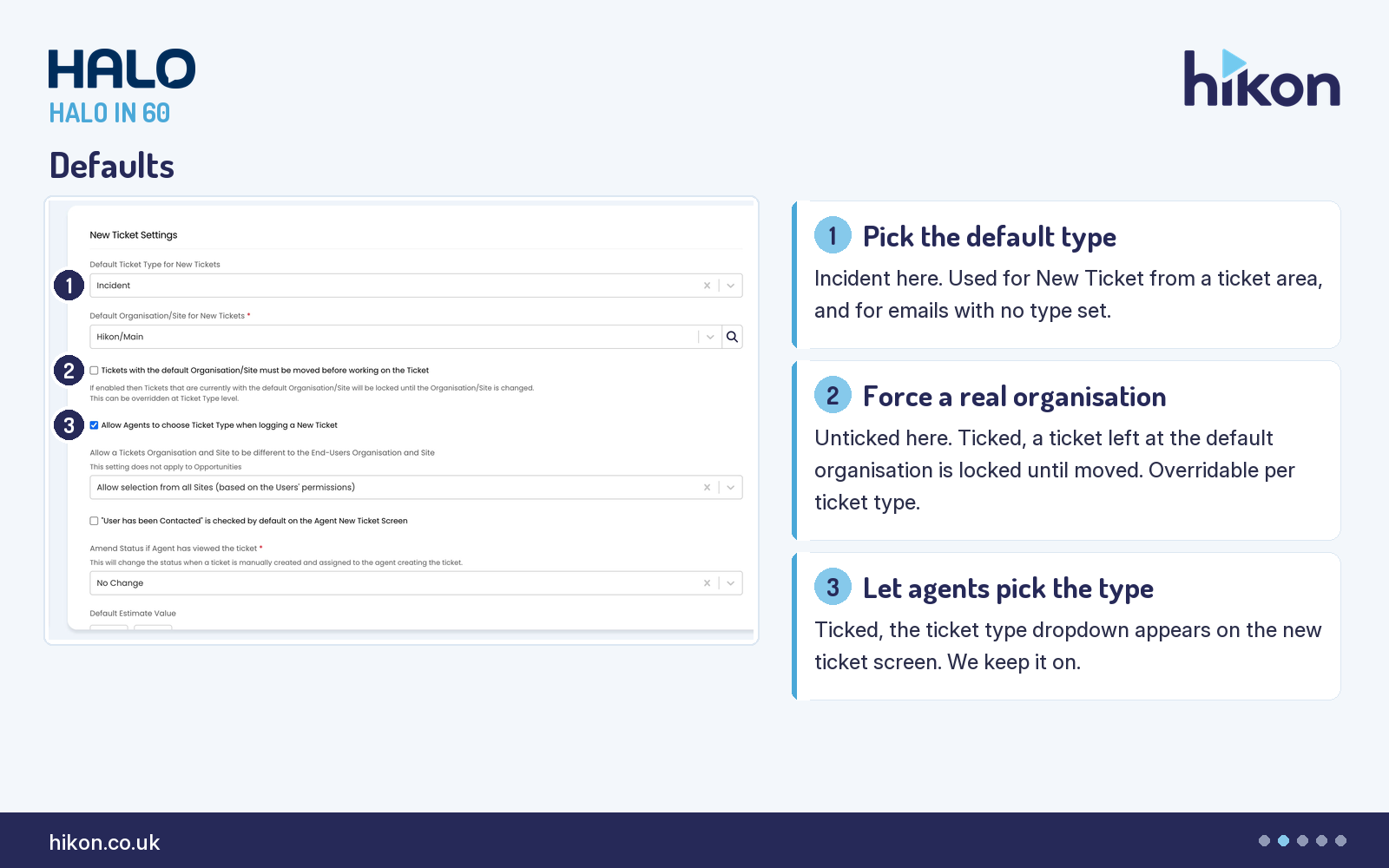
1. Default Ticket Type for New Tickets
Incident on this instance. The guide is precise about when it applies: when an agent clicks New Ticket from within a ticket area, and when an incoming email arrives with no ticket type set. So this is the type an incoming email gets when nothing else has set one, which makes it worth choosing deliberately rather than leaving at whatever the tenant shipped with.
2. Tickets with the default Organisation/Site must be moved before working on the Ticket
Unticked here. Ticked, a ticket still sitting at the default organisation and site is locked, and the guide describes a red banner asking for a valid user in place of the actions. The screen help adds that this can be overridden at ticket type level, and the guide adds that administrators see all actions regardless. It is the switch that stops tickets living at Unknown forever, and we tick it on desks that log a lot from email.
3. Allow Agents to choose Ticket Type when logging a New Ticket
Ticked here. When selected, the ticket type dropdown is present on the new ticket screen. Unticked, agents get the default and nothing else. We keep it on for any desk with more than one type, which is every desk.
Identifying the user
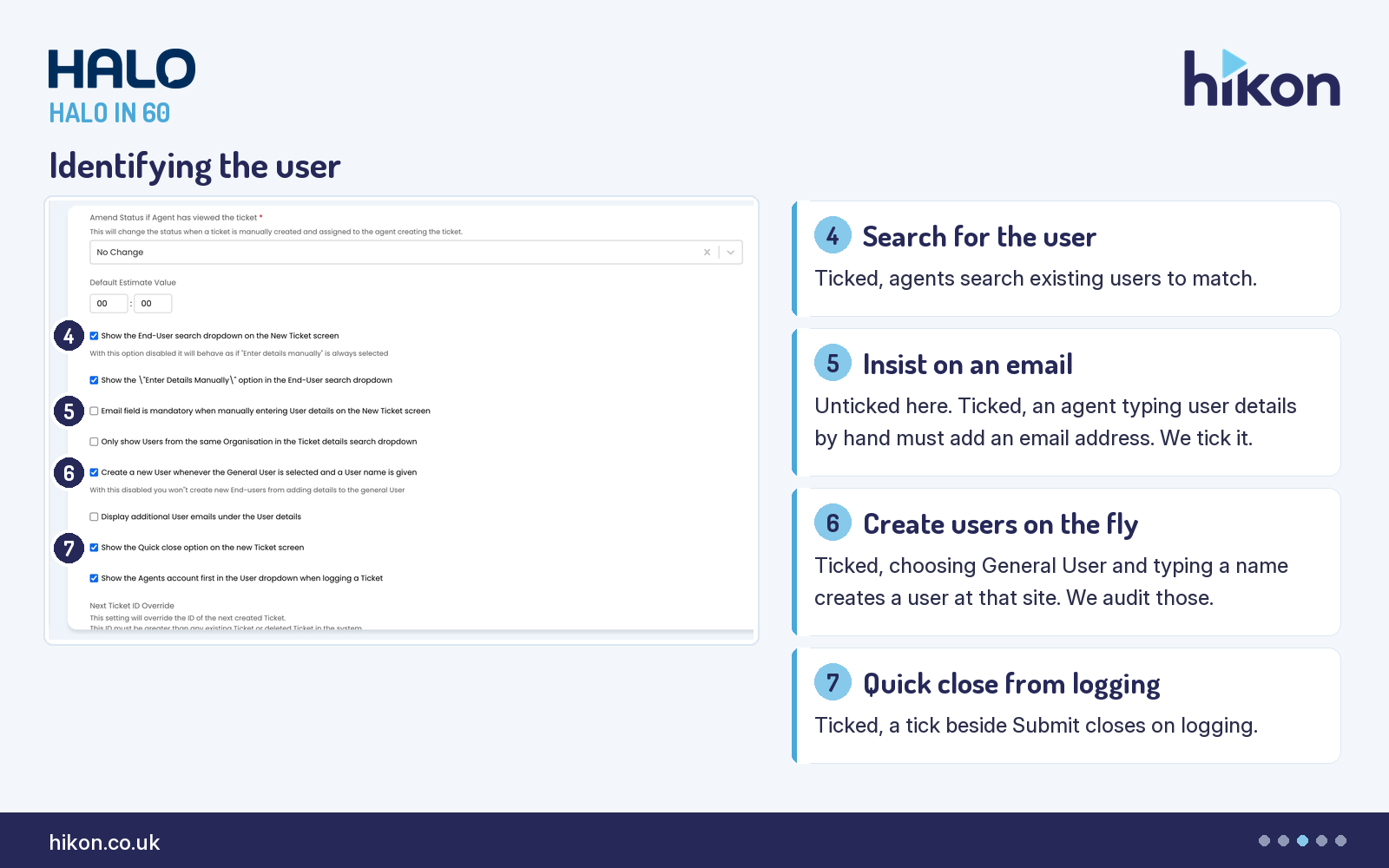
4. Show the End-User search dropdown on the New Ticket screen
Ticked here. This is the search box agents use to match a new ticket to an existing user. The screen help is blunt about the alternative: with it disabled, the screen behaves as if Enter details manually is always selected, which means every ticket is typed in by hand.
5. Email field is mandatory when manually entering User details on the New Ticket screen
Unticked here. Ticked, an agent who enters user details manually must add an email address before the ticket can be logged. Without it you collect names with no way to reach them, so we tick it wherever manual entry is allowed at all.
6. Create a new User whenever the General User is selected and a User name is given
Ticked here. When General User is selected but a name is typed elsewhere on the form, Halo creates a new user record at that site. It is convenient for walk-up desks. It also creates user records from whatever the agent typed, so we review the users it creates as part of routine housekeeping.
7. Show the Quick close option on the new Ticket screen
Ticked here. A small tick beside Submit closes the ticket as it is logged, and the closure details section expands on the new ticket screen so the agent can complete it there. The same option exists per ticket type, so you can allow it for password resets and not for changes.
Types and templates
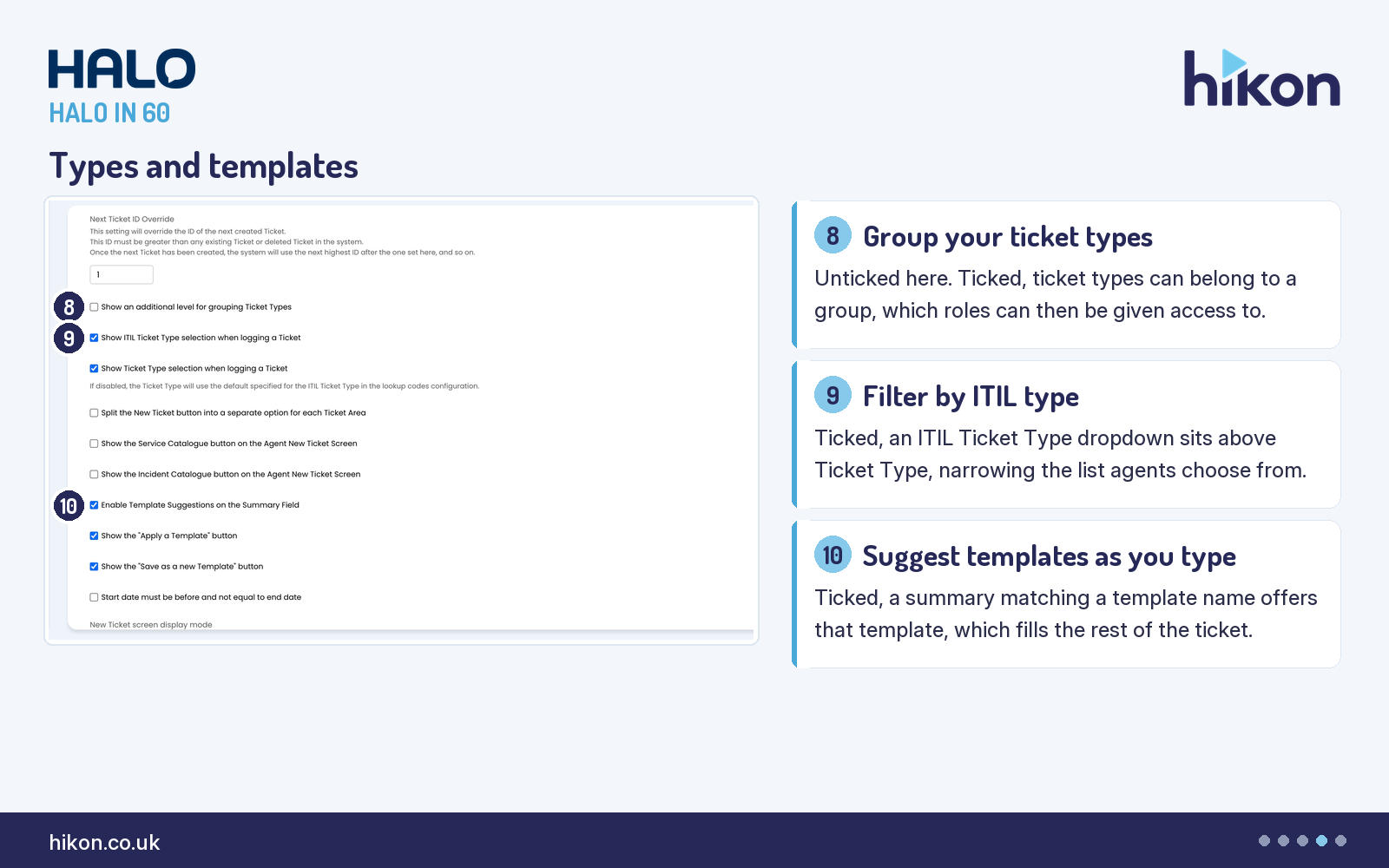
8. Show an additional level for grouping Ticket Types
Unticked here. Ticked, a ticket type can belong to a group, and the Ticket Groups guide explains the point: agent roles can be given access to a whole group, so a new ticket type inherits its access from the group instead of being added to every role by hand. The guide files this setting under Ticket Details; on the screen it sits in New Ticket Settings, and the Ticket Type Groups button the guide describes did not render because the switch is off.
9. Show ITIL Ticket Type selection when logging a Ticket
Ticked here. An ITIL Ticket Type dropdown appears above the Ticket Type dropdown on the new ticket screen, as an additional filter when agents pick a type. It pairs with Show Ticket Type selection when logging a Ticket, directly below it and also ticked here, whose help text says that if it is disabled the type falls back to the default set for the ITIL type in lookup codes.
10. Enable Template Suggestions on the Summary Field
Ticked here. As the agent types the summary, any match against an existing ticket template's name is offered, and choosing one populates the rest of the ticket. Alongside it on this instance the Apply a Template and Save as a new Template buttons are both on, which is the full template toolkit on the new ticket screen.
Also in New Ticket Settings: the default organisation and site, required and set to Hikon/Main here; the option for a ticket's organisation and site to differ from the user's, set to allow selection from all sites based on the user's permissions; the User has been Contacted default; Amend Status if Agent has viewed the ticket, set to No Change here, where the screen help describes the trigger as a ticket manually created and assigned to the agent creating it; Default Estimate Value; the Next Ticket ID Override, which must exceed every existing or deleted ticket ID; the Service Catalogue and Incident Catalogue buttons for the agent new ticket screen; the new ticket display mode; the primary and secondary attributes used when searching for a user, Organisation Name and Site Name here; three switches that add the organisation's Primary Agent, Secondary Agent or Account Manager as additional agents; and two to-do list settings carrying version notes, links on to-do items from v2.248 and enhanced to-do lists from v2.250.
Part 2 of 3: Assigning and working tickets
Assignment of Tickets is 29 controls about who gets the ticket: the automatic distribution methods, what happens on re-assignment, and how additional agents work. Co-managed Settings is two switches for co-managed agents. Ticket details is 47 controls about the ticket screen itself, and the first block of it, collision detection, belongs with assignment because it is about two agents and one ticket.
Distribution
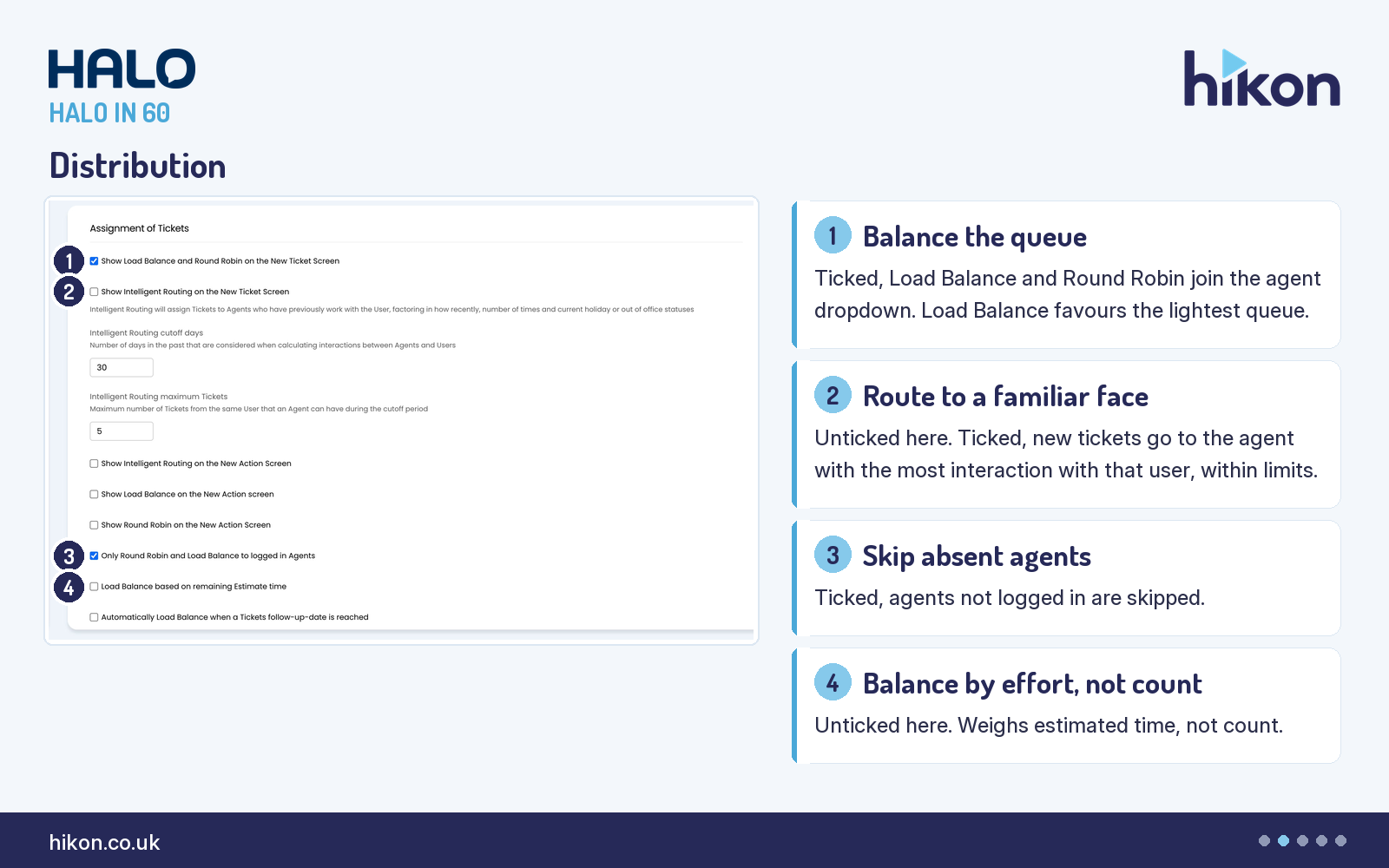
1. Show Load Balance and Round Robin on the New Ticket Screen
Ticked here. With the agent field in the ticket's field list, the agent dropdown gains two extra options. Load Balance assigns to the agent with the fewest tickets. Round Robin cycles through the team list by each agent's position in it, with, in the guide's own words, no logic behind it beyond that order. The guide also notes that load balance exclusions can be set at team, status and ticket type level.
2. Show Intelligent Routing on the New Ticket Screen
Unticked here. Ticked, a new ticket goes to the agent with the most interaction with that user, provided the interaction falls within the cut-off days and the agent holds fewer than the maximum number of that user's tickets. Both limits are the two fields directly below, 30 days and 5 tickets on this instance. If no agent has interacted with the user before, the ticket stays unassigned.
3. Only Round Robin and Load Balance to logged in Agents
Ticked here. Agents who are not logged in to Halo are not considered by load balance or round robin. The guide recommends it, because otherwise tickets are distributed to people who are not there to receive them. We have never seen a good reason to leave it off.
4. Load Balance based on remaining Estimate time
Unticked here. Ticked, load balance weighs the estimated time of each agent's existing tickets rather than counting them. The estimate comes from the Estimated Time field, defaulted from Default Estimate Value in Part 1 or per ticket type, and overridable on the ticket. It only pays off on desks that actually maintain estimates.
Re-assignment
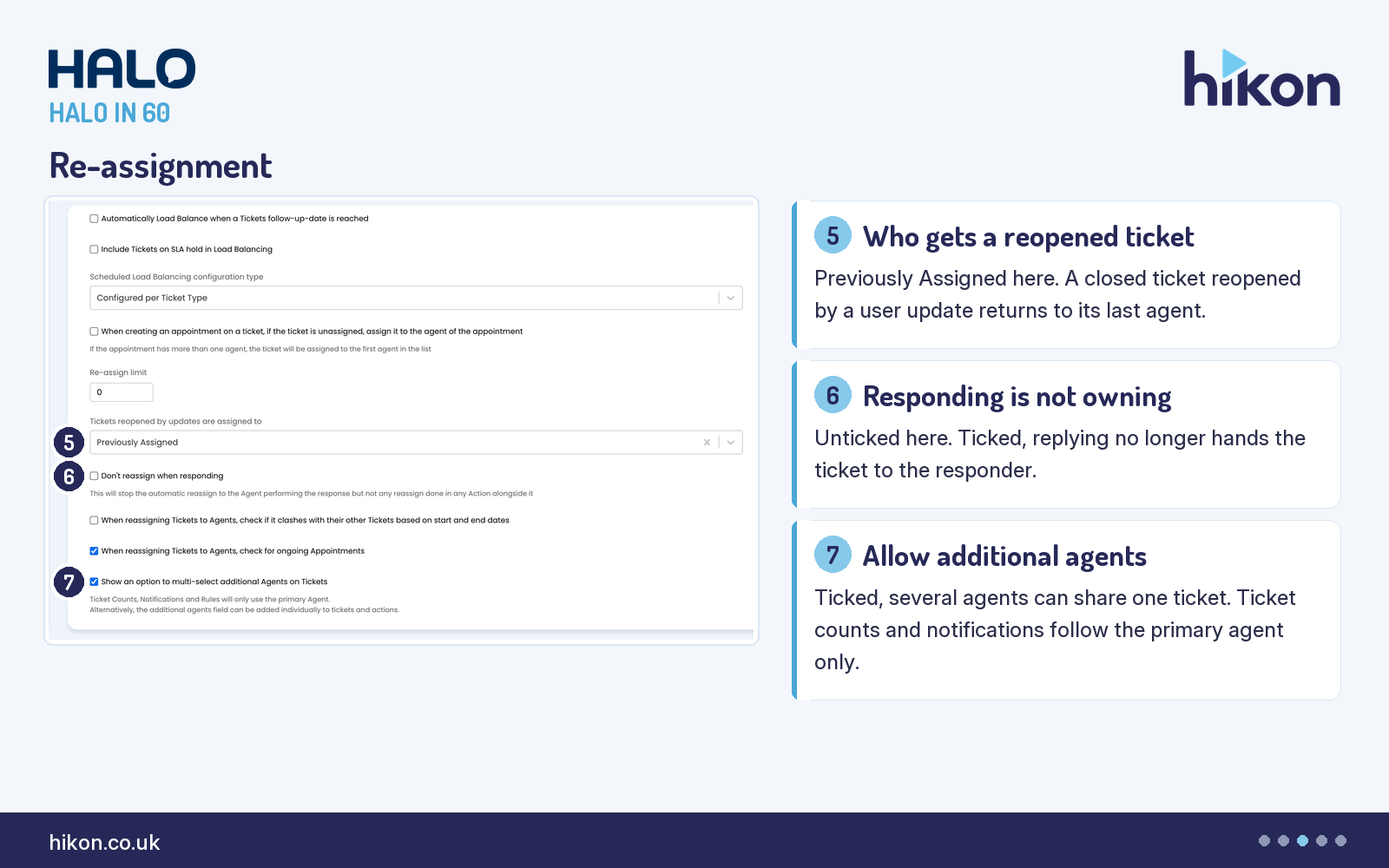
5. Tickets reopened by updates are assigned to
Previously Assigned here. When a closed ticket is reopened by a user update, this dropdown decides which agent receives it. Previously Assigned sends it back to the agent who had it, which keeps the context. The dropdown offers other methods for desks where that agent may have moved on.
6. Don't reassign when responding
Unticked here. Ticked, responding to a ticket no longer assigns it to the agent who responded. Both the guide and the screen help are careful about the boundary: any re-assignment configured on the action itself still happens. Leave it unticked and a colleague covering your queue takes ownership of every ticket they touch.
7. Show an option to multi-select additional Agents on Tickets
Ticked here. This enables multi-agent tickets. The screen help carries the caveat that matters: ticket counts, notifications and rules use the primary agent only. The dropdown directly below it, Agents to show in Additional Agents, is set to All Agents here and can be limited to the ticket's team or department.
Working the ticket
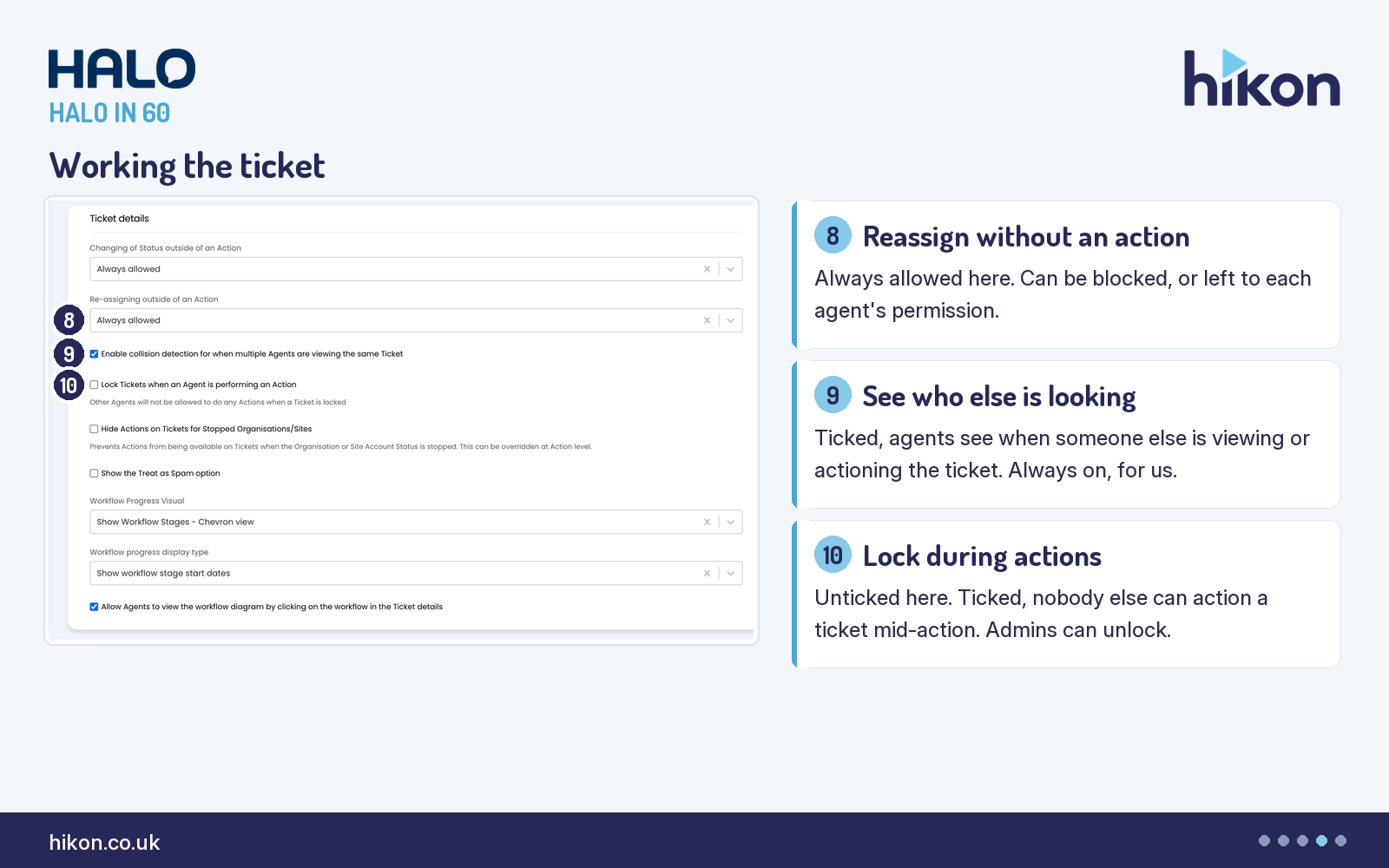
8. Re-assigning outside of an Action
Always allowed here. This dropdown governs re-assignment that does not go through an action: dragging a ticket in a list, or the agent dropdown on the ticket screen. The guide names a third option, Use Agent Level permission, which adds the choice to each agent's permissions tab. The dropdown above it does the same job for status changes.
9. Enable collision detection for when multiple Agents are viewing the same Ticket
Ticked here. When another agent is viewing a ticket, or performing an action on it, the fact is visible in a Viewing column where the column profile includes one, and in a popup on the ticket itself. The guide's label is the shorter Enable collision detection; the screen spells out the condition. We have it on everywhere.
10. Lock Tickets when an Agent is performing an Action
Unticked here. Ticked, an agent cannot perform an action on a ticket while another agent is mid-action on it. The guide makes it dependent on collision detection being enabled, and notes that administrators can unlock a ticket from its top-right menu. It is the hard version of setting 9.
Also in Assignment of Tickets: the New Action screen equivalents of Intelligent Routing, Load Balance and Round Robin, all off here and all needing the re-assign field to show agent and team fields; automatic load balancing when a follow-up date is reached, which needs Auto Release on the SLA; whether tickets on SLA hold count in load balancing; the Re-assign limit, 0 here, which disables the limit; two clash warnings on re-assignment, one against other tickets' dates and one against appointments, the second ticked here; the assign dropdown behaviour and team ordering; two agent-status mapping switches that re-assign open incidents when an agent's status changes; and the backlog check, which holds new tickets back from load balance while older tickets of the same type are unassigned. Four controls in this section are not in the guide: Scheduled Load Balancing configuration type, Show the Department a Team belongs to in assign/re-assign dropdowns, and the two Limit backlog check switches. Also in Ticket details: Hide Actions on Tickets for Stopped Organisations/Sites, the Treat as Spam option, the workflow progress visual and its chevron display type, canned text prediction, the paperclip flag, the notes and phone number switches, the template and canned text behaviours, the reply action for user actions (Email User here), the related assets column profile, and the one-time secure message link. The block between Prevent Ticket closures from setting response data and Show the contributor quality field, covering the ticket history order, private action colouring, per-channel tabs and the child ticket display mode, appears in the recording only in a scroll that did not pause; it is transcribed and documented, and none of it is on a slide.
Part 3 of 3: Closing tickets
The back half of the screen is about endings. Rules decides when ticket rules run. End-User Closure Confirmation is the process of asking the user whether the ticket is really done. Closure Procedures is the guard rails around the Closed status. Parent and Child Ticket Settings and Merging decide what happens to linked tickets when one of them ends. Internal Conversations, PDF Templates, Imports and Advanced round it off.
Closure confirmation
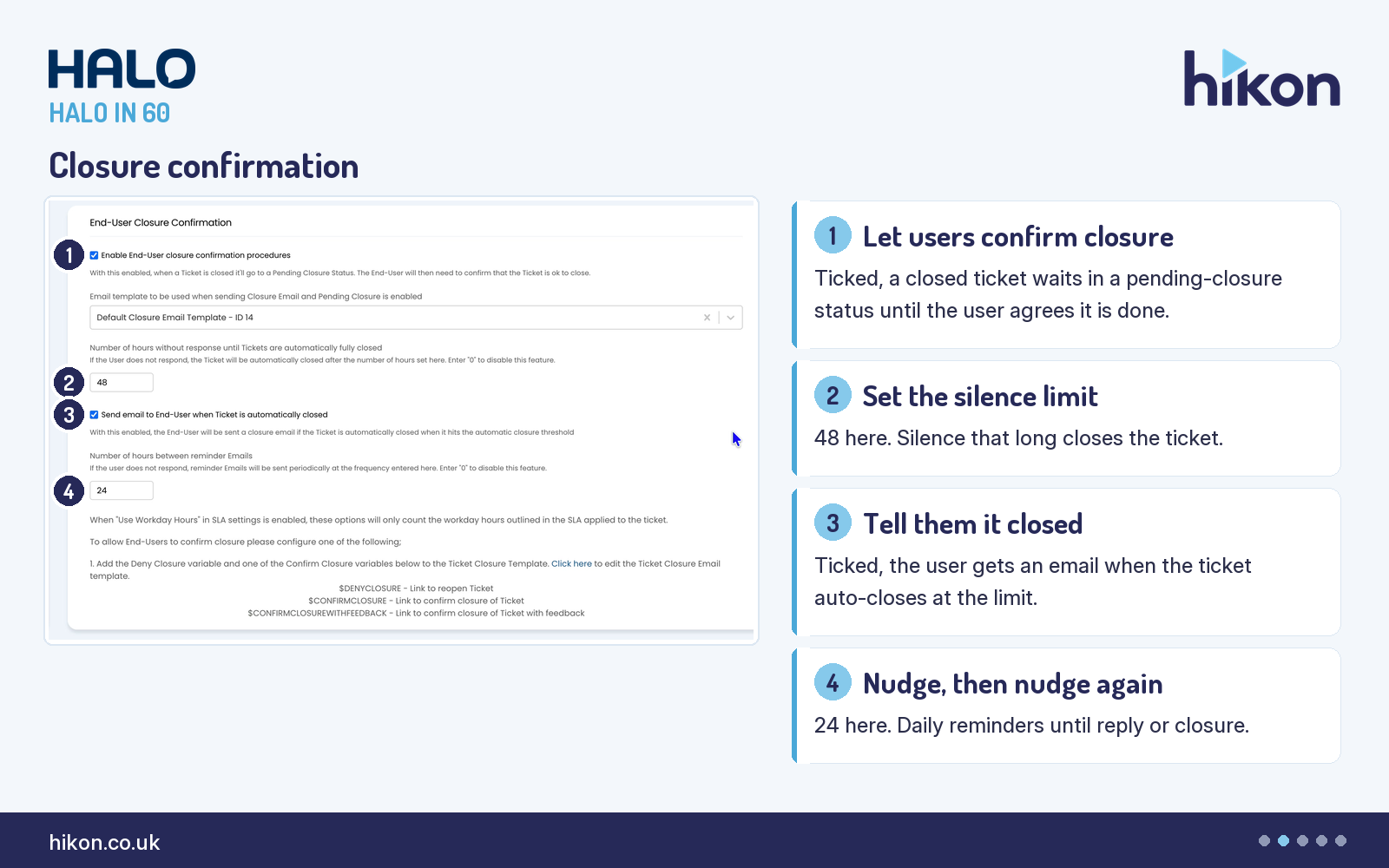
1. Enable End-User closure confirmation procedures
Ticked here. When a ticket is closed it goes to a pending-closure status and the user is asked to confirm it is resolved. The guide notes this also enables the system status Resolved, ID 8, which is that pending state. Everything else in the section hangs off this switch, including an email template dropdown that appears on the screen but not in the guide, set to the default closure template here.
2. Number of hours without response until Tickets are automatically fully closed
48 here. If the user does not respond within this many hours, the ticket is closed whether they confirmed or not. The screen help adds that 0 disables the auto-closure. 48 is two days on the calendar. Whether that is two days or several working days in practice depends on setting 7.
3. Send email to End-User when Ticket is automatically closed
Ticked here. When the auto-closure threshold is reached and the ticket closes, the user is told. Leave it off and the user's last memory of the ticket is a reminder they ignored.
4. Number of hours between reminder Emails
24 here. After the closure confirmation request goes out, reminders repeat at this interval until the user responds or the auto-closure limit is hit. 0 disables the reminders. The screen also lists the template variables the closure email needs, $DENYCLOSURE and one of the confirm variables, and links to the template.
Closure procedures
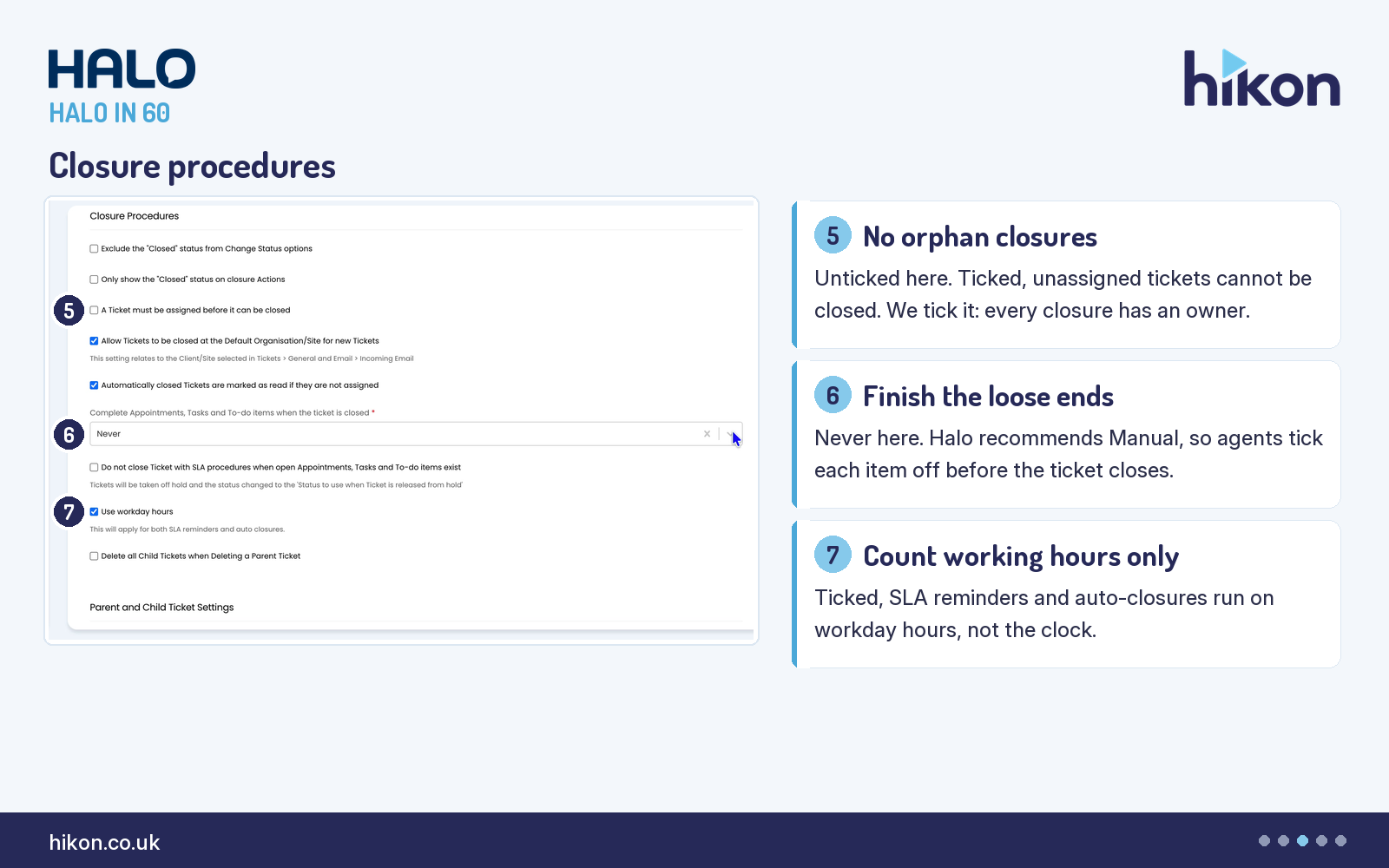
5. A Ticket must be assigned before it can be closed
Unticked here. Ticked, a ticket has to be assigned to an agent before it can be closed. We tick it, because a closure with no owner is a closure nobody can be asked about.
6. Complete Appointments, Tasks and To-do items when the ticket is closed
Never on this instance, and the field is required. The guide describes the options: Always marks every open to-do, task and appointment complete at the moment of closure, and Manual is recommended so that agents have to click through each item, which leaves an audit trail of who did. We follow the vendor's recommendation here.
7. Use workday hours
Ticked here. SLA reminders and auto-closure procedures count the workday's hours rather than 24-hour days. With it off, a 48-hour silence limit set on Friday afternoon closes tickets on Sunday. With it on, the same 48 hours stretches across several working days. Set setting 2 with this one in mind.
Parents, children, merging
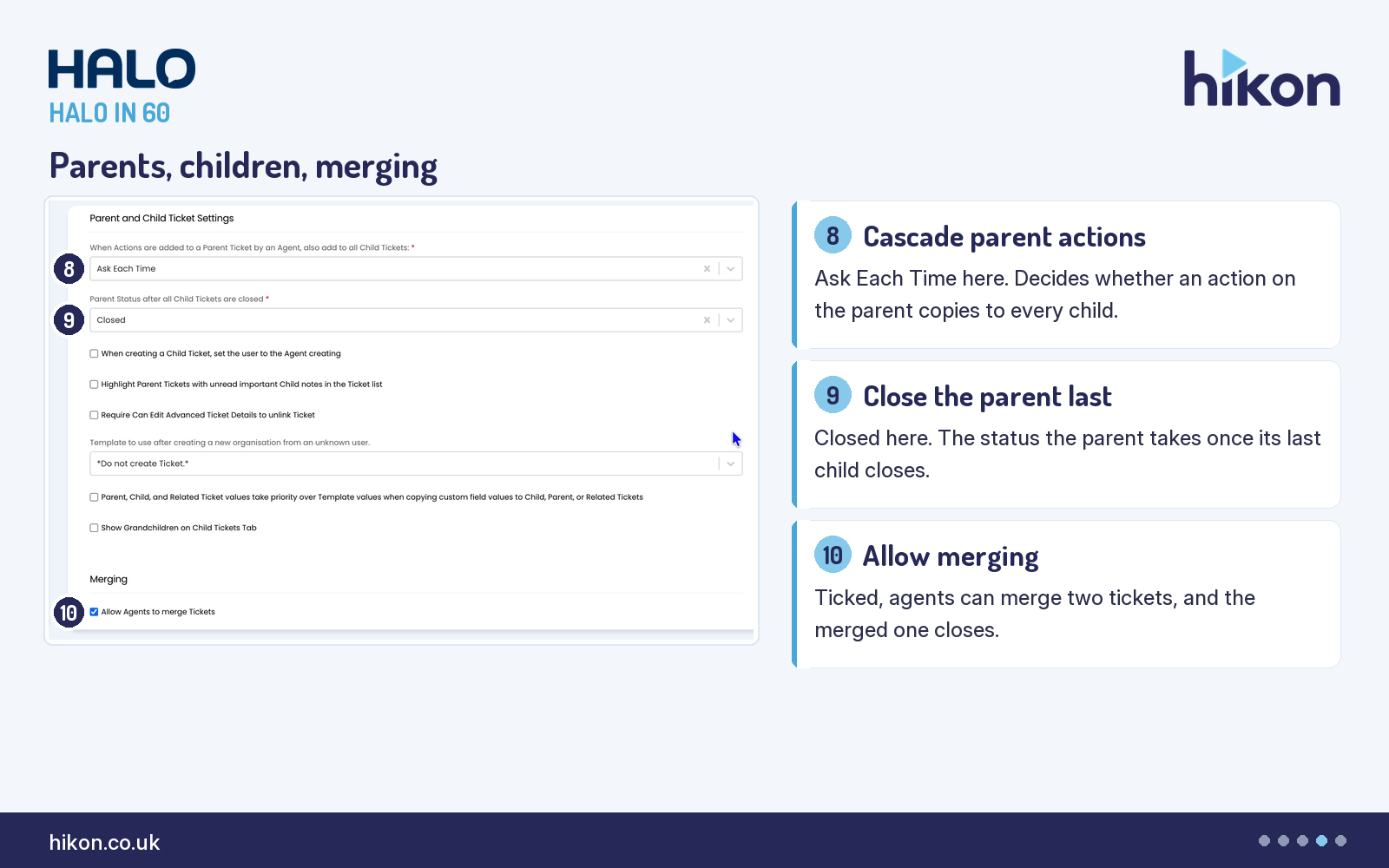
8. When Actions are added to a Parent Ticket by an Agent, also add to all Child Tickets
Ask Each Time here. This dropdown decides whether an action on a parent ticket is copied to every child. Asking each time is the safe default for desks that use parents for major incidents and for project-style work alike; a fixed answer suits desks that use them for one thing only.
9. Parent Status after all Child Tickets are closed
Closed here. When the last child closes, the parent takes this status. Closed is right when the parent exists only to group the children; a review status is right when someone should look before it disappears from the queue.
10. Allow Agents to merge Tickets
Ticked here. Agents can merge two tickets, and the merged ticket is closed. The rest of the Merging section refines it: a search screen for the target rather than typing an ID, ticked here; restricting merges to the same organisation or the same ITIL type, both off here; re-running rules after a merge; and what to do with a merged parent's children, set here to move them to the new parent.
Also in Part 3. Rules: whether rules are checked on the new ticket screen or after submit, whether they keep applying on later actions (ticked here), lookups on the new ticket screen, a mandatory ticket type criterion, re-checking on drag and drop, and descriptive Rule Applied notes. Closure Procedures: excluding Closed from the status dropdown, limiting it to closure actions, Allow Tickets to be closed at the Default Organisation/Site for new Tickets (ticked here), marking auto-closed unassigned tickets as read, holding SLA closure while linked items are open, and deleting children with their parent. Parent and Child: the child ticket's user, highlighting parents with unread child notes, the template used when an organisation is created from an unknown user, and custom field priority when copying to related tickets. Internal Conversations: two switches, both off here, for side-conversation tickets and replies to them. PDF Templates and Imports: the default print template and the two import buttons, which the screen describes as an XLS import where the guide says CSV. Advanced is 54 controls of its own: dynamic field visibility, date handling, the allowed attachment extensions list (blank here, which allows all), attachment tab behaviour, the bulk edit switches for private and public notes and SLA hold, the VIP popup, related ticket depth, the Ticket List Hover Text dropdown that the guide ties to the AI module, Sensitive Ticket restrictions, clone and inline editing controls, and the final switch on the page, which lets API automations use actions the workflow step forbids when the ticket type allows them, ticked here and new in v2.251. Four Advanced controls are not in the guide: Screen Layout Profiles, Bulk Action menu layout, Keep Tickets assigned to an Agent when removing the Agent from a Team, and Sanitise HTML when editing Rich HTML.
Where teams get this wrong
The first trap is the silence limit without workday hours. Setting 2 in Part 3 counts hours, and Use workday hours decides which hours. A desk that sets 48 and leaves workday hours off is closing tickets over the weekend; a desk that ticks workday hours and leaves 48 is waiting several working days. Neither is wrong, but they are different policies, and the screen lets you set them two sections apart without noticing.
The second is load balancing to people who are not there. Only Round Robin and Load Balance to logged in Agents is a single tick, the guide recommends it, and without it the distribution methods in Part 2 treat an agent on leave exactly like an agent at their desk.
The third is terminology. Guide 1341 is written for more than one Halo product, and in places it uses PSA words where the ITSM screen uses others: the guide's Client and Customer are the screen's Organisation. So Default Client/Site for New Tickets is Default Organisation/Site for New Tickets on screen, Only allow merging if Customer is the same is Only allow merging if Organisation is the same, and the setting the guide calls Allow Tickets to be closed at the Unknown Customer appears on screen as Allow Tickets to be closed at the Default Organisation/Site for new Tickets. Fifteen labels differ in this way or in wording, and every label in this article follows the screen. Twelve controls on the recorded screen are not in the guide at all, and thirteen documented settings did not render, most of them fields the guide makes available only when a parent switch is on.
More HALO IN 60 guides
This episode is part of an ongoing series covering one HaloITSM configuration screen at a time. Related episodes: Self Service Portal, Service Level Agreements, Asset Management, Reporting, Appointments, Notifications, Time Management, Knowledge Base and Chat.
Need a hand?
Hikon configures HaloITSM for organisations that would rather it worked properly the first time. If you want a second pair of eyes on your Tickets configuration, see what we do with Halo.
Vendor reference: Halo — Tickets General Settings. Screens were captured from a live instance; where the guide and the interface differ, this article follows the interface.
Enjoying this?
Talk it through with the people who wrote it — a free 20-minute call, no pitch.
Let's talk →