HALO IN 60: Configuring Notifications in HaloITSM
Notifications are the part of HaloITSM that decides whether anybody hears about the work. Everything that governs the basics sits on one screen, Configuration > Notifications > General Settings, and it is unusually easy to get wrong, because several of the settings the vendor guide describes do not appear until a parent setting is ticked, and two of the settings on screen are not in the guide at all. This is an episode of HALO IN 60, our series that takes one configuration screen at a time, and it covers the ten settings that decide who hears about a ticket.
Who gets notified
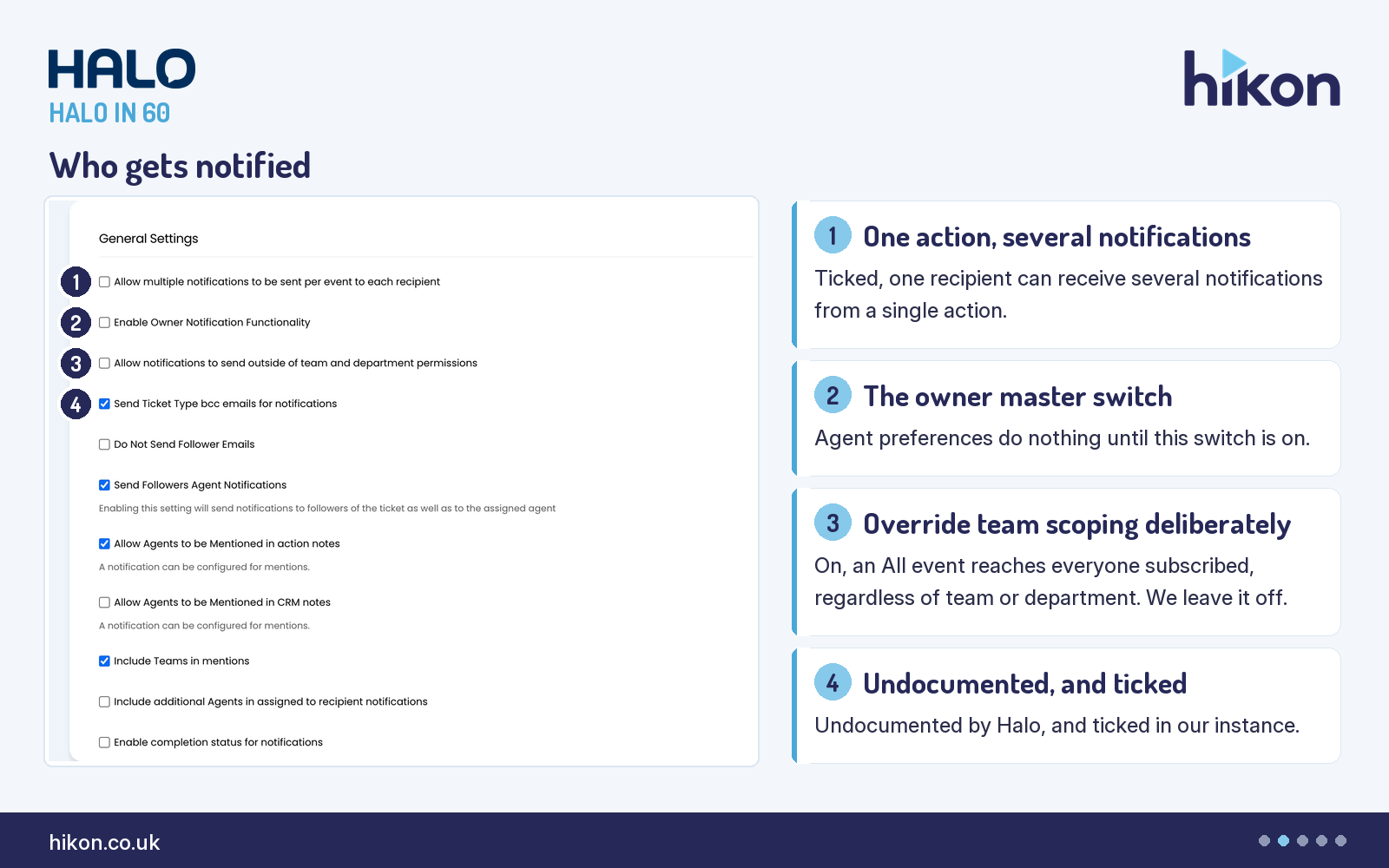
1. Allow multiple notifications to be sent per event to each recipient
Ticked, an action that triggers several notifications sends all of them to the same person rather than collapsing them into one. The guide puts it as ensuring that agents or users who should receive multiple notifications from one action actually do. Unticked, as it is on the instance recorded here, a recipient is not sent the extra copies, which is what most desks want once volumes are real. Note the label: the guide calls this field “Allow multiple notification events per Ticket to be sent at once”, while the interface reads as above, and the interface is what your administrators will be searching for.
2. Enable Owner Notification Functionality
This is the master switch for owner notifications. With it on, the agent assigned to a ticket can receive a notification each time someone completes an action on a ticket assigned to them. It is not sufficient on its own, and that is where teams lose an afternoon: the guide is explicit that the agent preference “Notify when other Agents update Tickets assigned to me” then has to be enabled for each agent it should apply to, under that agent’s own preferences. One behaviour ignores the preference entirely. Agents are notified of merges on their tickets whenever this setting is enabled, whatever the individual has chosen.
3. Allow notifications to send outside of team and department permissions
Left alone, notifications respect the team and department a ticket belongs to. Tick this and agents can be notified about tickets that are not assigned to a team or department they belong to, so an agent subscribed to an event such as “New ticket logged - All” receives all of them regardless of membership. On a five-person desk that is occasionally what you want. At any real scale it turns a targeted notification into a broadcast, so we leave it off unless there is a named reason to change it.
4. Send Ticket Type bcc emails for notifications
This setting is ticked on the instance recorded here, and it does not appear in the vendor guide at all. That is worth stating plainly rather than filling the gap with a plausible explanation. The interface offers the setting, the documentation does not describe it, and the sensible move is to confirm what it does in a test tenant before relying on it in either position. It is not the only one: “Allow Agents to toggle ‘Do not disturb’ on the notifications pane”, lower down the same screen, is also absent from the guide.
Followers and mentions
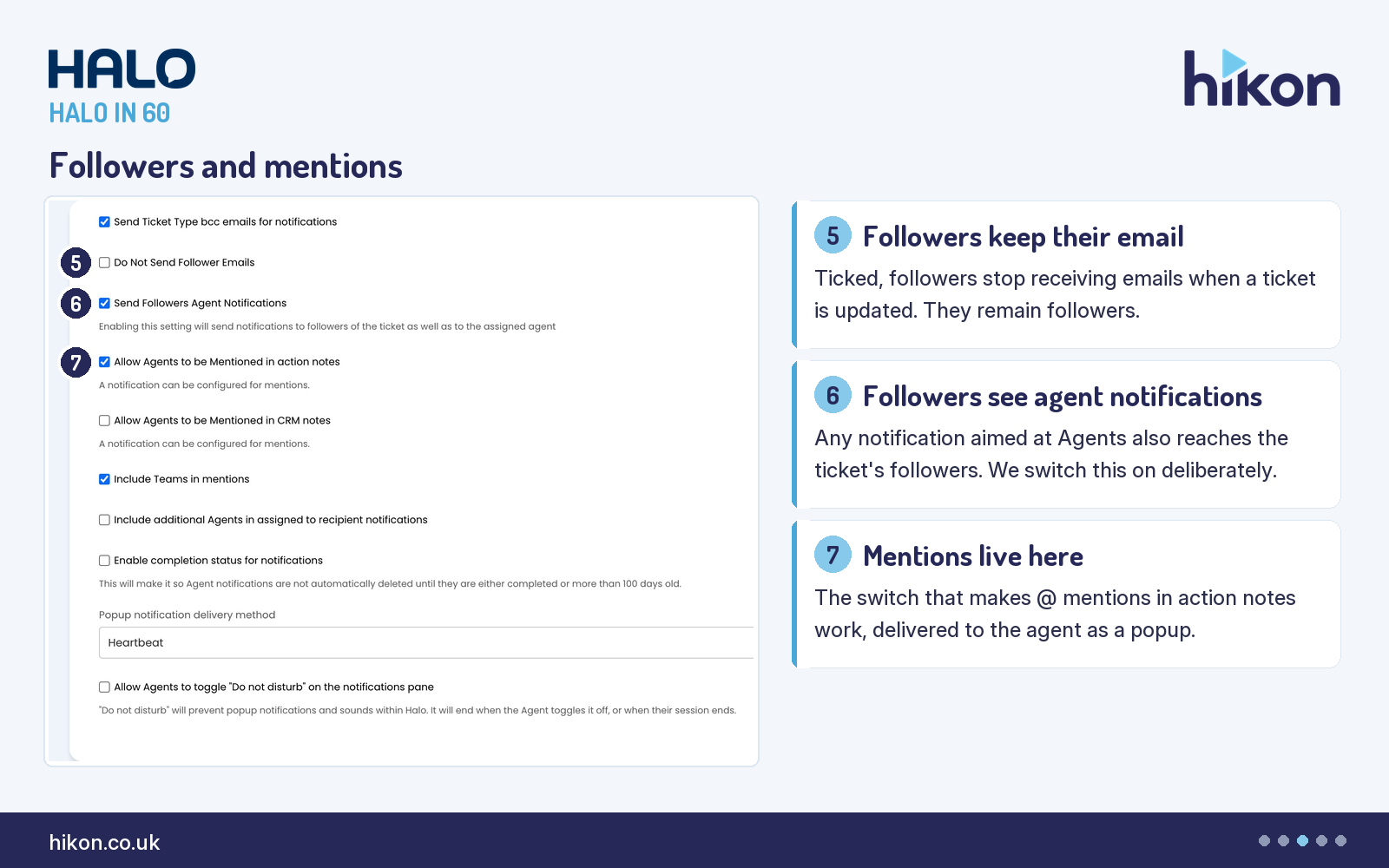
5. Do Not Send Follower Emails
Ticked, emails are not sent to followers when a ticket is updated. Read the scope carefully, because the name is broader than the behaviour: this is the follower email on update, and it does not remove anybody from a ticket or stop them following it. Ticking this and the setting immediately below it without thinking gives you a configuration that widens the audience for agent notifications while silencing the follower email, which is rarely what anyone intended.
6. Send Followers Agent Notifications
With this ticked, if a notification is set to notify agents then any followers of the ticket are notified too. The on-screen help says the same in fewer words: notifications go to followers of the ticket as well as to the assigned agent. The scope is the important part. It only affects notifications that already notify Agents, so it widens an existing audience rather than creating a new stream of its own.
7. Allow Agents to be Mentioned in action notes
This is the switch that turns mentioning on: the ability to @ someone in an action note and have them notified by popup. Nothing about mentions works until it is ticked, which is the most common reason a team concludes that @ mentions do not exist in their instance. The screen notes that a notification can be configured for mentions, so how the mention reaches people is yours to shape rather than fixed. Two siblings extend it: one adds CRM notes, the other allows whole Teams to be mentioned rather than named individuals.
Delivery and logging
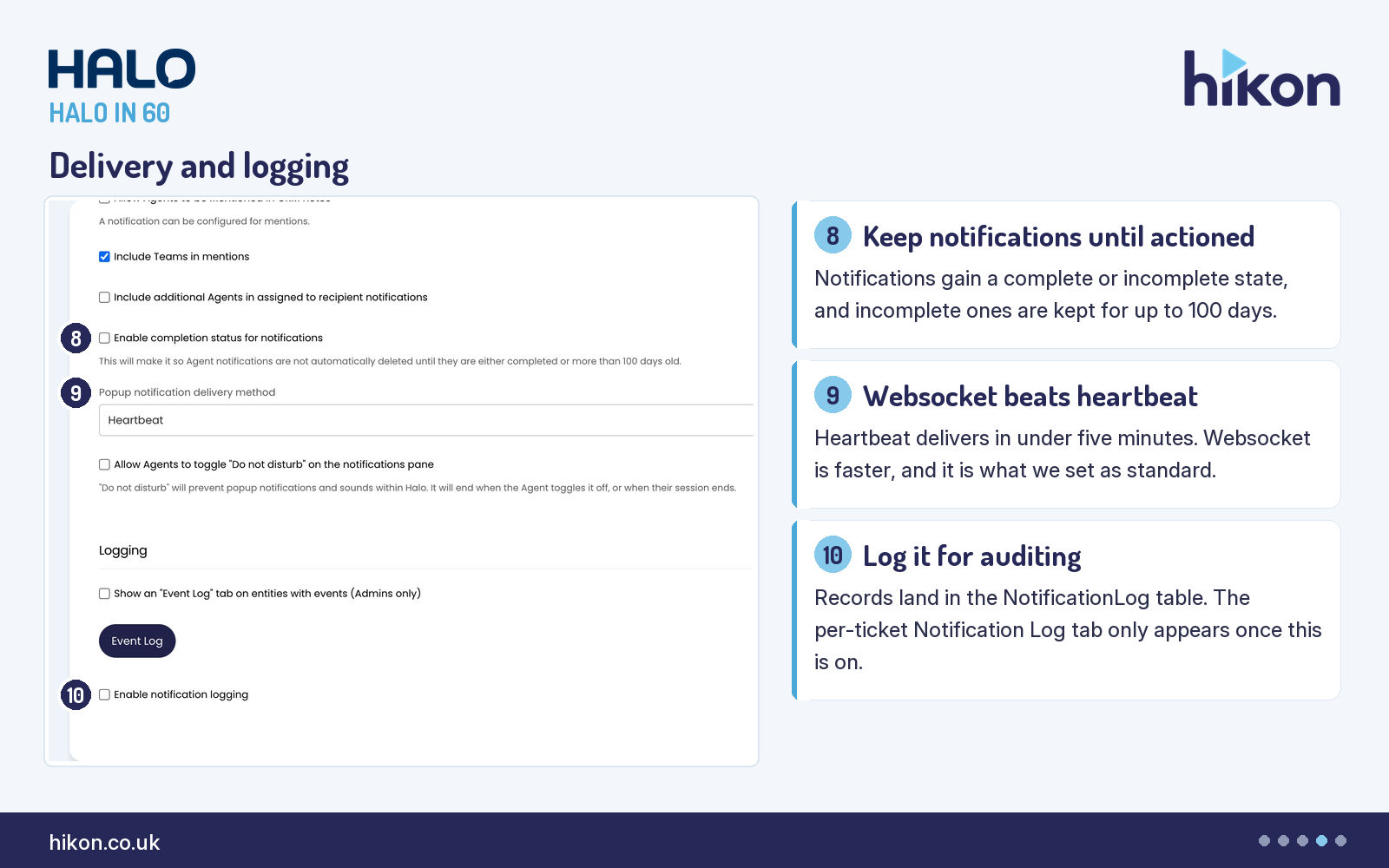
8. Enable completion status for notifications
Ticked, every notification carries a status of either incomplete or complete, toggled from the notification itself or with the complete all button in the notification pane. The consequence that matters is retention. Incomplete agent notification records stop being deleted automatically after a few days and are retained for up to 100 days instead, which is the difference between managing a notification you have read but not yet acted on and losing it. There is a dependency: the guide states that the scheduling service must be enabled to use this.
9. Popup notification delivery method
Two options, and the difference is latency. Heartbeat delivers popup notifications in under five minutes. Websocket delivers them faster than Heartbeat. The instance recorded here is on Heartbeat, which is the value we most often find in place. We set Websocket as standard, on the same reasoning we apply to chat: a delay measured in minutes is felt by the person waiting, even when nothing is technically wrong.
10. Enable notification logging
Ticked, records are added to the NotificationLog table, which the guide describes as useful for auditing. It is also a parent. “Show a ‘Notification Log’ tab on Tickets” is only available once this is enabled, and that tab is where the notifications a ticket actually triggered appear, webhooks, runbooks and system notifications such as approval process emails included. A third field then decides whether clicking an entry opens the notification’s configuration or the outbound logs for email type notifications. None of that exists until this box is ticked.
Where teams get this wrong
The dominant mistake on this screen is configuring it in the wrong order, because four of the fields the guide documents are not on the screen at all until something else is enabled. An administrator reads the documentation, looks at the screen, and concludes the documentation is wrong. Two of those four are documented as conditional: the guide states that “Show a ‘Notification Log’ tab on Tickets” is only available when notification logging is enabled, and “Screen to show when clicking a notification in the notification log” reads as belonging to the same group. The other two, “Send Owner Notification when Tickets are linked/unlinked/merged” and “Exclude API only Agents from Owner/Ticket Updated by Agent Notifications”, sit under Owner Notification functionality in the guide, and the guide does not say they are conditional. What we can say is that neither renders on the instance recorded here, where Owner Notification functionality is off. Treat that as a parent relationship to confirm in your own tenant rather than a documented rule. Either way, tick the parents first, then revisit the screen.
The second mistake is trusting the guide over the interface. The divergence runs in both directions here: the field the guide calls “Allow multiple notification events per Ticket to be sent at once” reads differently on screen, and two settings on screen, “Send Ticket Type bcc emails for notifications” and “Allow Agents to toggle ‘Do not disturb’ on the notifications pane”, are absent from the guide entirely. Configure against the screen in front of you.
Third, mentions are three settings, not one. “Allow Agents to be Mentioned in action notes” is the parent, “Allow Agents to be Mentioned in CRM notes” extends the same capability to CRM notes, and “Include Teams in mentions” allows a whole team to be mentioned instead of named individuals. On this instance the first and third are on and the second is off, which is a perfectly reasonable position, but it should be a decision rather than an accident. In the same category, “Include additional Agents in assigned to recipient notifications” decides whether additional assignees receive the notifications configured for the “Assigned To” agent, and it is off here.
Fourth, the most useful control on the screen is not a setting. The Event Log button opens the view of notification attempts, past, pending, failed and queued, and each attempt can be opened to see its timestamp, its API request payload and how many emails were sent from it. When somebody reports that a notification never arrived, that is where the answer is, and nothing has to be enabled first. Its neighbour “Show an ‘Event Log’ tab on entities with events (Admins only)” is a different thing worth knowing about: it adds a tab inside the ticket that logs each event that has occurred on it, visible only to agents marked as administrators.
Finally, remember that agents can be given a way to silence themselves. “Allow Agents to toggle ‘Do not disturb’ on the notifications pane” lets an agent stop popup notifications and sounds within Halo, and the screen states it ends when the agent toggles it off or when their session ends. That is a reasonable thing to offer a team, provided everyone understands that a quiet agent may be a configured agent rather than an idle one.
Need a hand?
Hikon configures HaloITSM for organisations that would rather it worked properly the first time. If you want a second pair of eyes on your Notifications configuration, see our Halo services.
Vendor reference: Halo guide: Notifications General Settings. Screens were captured from a live instance; where the guide and the interface differ, this article follows the interface.
Enjoying this?
Talk it through with the people who wrote it — a free 20-minute call, no pitch.
Let's talk →