HALO IN 60: Configuring Asset Management in HaloITSM
Every other Halo configuration screen shapes how work flows. Configuration > Asset Management > General Settings shapes something harder to repair: whether the record in front of you is the only record of that thing. Sixty-three controls sit on this one screen. Ten of them decide whether your CMDB is a record or a rumour, and they follow the life of an asset in the order the screen itself presents them — how it gets its identity, who can see and find it, and what happens when an import arrives claiming to be it.
Asset identity
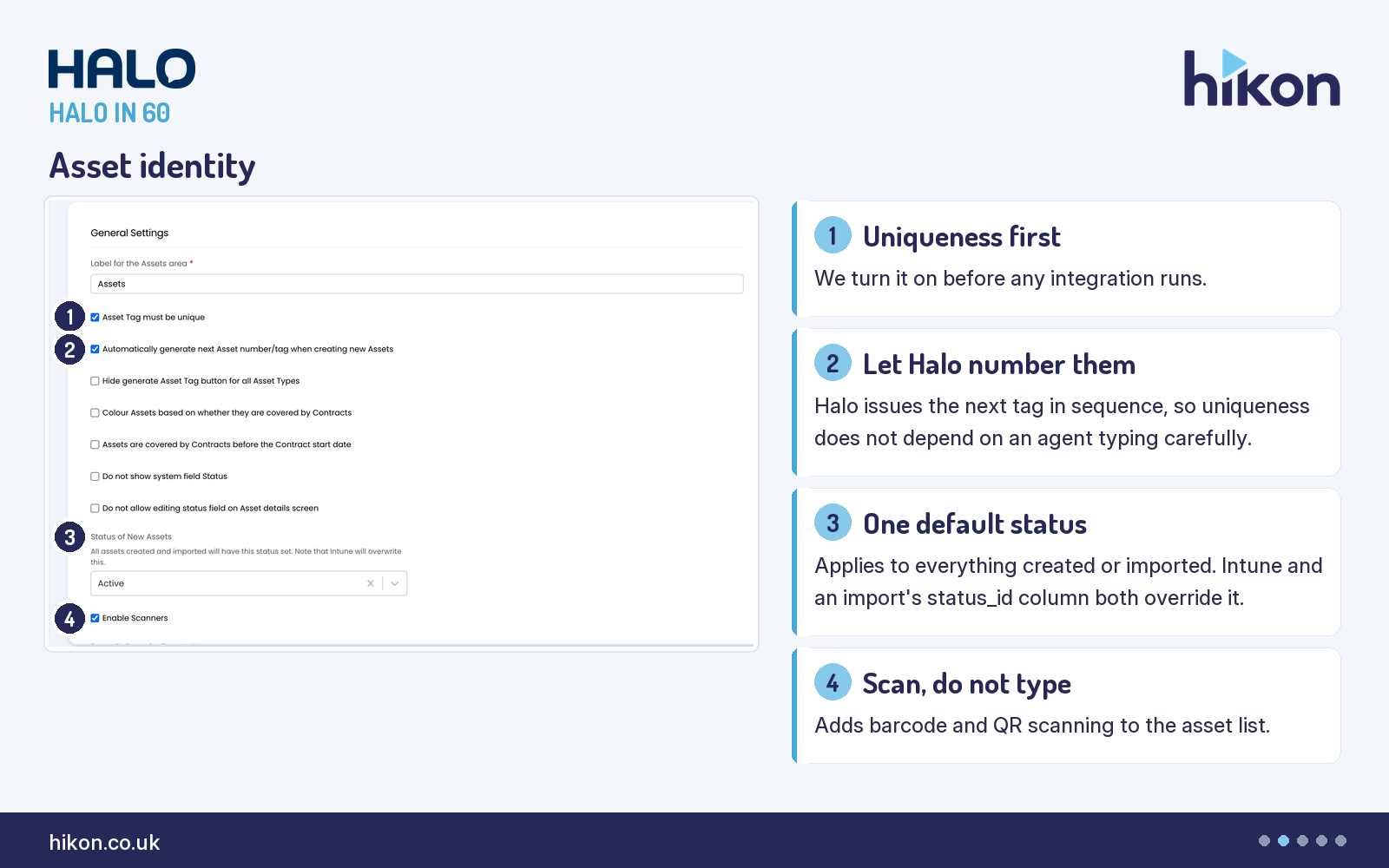
1. Asset Tag must be unique
Ticked, the asset tag becomes the tenant's real primary key. Halo's guide is explicit about the consequence: any asset imported manually or through an asset integration must carry a unique tag, or the import throws the error "Asset tag must be unique". Enable it before you connect anything, because switching it on afterwards means reconciling whatever duplicates arrived in the meantime. One version note worth knowing: from version 2.242 the guide states that duplicate tags are allowed where the existing asset is inactive, so retired kit no longer blocks a tag from being reused.
2. Automatically generate next Asset number/tag when creating new Assets
This gives each new asset the next tag in the sequence rather than waiting for an agent to invent one. It is the natural partner to the setting above: uniqueness enforced without generation just moves the problem to whoever is typing. If you want the opposite behaviour on purpose, the screen carries "Hide generate Asset Tag button for all Asset Types", which hides the Generate button across every asset type and requires a tag to be entered by hand.
3. Status of New Assets
One default status, applied to everything created or imported, including assets arriving through integrations. On the recorded instance it is set to Active. Two documented overrides matter more than the setting itself: the guide notes that the Intune integration will overwrite it, and that a status_id column on an import spreadsheet will overwrite it too where status IDs have been set on the rows. So treat this as the default for assets nobody else has an opinion about, not as a guarantee.
4. Enable Scanners
The cheapest accuracy win on the screen, and the one most often left off because nobody knew it was there. Enabled, the asset list's ellipsis menu offers scan Barcode and scan QR code, which open the device camera and drop you on the new asset screen. It also unlocks "Barcode Decoder Type to Use" directly beneath it, which chooses the decoder applied to scanned barcodes and is set to All here.
Access and display
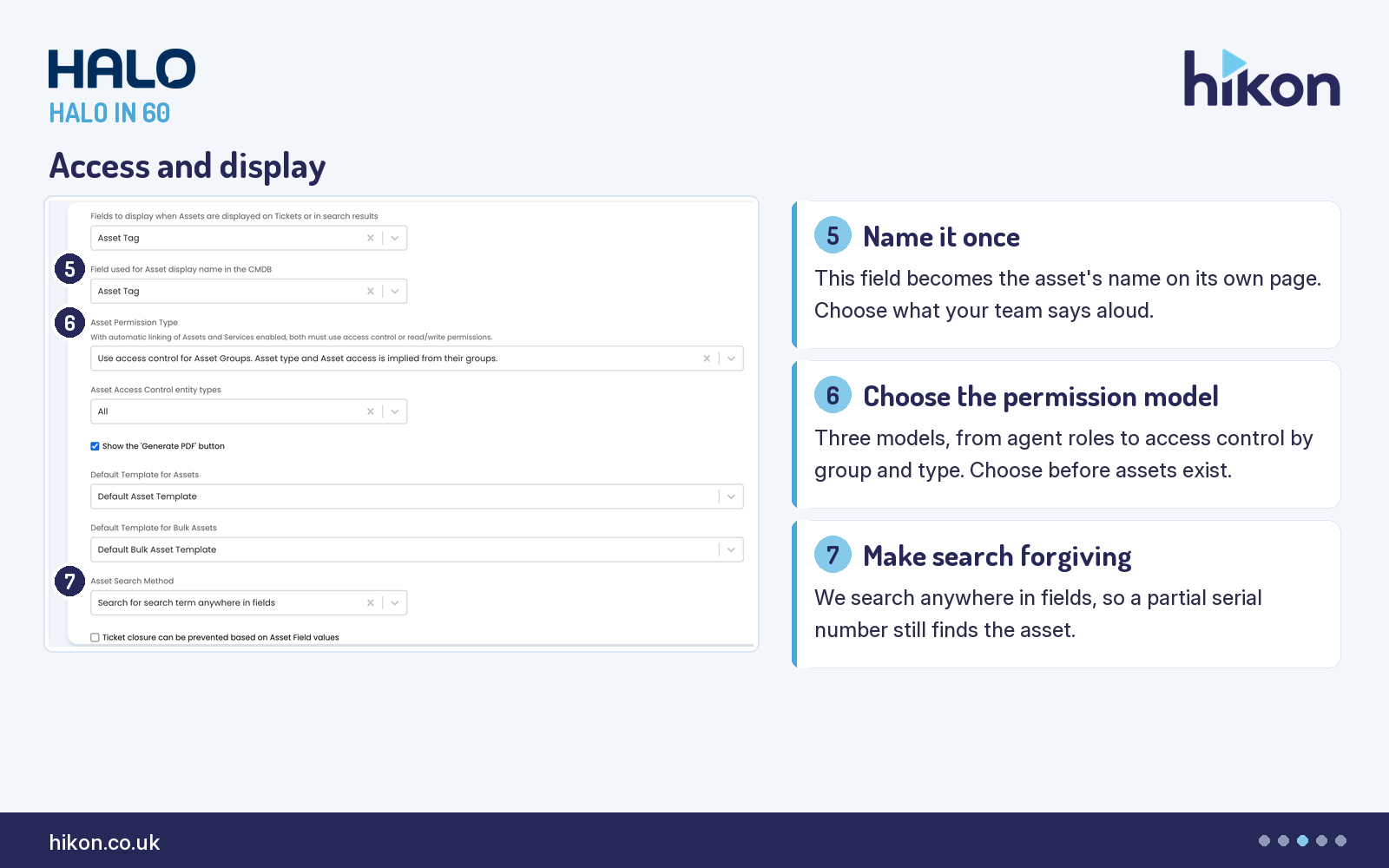
5. Field used for Asset display name in the CMDB
This single choice determines the tag or field used as the asset's display name on the Asset page. It is set to Asset Tag here, which is the right answer when tags are generated and unique, and the wrong one when your team refers to machines by hostname or serial. Pick the field people actually say out loud, because this is the name they will search for and read back over the phone. Its neighbour, "Fields to display when Assets are displayed on Tickets or in search results", controls the supporting detail shown in ticket panels and search results.
6. Asset Permission Type
The most structural setting on the screen. It selects the whole permission model from three options: read/write permissions determined by the agent's profile or role; access control on asset groups, with asset type and asset access implied from the group; or access control on groups and types together, where group access is required to see the group in lists and asset access is implied from its type. The recorded instance uses the middle option. Choose deliberately and early — changing the model later changes who can see every asset in the system, and the on-screen help adds a coupling worth reading twice: with automatic linking of Assets and Services enabled, both must use access control or read/write permissions.
7. Asset Search Method
This determines the method used when searching for assets, and it is set to "Search for search term anywhere in fields" on the recorded instance. That is the forgiving option, and forgiving is what you want when an agent is reading half a serial number off a sticker under a desk. Halo's guide does not enumerate the alternatives, so check the dropdown on your own tenant rather than assuming the default matches this one.
Import matching
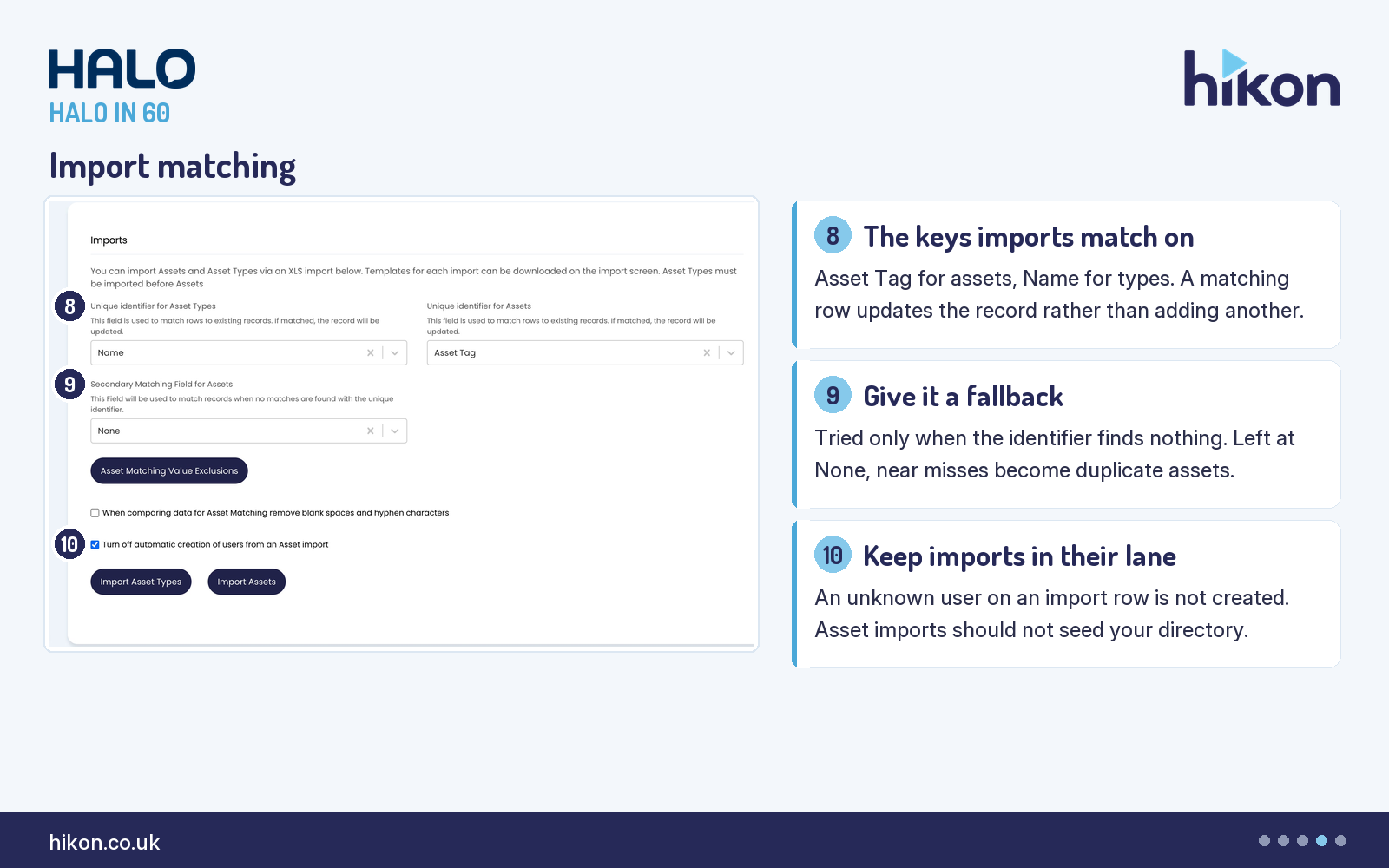
8. Unique identifier for Assets
This field is used to match import rows to existing records, and where a row matches, the record is updated. Where it does not, you get a new asset. That is the entire difference between an import that maintains the CMDB and an import that doubles it. It is set to Asset Tag here, which is consistent with tags being generated and enforced as unique. The equivalent field for asset types sits beside it, set to Name, and the screen itself is explicit that asset types must be imported before assets.
9. Secondary Matching Field for Assets
The fallback, used to match records when no match is found with the unique identifier. It is set to None on the recorded instance, which means a row that misses on asset tag becomes a new asset with no second attempt. Serial number is the usual second key. Two companion controls make the fallback safer: "Asset Matching Value Exclusions" lets you list values that must never count as a match — the guide's own example is a serial number that some integrations return as "None", which would otherwise collapse many assets into one; and "When comparing data for Asset Matching remove blank spaces and hyphen characters" normalises punctuation before comparing.
10. Turn off automatic creation of users from an Asset import
Ticked, an import row naming a user who is not already in the system will not create that user. Leave it off and an asset spreadsheet quietly becomes a source of truth for your user directory, which is rarely what anyone intended. It is a small setting with a large blast radius, and it belongs on the same checklist as the two above it.
Where teams get this wrong
The setting most likely to cause a bad afternoon is not on the carousel, because it cannot be honestly compressed onto a slide. "Allow automatic linking of Assets and Services", in the Asset-Service Relationships section, allows an asset and its service to be managed as one entity. Halo's guide sets three conditions around it: at least one asset type must be specified as either a service or a business application and linked to a service category; if you use access control for either assets or services, enabling this turns access control on for the other entity as well; and, unusually direct for vendor documentation, only enable this if advised by your consultant. That second condition is the one that surprises people, because it reaches back and changes the meaning of the Asset Permission Type you chose earlier. Two more traps sit nearby. "Allow merging of Assets" adds a Merge Asset button, but merging only fills fields that are empty on the target, moves linked records across, and does not merge relationships at all, so the source asset's populated fields are lost rather than combined. And "Organisation-Site-Asset Relationship", set here so that an asset's organisation is implied from its site, is only worth changing if your sites genuinely belong to more than one organisation.
One documentation note, because it will trip you up while you read along. Halo's General Settings guide is served in a single version whose wording follows the PSA product: it says Agreements where the ITSM interface says Contracts, Clients where the interface says Organisations, and Service Catalogue where the interface says Services. The behaviour described is the same. Where the guide and the screen disagree on a label, trust the screen.
More HALO IN 60 guides
This episode is part of an ongoing series covering one HaloITSM configuration screen at a time. Related episodes: Chat, Knowledge Base, Notifications and Time Management.
Need a hand?
Hikon configures HaloITSM for organisations that would rather it worked properly the first time. If you want a second pair of eyes on your Asset Management configuration, see what we do with Halo.
Vendor reference: Halo — Asset Management. Screens were captured from a live instance; where the guide and the interface differ, this article follows the interface.
Enjoying this?
Talk it through with the people who wrote it — a free 20-minute call, no pitch.
Let's talk →