HALO IN 60: Configuring Appointments in HaloITSM
Appointments are where a service desk's calendar meets its SLA clock, and almost everything that governs the relationship sits on one screen: Configuration > Calendars and Appointments > General Settings. It is a long screen, roughly half of it is not in the vendor guide at all, and three of the settings at the top only make sense as a set rather than individually. This is an episode of HALO IN 60, our series that takes one configuration screen at a time, and it covers the ten settings that decide how an appointment touches a ticket.
SLA holds and slots
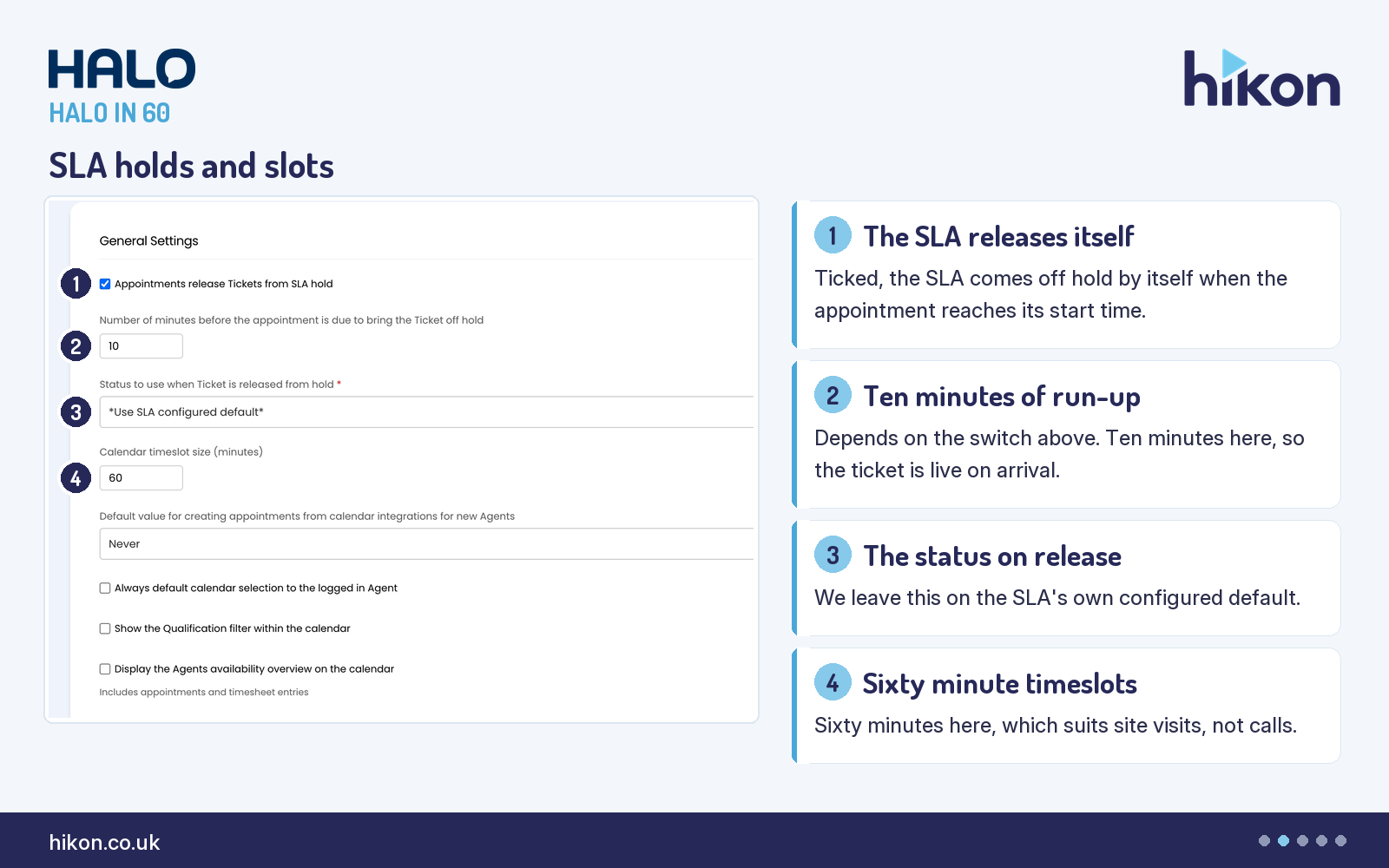
1. Appointments release Tickets from SLA hold
Ticked on the instance recorded here. The guide is precise about the trigger: if selected, when appointments are started, meaning they reach their start time, the SLA will auto release. What that buys you is that nobody has to remember. A ticket parked on hold for a Thursday site visit comes back to life on Thursday, whether or not the agent who parked it is at their desk that morning.
2. Number of minutes before the appointment is due to bring the Ticket off hold
Set to 10 here. It decides the number of minutes before the scheduled appointment that the ticket is taken off SLA hold, so the ticket is already running by the time the agent opens it. The guide states that it depends on "Appointments release Tickets from SLA hold" being enabled, and that dependency is the order to configure this trio in: the parent switch first, then the run-up, then the status.
3. Status to use when Ticket is released from hold
Marked mandatory on screen, and set to *Use SLA configured default* here. It chooses the status the ticket changes to when it is released from SLA hold because of a scheduled appointment, and it carries the same stated dependency on the parent switch. Leaving it on the SLA's own default is the position we prefer. The SLA already knows which of its statuses counts as working time, and overriding it here creates a second place to look when somebody asks why a ticket is in the state it is in.
4. Calendar timeslot size (minutes)
Sixty here. The guide describes it as the default timeslot size to give on the calendar, which is the grid the calendar offers when somebody books. Sixty suits a desk whose appointments are site visits and longer pieces of work. A team booking fifteen minute callbacks will find an hourly grid quietly wrong all day, and of everything on this screen, this is the setting most worth matching to how your team actually books.
Invites and completion
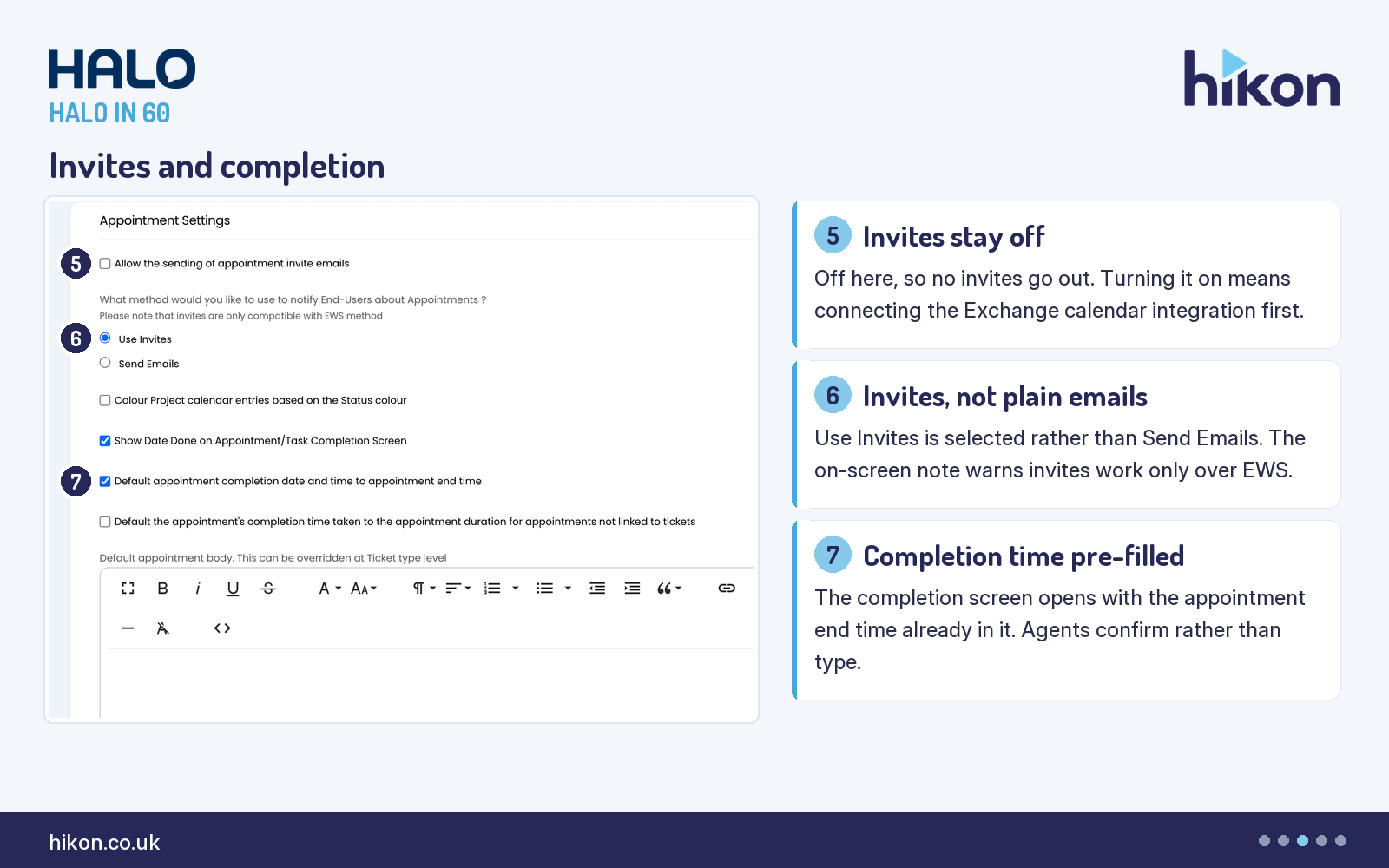
5. Allow the sending of appointment invite emails
Unticked here, so no invites go out when an appointment is created. When enabled, appointment invites can be sent to appointment attendees via Exchange, and the guide links its Exchange Calendar integration page beside the field for exactly that reason. This is not a switch to flip hopefully. Without the Exchange connection behind it there is nothing for the setting to send through, and the symptom is silence rather than an error.
6. What method would you like to use to notify End-Users about Appointments ?
That is the label the interface gives it; the guide files the same field as "Use Invites or Send Emails". Two options, and Use Invites is selected here. The guide frames the field as choosing how appointment attendees are notified. The constraint is on the screen rather than in the guide, in grey text most people scroll past: "Please note that invites are only compatible with EWS method". If your Exchange connection runs over the Graph API rather than EWS, invites are not the option available to you, whatever the radio button says.
7. Default appointment completion date and time to appointment end time
Ticked here. When selected, the completion date and time shown on the completion screen is automatically updated to the same date and time as the appointment end time. It is a default rather than a lock, so an agent completing an hour late can still correct it, and the point is that the common case costs nobody any typing. Its neighbour "Show Date Done on Appointment/Task Completion Screen" is ticked here as well, and the guide describes that one as making the date and time an action was done visible on the completion screen.
Ticket settings
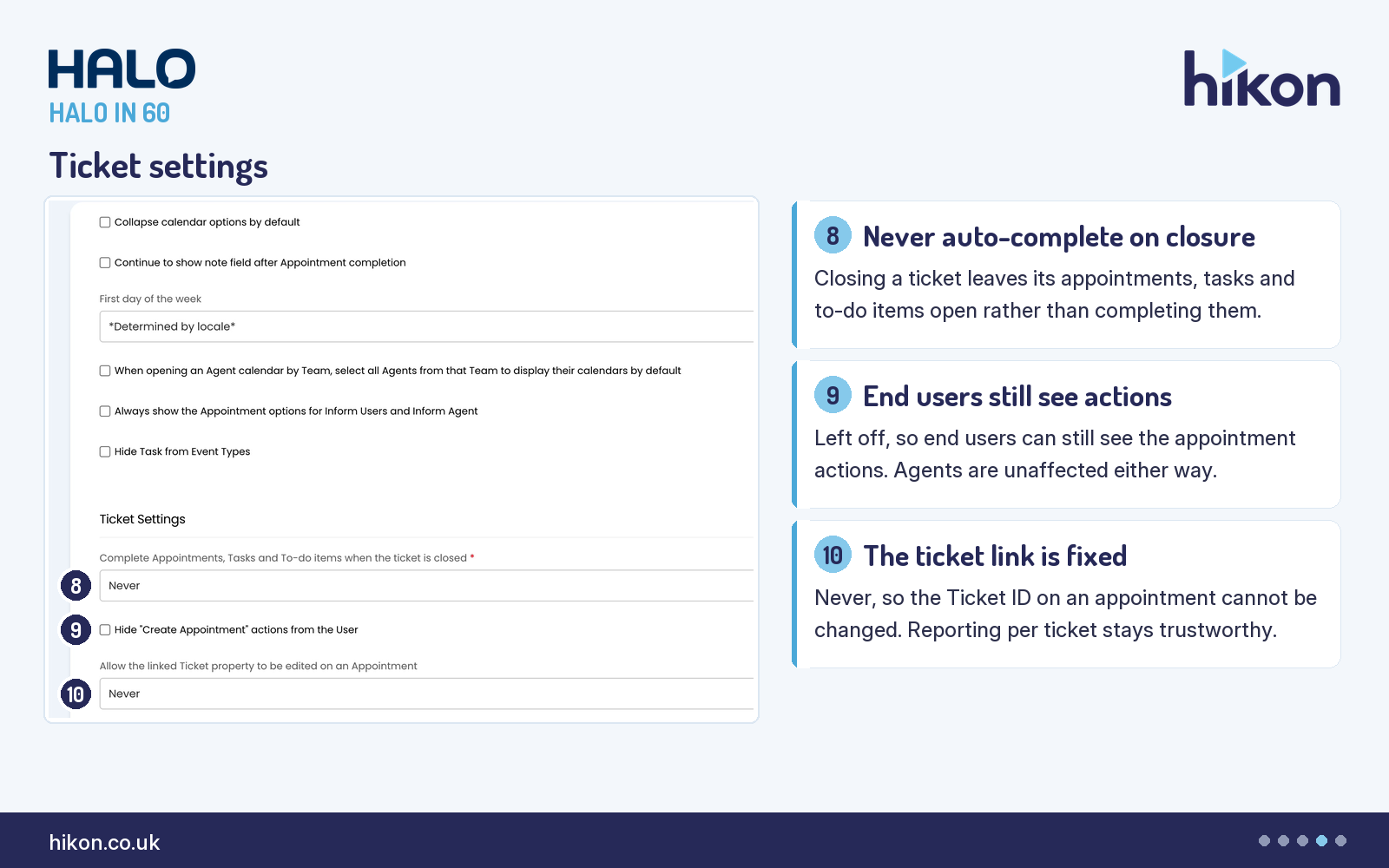
8. Complete Appointments, Tasks and To-do items when the ticket is closed
Mandatory, and set to Never here. The guide lists four options: always auto complete on closure, must complete manually on closure, never auto complete on closure, or ask each time. Never means closing a ticket leaves its appointments, tasks and to-do items open, which is the honest position, because an appointment that never happened should not be marked done just because somebody closed the ticket around it. Ask each time is a reasonable alternative if you would rather make it a conscious decision. What you should not do is leave it unconsidered, because this is the setting that quietly rewrites your appointment history.
9. Hide "Create Appointment" actions from the User
Unticked here, so end users can still see the appointment actions. Note the label while you are on this row. The guide calls the field "Hide appointment actions from end-user"; the interface reads "Hide "Create Appointment" actions from the User". That gap matters when an administrator is scanning the screen for something the documentation described, and it is the reason this series works from a recording of the live interface. Where the guide and the interface disagree, configure against the interface.
10. Allow the linked Ticket property to be edited on an Appointment
Set to Never here. The guide gives three options: the Ticket ID can be changed never, when an appointment already has a linked Ticket, or always. Never is the conservative choice, and it is the one we prefer on a desk that reports on appointments per ticket. An appointment that can be moved between tickets after the fact is an appointment whose history is negotiable, and reporting built on it is negotiable too.
Where teams get this wrong
The first mistake is treating the top of the screen as three independent switches. It is one mechanism. "Appointments release Tickets from SLA hold" is the parent, and the guide states that both the minutes field and the status field depend on it being enabled. Configure them in any other order and the behaviour looks arbitrary: a run-up time that does nothing, or a release status that never applies. Tick the parent, then set the run-up, then set the status, then test it with a real appointment rather than assuming.
The second is trusting the guide to describe the screen. It does not, and the gap is not small. Of the fifty-two controls on this screen, twenty-seven carry no vendor description at all. Several of them are doing real work on the instance recorded here: "Use UTC timezone for creating appointments" is ticked, "When creating appointments with drag and drop from a Ticket list use the estimate for the appointment length" is ticked, and "When creating new Appointments add the Additional Agents as Attendees" is ticked. None of the three is documented. That is worth stating plainly rather than filling the gap with a plausible explanation. Confirm what they do in a test tenant before you rely on them in either position.
The traffic runs the other way as well. "Appointment location type" is documented and never appears in the recording. Its neighbour "Show the appointment location field" is unticked on this instance, which is the obvious explanation, but the guide does not state that the one is conditional on the other, so treat it as a relationship to confirm in your own tenant rather than a documented rule. "Display the Agents availability overview on the calendar" is a different case: it is documented with a version note, v.2.236 and later, so on an older instance you are looking for a field that is not there yet. Neither is a documentation error, and neither is obvious from the screen alone.
Third, read the scope on the completion settings before you copy them between instances. "Default the appointment's completion time taken to the appointment duration for appointments not linked to tickets" says exactly what it means, and the last five words are the whole setting. It does nothing at all to the appointments that sit on tickets, which on most desks is nearly all of them.
Fourth, one setting on this screen only ever affects people who do not exist yet. "Default value for creating appointments from calendar integrations for new Agents" is set to Never here, and it governs new agents only. Changing it does not reach back and alter the agents you already have, so if calendar import is behaving inconsistently across a team, this setting explains the new starters and something else explains the rest.
Need a hand?
Hikon configures HaloITSM for organisations that would rather it worked properly the first time. If you want a second pair of eyes on your Appointments configuration, see our Halo services.
Vendor reference: Halo guide: Calendars and Appointments General Settings. Screens were captured from a live instance; where the guide and the interface differ, this article follows the interface.
Enjoying this?
Talk it through with the people who wrote it — a free 20-minute call, no pitch.
Let's talk →