HALO IN 60: Configuring Service Level Agreements in HaloITSM
Ask most Halo administrators where the SLA lives and they will point at the SLA record: the priorities, the working hours, the response and resolution targets. Those matter. But Configuration > Service Level Agreements > General Settings decides what that record means in practice: what counts as a response, when the response clock restarts, what happens to the target while a ticket waits on the user, and which tickets get escalated out of hours. Thirty-eight controls render on this one screen. Ten of them shape how the clock runs, and two teams with identical SLA records and different answers here can report different breach figures for the same tickets.
Targets and editing
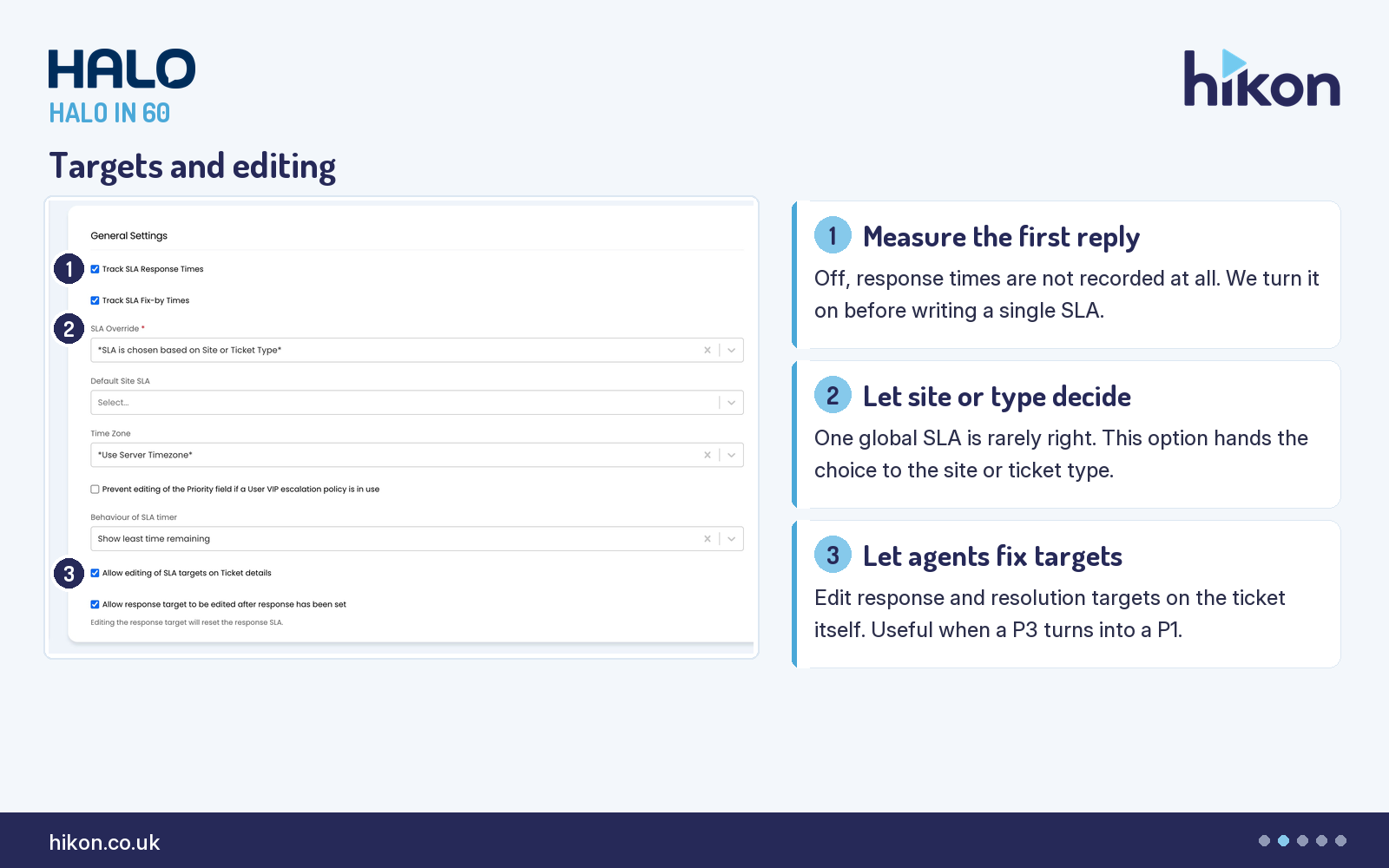
1. Track SLA Response Times
The master switch. Halo's guide describes it plainly: it determines whether or not SLA response times are to be recorded. Its partner directly beneath, Track SLA Fix-by Times, does the same for resolution times. Both are ticked on the recorded instance, and we turn both on before writing a single SLA, because a response target that was never recorded cannot be reported on later. If you only care about resolution, say so deliberately here rather than discovering the gap in a quarterly report.
2. SLA Override
This required field determines the default SLA to use globally, and the guide notes that one of the options in the dropdown permits the SLA on a ticket to be determined by the end-user's site or the ticket type. That option, *SLA is chosen based on Site or Ticket Type*, is the one selected here. One global SLA is rarely right for an organisation with more than one customer or more than one kind of work, so this is the setting that stops the SLA being a blunt instrument. Choosing it unlocks Default Site SLA beneath it, which dictates the SLA given to new sites and, the guide is careful to say, will not change the SLAs already set on existing sites. It is empty on the recorded instance. The ticket type side of the override is configured on each ticket type's Defaults tab.
3. Allow editing of SLA targets on Ticket details
Ticked, agents can edit SLA targets directly from the ticket screen. It also reveals a second setting, Allow response target to be edited after response has been set, ticked here, whose on-screen help is blunt: editing the response target will reset the response SLA. The guide adds that the response target cannot be edited once the ticket has been resolved. Halo's own use case for the pair is a ticket logged as a P3 that turns out to be a P1, where the original response target no longer reflects the work. We enable both: a target that cannot be corrected is a target nobody trusts.
Three more controls sit in this first section. Time Zone sets the default time zone all SLAs follow unless their own configuration says otherwise, and it dictates when work hours apply; it is left at *Use Server Timezone* here. Behaviour of SLA timer determines which metric the SLA timer shows, set to Show least time remaining, and Include Seconds in SLA Target Countdown header widgets adds seconds to that countdown in the 2025 interface. Prevent editing of the Priority field if a User VIP escalation policy is in use locks the priority on tickets raised by VIP users whose escalation policy set it; it is unticked here and only matters if you use VIP escalation at all.
Response rules
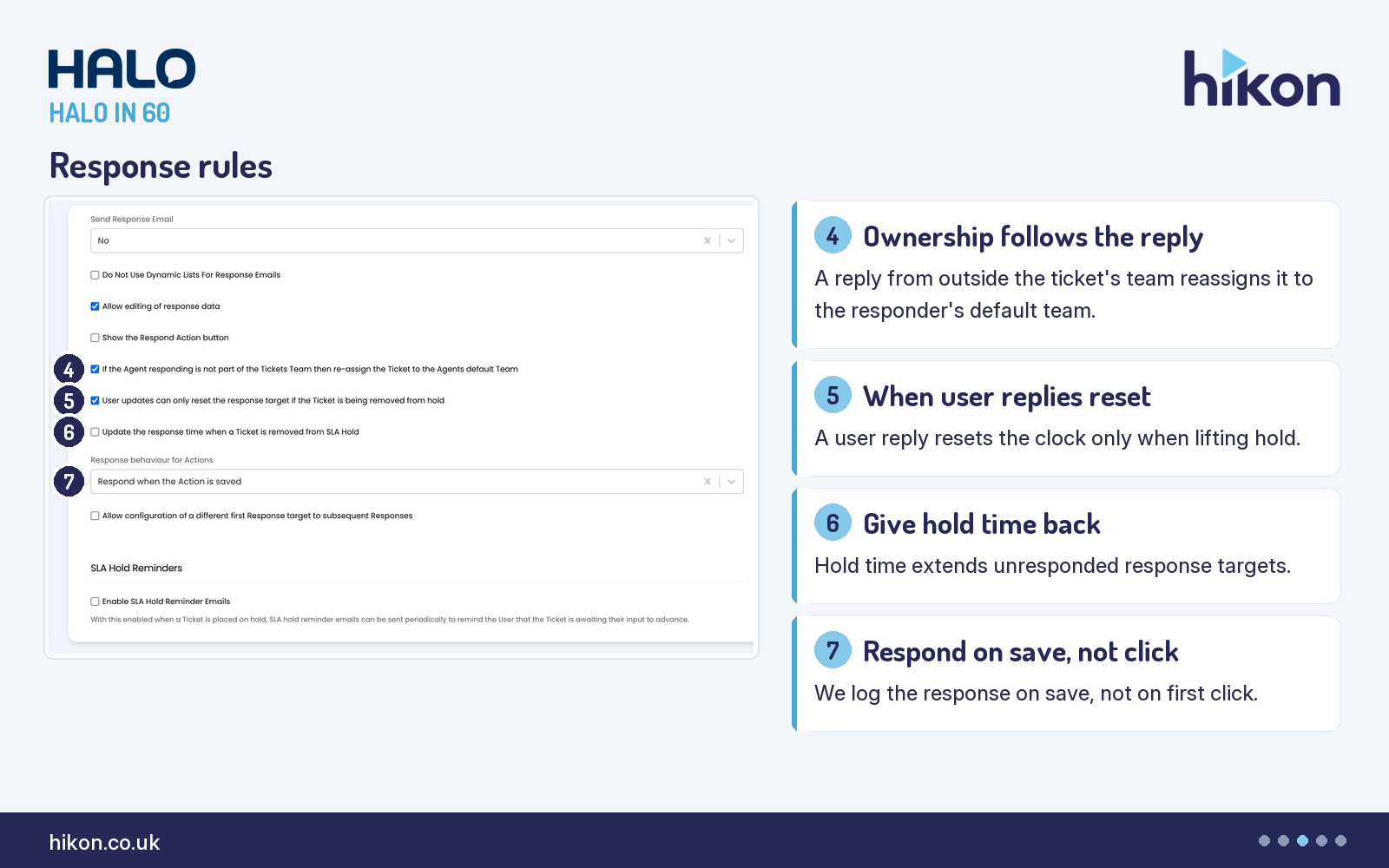
4. If the Agent responding is not part of the Tickets Team then re-assign the Ticket to the Agents default Team
Ticked on the recorded instance. Should an agent who is not part of the ticket's assigned team respond to it, the ticket is re-assigned to the responding agent's team. That is helpful when a shared queue is being worked by whoever is free, and surprising when a specialist adds a quick reply and the ticket quietly leaves the team that owns it. Nobody traces that move back to this screen, so decide it deliberately.
5. User updates can only reset the response target if the Ticket is being removed from hold
Enabled by default and ticked here. With it on, a user update only resets the response target if it is taking the ticket off hold; with it off, user updates can reset the response target regardless of whether the ticket is on hold. This is the gate behind a setting on the SLA record itself, Reset the Respond-By target each time an End-User updates a Ticket. Halo's SLA overview guide spells out the dependency: that per-SLA option will only reset the target if the response takes the ticket off hold, and if the ticket is not on hold, this General Settings checkbox will need to be disabled. If your response targets seem to reset at random, or never reset when you expect them to, this pair is where to look.
6. Update the response time when a Ticket is removed from SLA Hold
Unticked on the recorded instance. Disabled, the response timer is based on the time the ticket was logged. Ticked, putting the ticket on SLA hold also pushes the response time back by the amount of time the ticket was on hold, provided it has not already been responded to. Left unticked, hold time does nothing for the response target of an unresponded ticket; the target stays where logging put it. Whether that is right depends on whether you believe a ticket waiting on the user should be able to miss its response target. Our view is that it should not.
7. Response behaviour for Actions
Set to Respond when the Action is saved. This determines the point at which the response is logged when it comes from an action: either when the action button is initially clicked, or when the action is fully submitted. We log it on save. The response timestamp is the one figure on the ticket everyone argues about later, and the moment the agent committed to the reply is the defensible one.
The rest of the Response Settings section is worth a pass. Status after logging a Response, a required field set to In Progress here, determines the status a ticket takes immediately after an SLA response has been triggered, and the guide notes that an action's own status-after-action field overrides it once the action completes. Send Response Email, set to No, decides if and when the user is emailed that their ticket has been responded to, using the response email template; Do Not Use Dynamic Lists For Response Emails restricts those emails to the end-user rather than the dynamic email list. Show the "Response not set" prompt when doing an Action on a Ticket that hasn't been responded to adds a popup when an agent logs a non-responding action on an unresponded ticket, and confirming it logs a response with the action. Respond Actions are hidden from End-Users removes the "Responded" tile from the portal. Allow editing of response data, ticked here, makes recorded response times editable. Show the Respond Action button adds a one-click action that logs a response and does nothing else to the ticket. And Allow configuration of a different first Response target to subsequent Responses, unticked here, lets each SLA priority carry one target for the initial response and another for later ones.
Hold and out-of-hours
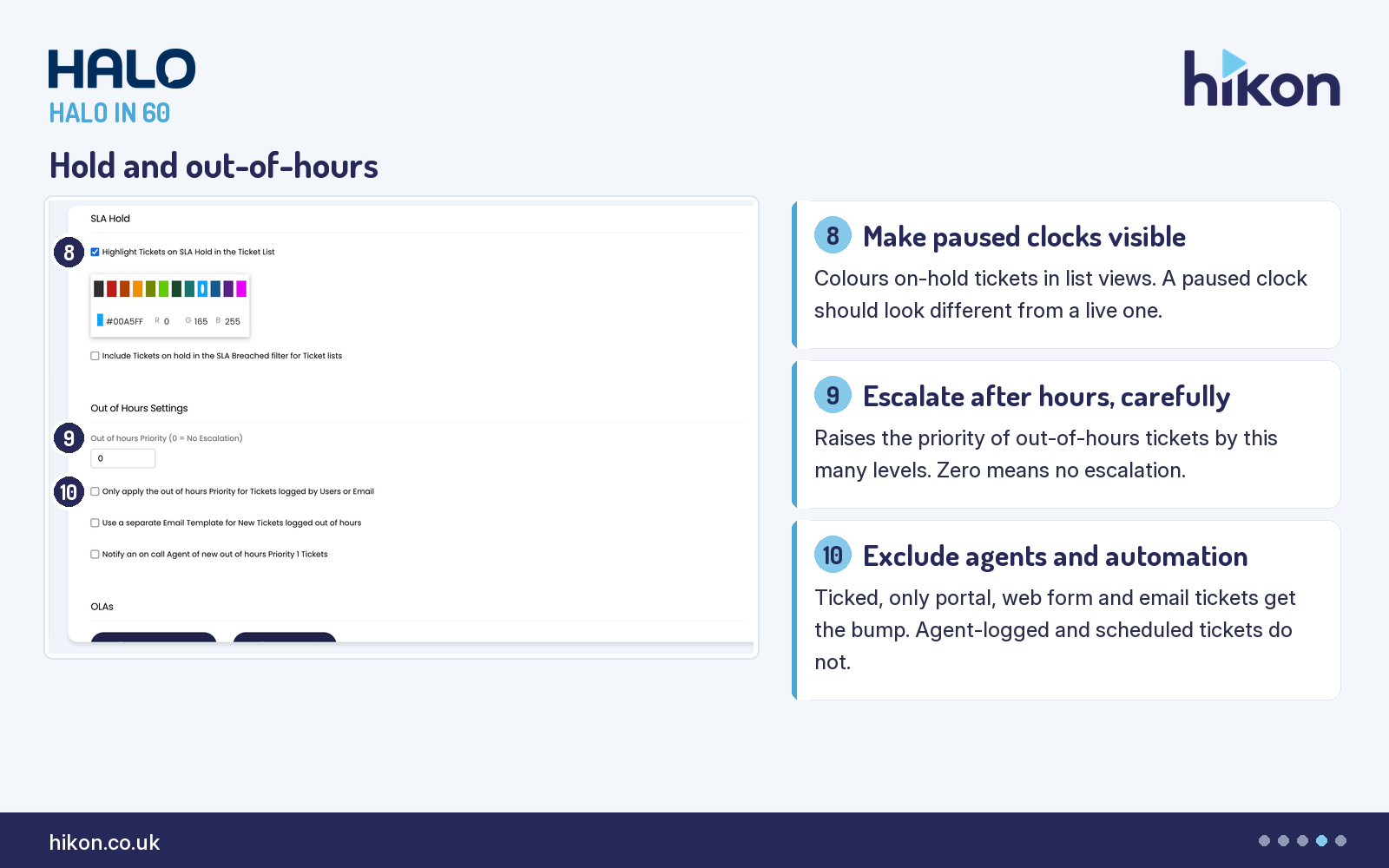
8. Highlight Tickets on SLA Hold in the Ticket List
Ticked, a hex code box appears for choosing a colour to represent on-hold tickets in list views, and those tickets have their text fields highlighted in that colour. The recorded instance uses #00A5FF. It is the cheapest clarity win on the screen: a paused clock should look different from a live one, and a queue where held tickets are indistinguishable from active ones is a queue that gets worked in the wrong order. Its neighbour, Include Tickets on hold in the SLA Breached filter for Ticket lists, unticked here, decides whether tickets that have breached but are on hold appear under the SLA Breached filter.
9. Out of hours Priority (0 = No Escalation)
Set to 0 on the recorded instance. Should a number other than zero be entered, tickets logged out of hours have their priority level increased by that many levels. It is a blunt tool that is genuinely useful for a desk with an on-call rota, and a liability when every overnight email becomes a P1 by arithmetic. If you use it, use it with the setting below.
10. Only apply the out of hours Priority for Tickets logged by Users or Email
Unticked here, where the escalation above is off. Ticked, tickets logged by agents or generated automatically out of hours, such as scheduled or automated tickets, are excluded from the out-of-hours priority; only tickets logged by users on the self-service portal, through an anonymous ticket form embedded on an external website, or by email are taken into account. This is the qualifier that makes setting 9 usable, because your own scheduled maintenance tickets should not be escalating themselves at two in the morning.
Two more controls complete the Out of Hours section. Use a separate Email Template for New Tickets logged out of hours does what it says. Notify an on call Agent of new out of hours Priority 1 Tickets is marked legacy in the guide, replaced by Notifications; its companion field Agent on call, which the guide says is selected beneath it, did not render on the recorded instance, where the switch is off. The SLA Hold Reminders section above them carries a single visible switch, Enable SLA Hold Reminder Emails, unticked here; the guide documents five more fields in the same group, covering the hours between reminders, the hours until an unanswered held ticket is closed, whether workday hours apply, whether CC addresses are included, and whether tickets excluded from SLA still receive chasers. The guide ties the two hour counts to reminders being enabled, and none of the five rendered on the recorded instance, where the switch is off. Below, the OLAs and OLA Notifications sections hold the Configure OLA Templates and Configure OLA Rules buttons and the Enable OLA events switch, and the Imports section carries Import Service Level Agreements and Import Priorities, with the screen's own instruction to import SLAs first because priorities depend on them.
Where teams get this wrong
The Notifications section is the most common disappointment on this screen, and it is not on the carousel because the trap is a sentence rather than a setting. First SLA notification warning and Second SLA notification warning let you choose between a warning at a percentage of the SLA response or resolution target and a warning a number of hours before the resolution target, with the threshold alongside; the recorded instance uses percentages of 75 and 90. Setting them does nothing on its own. The screen says so above the fields, and the guide repeats it: a notification for the first or second SLA warning must be configured, and that notification is required to enable this configuration. Teams set 75 and 90, wait for warnings that never arrive, and blame the SLA. The related settings on the SLA record, Status after first warning level reached and Status after second warning level reached, consume the same thresholds. The guide also notes that if NHServer is processing email, "Do not scan for overdue alerts" must be disabled in its configuration for the warnings to work.
The second trap is the reset interplay covered under setting 5. The third is scope. Enable SLA Hold Reminder Emails is a global switch, but the SLA overview guide is clear that it can be overridden per SLA through Send SLA reminders for Tickets with this SLA, and toggled per ticket type and per status as well. If reminders are firing on a status you meant to be quiet, or not firing on one you meant to chase, the answer is usually on one of those other screens rather than here.
One documentation note. Halo publishes two guides with near-identical names: "Service Level Agreements", which documents the SLA record and its priorities, and "SLA General Settings", which documents this screen. The second is the reference for everything above, and its labels match the interface apart from capitalisation and one cosmetic exception: the "Response not set" prompt label renders its apostrophe as a stray quotation mark in the interface and as a doubled one in the guide. Where the guide and the screen disagree, trust the screen.
More HALO IN 60 guides
This episode is part of an ongoing series covering one HaloITSM configuration screen at a time. Related episodes: Notifications, Time Management, Appointments, Reporting, Asset Management, Chat and Knowledge Base.
Need a hand?
Hikon configures HaloITSM for organisations that would rather it worked properly the first time. If you want a second pair of eyes on your Service Level Agreements configuration, see what we do with Halo.
Vendor reference: Halo — SLA General Settings. Screens were captured from a live instance; where the guide and the interface differ, this article follows the interface.
Enjoying this?
Talk it through with the people who wrote it — a free 20-minute call, no pitch.
Let's talk →