HALO IN 60: Configuring Reporting in HaloITSM
Reporting is the part of a service desk that everyone judges and almost nobody configures. The screen that governs it is Configuration > Reporting > General Settings, and it holds twenty-seven controls on the instance recorded here, four of which the vendor guide does not describe at all. Between them they decide which dashboard the team opens on each morning, which formats report data can leave in, and who can reach which reports. This is an episode of HALO IN 60, our series that takes one HaloITSM configuration screen at a time, and it covers the ten settings that shape who sees your reports.
Home screen and exports
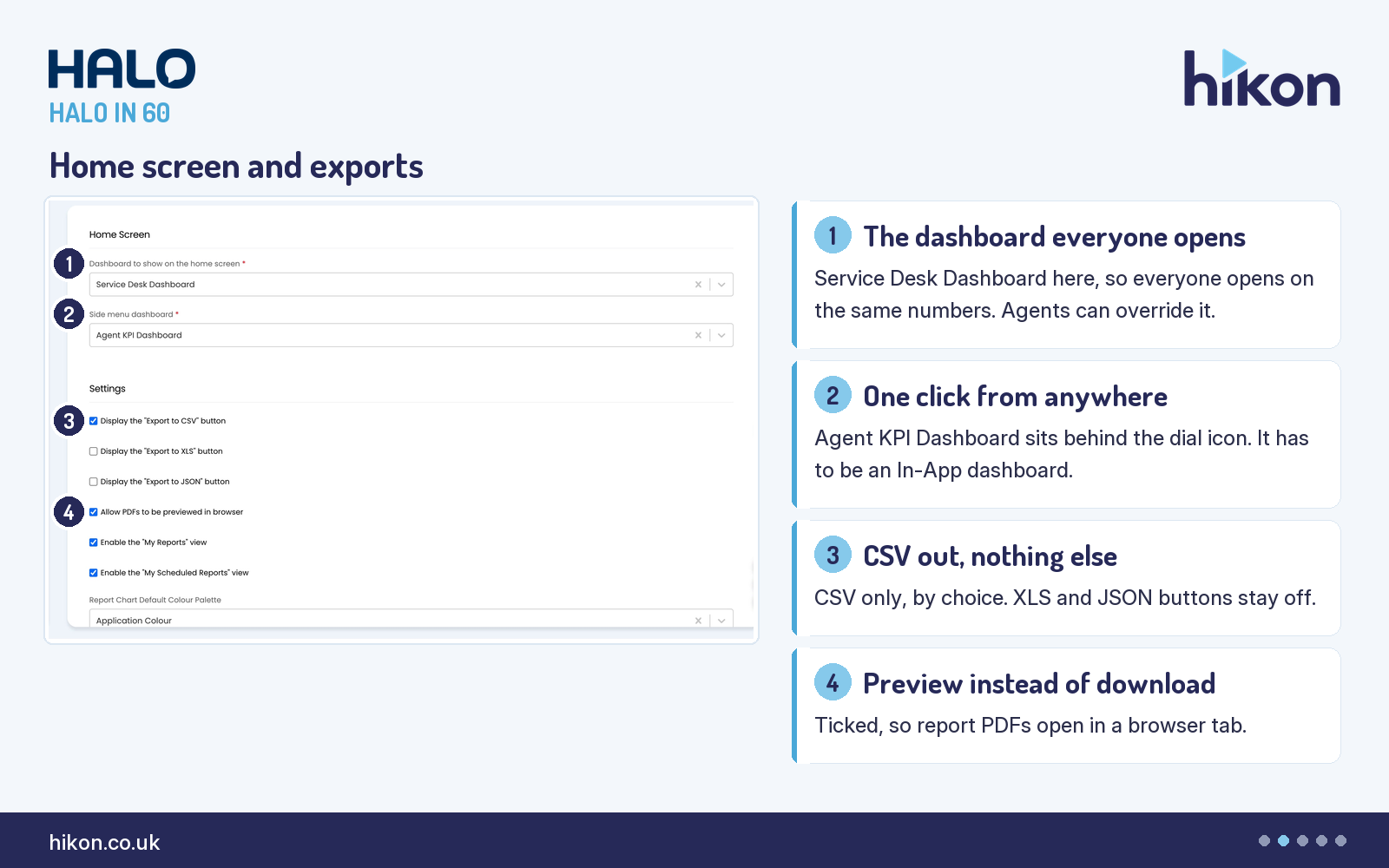
1. Dashboard to show on the home screen
Set to Service Desk Dashboard on the instance recorded here, and marked mandatory on screen. The guide describes it as the dashboard used at the bottom of the Home Screen, and it is the global setting for that choice, overridable at agent level. Treat it as the default answer to the question "how are we doing", because for most of the desk it is the only reporting they will ever open. If Default is selected instead, a second field appears that shows a single report's chart in its place.
2. Side menu dashboard
Set to Agent KPI Dashboard here, and also mandatory. This one populates the side menu dashboard, reached from the dial icon in the navigation at the top of the screen, which makes it the only reporting an agent can open without leaving the ticket they are in. The guide carries one hard constraint: the dashboard must be of type In-App. If your chosen dashboard does not appear in the list, that is almost always why.
3. Display the "Export to CSV" button
Ticked here, while the matching XLS and JSON switches are both off. Each one adds its own export button to the report interface, so between them they decide the formats in which report data can walk out of Halo. There is a reasonable case for leaving all three on, but the position we prefer is one format, deliberately chosen, rather than three by inheritance. Every format you enable is another copy of your data living somewhere you no longer control.
4. Allow PDFs to be previewed in browser
Ticked here. With it on, a report PDF opens in a separate browser tab rather than downloading to the local machine. It reads as a convenience setting and it is one, but it also quietly reduces the number of report PDFs sitting in agents' downloads folders. Left off, every glance at a printed report leaves a file behind.
Views and access
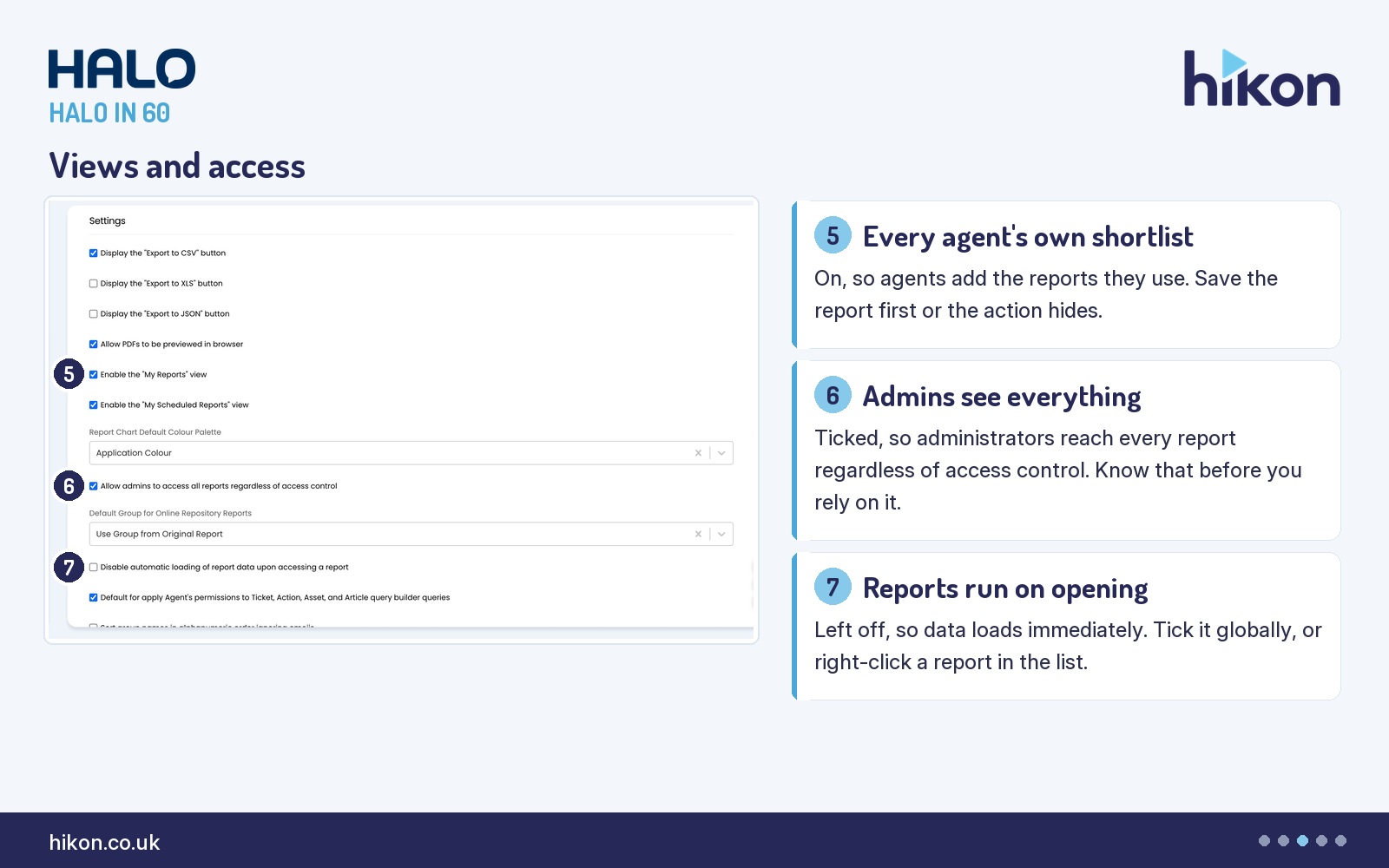
5. Enable the "My Reports" view
Ticked here. It gives every agent a personal My Reports group in the reports list, populated with the Add to My Reports action at the top of a report. The guide adds a detail that saves a support call: a report has to be saved before that action is visible at all. In a list the guide itself calls extensive, a per-agent shortlist is the cheapest usability win on this screen.
6. Allow admins to access all reports regardless of access control
Ticked here, and the setting on this screen most worth a conscious decision. The guide is unambiguous: any agent marked as an administrator can access any and all reports throughout the system, regardless of any access control placed on them. That is convenient when a report breaks at five o'clock. It also means that every access control you set below is a control over non-administrators only. Decide which of those two facts matters more in your organisation before you leave it as it is.
7. Disable automatic loading of report data upon accessing a report
Left off here, so opening a report runs it. Ticking it opens the report without returning any data until Load Report is clicked, and the guide notes the same behaviour is available per report from the right-click menu in the report list. It earns its place on a large report you want to filter before generating. As a global default it costs everyone an extra click on every report, which is why we leave it off and use the per-report route instead.
Permissions and output
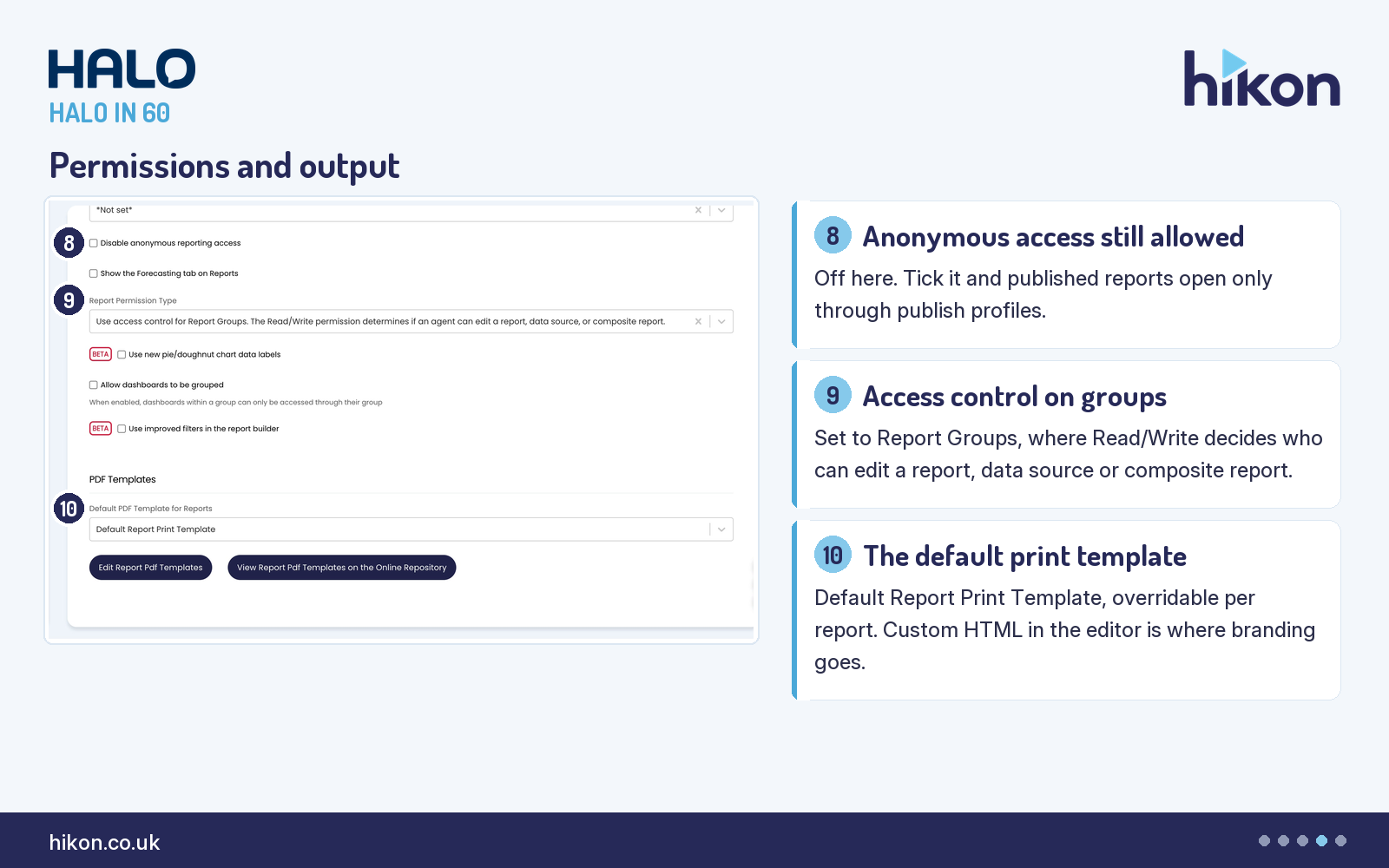
8. Disable anonymous reporting access
Unticked here, which is the permissive position. Ticked, the guide states that agents will not be able to allow anonymous access to report data, and published reports become accessible only through publish profiles. This is the one setting on the screen that can put report data in front of someone who has not signed in, so it deserves an explicit decision rather than an inherited default, particularly on an instance where agents publish reports for people outside the service desk.
9. Report Permission Type
Set to Use access control for Report Groups. The Read/Write permission determines if an agent can edit a report, data source, or composite report, which the guide describes as the default. Two stricter options exist: one adds separate access control to data sources and composite reports, and one applies access control to every entity individually with group access required to see a group in lists. Both of the stricter options expose two extra agent permissions, Can Create Reports and Can Create Composite Reports. The Reporting Access Control guide also notes that report groups created before this version default to all agents having read-only access, so an upgraded instance starts open until somebody tightens it.
10. Default PDF Template for Reports
Set to Default Report Print Template here. It is the template used when a report is printed, changeable per report on the report's Appearance tab. The two buttons beneath it lead to the template editor, where the guide confirms custom HTML can be used to brand these PDFs, and to the same editor filtered to Online Repository templates you can copy into your own library. If reports leave your organisation as PDFs, this is where they stop looking like a database dump.
Where teams get this wrong
The setting that causes the most trouble is not one of the ten above. Default for apply Agent's permissions to Ticket, Action, Asset, and Article query builder queries is ticked on this instance, and it sets whether query builder queries apply an agent's permissions by default. The guide places the per-report version of it on the data source tab of a report. It is a default, not a lock, so a report author can turn it off on an individual report. Left unchecked as a global default, every new query builder report starts life with that permission filter switched off. The guide does not say which agent's permissions are applied when it is on, so establish that on your own instance before you depend on it.
Read that alongside setting 6. Administrators bypass report access control entirely, and query builder reports can be built with the agent permission filter switched off. Neither is a fault, and both are reasonable behaviours to have available, but together they mean report access control in Halo protects non-administrators running permission-aware reports. That is a narrower promise than most teams assume they have made.
The second trap is the AI block in the middle of the screen. Enable AI Report Analysis, Max Data Size (KB) and Enable AI report analysis prior to scheduled release all render on the live screen and none of them appear in the vendor guide. What the screen itself says is worth reading before you enable anything: rows are truncated from the report data until it fits under the size value, the maximum is 1000KB, and if the analysis fails with a token limit error the fix is to reduce that number. Analysis running before a scheduled release makes $REPORTAIANALYSIS and $REPORTAIANALYSISDATE available inside PDF templates. Undocumented is not the same as unsupported, but it does mean the only description you have is the one on the screen.
Finally, expect the guide and the screen to disagree. Five settings the guide documents do not render on this instance at all: Default for report grouping behavior for excluding null values for calculations of averages, which carries a version note of v2.238 or later, View Dashboard (Tab) Groups, Use access control for dashboard groups, and the read-only database connection pair. A sixth, Chart to show on home screen, is absent for a documented reason rather than a mysterious one: the guide makes it available only when no dashboard is selected above it, and a dashboard is selected here. Going the other way, four settings on the screen are not in the guide. Configure from the screen in front of you, and use the guide to explain what you find there.
Need a hand?
Hikon configures HaloITSM for organisations that would rather it worked properly the first time. If you want a second pair of eyes on your Reporting configuration, see our Halo services.
Vendor reference: Reporting General Settings. Screens were captured from a live instance; where the guide and the interface differ, this article follows the interface.
Enjoying this?
Talk it through with the people who wrote it — a free 20-minute call, no pitch.
Let's talk →