HALO IN 60: Configuring PII Data Flagging in HaloITSM
PII Data Flagging is a BETA feature on HaloITSM's Users > General Settings screen that automatically identifies and flags personal data on tickets, so it can be reviewed and removed before it sits in your database indefinitely. Seven settings decide whether it actually does that job.
Turn It On
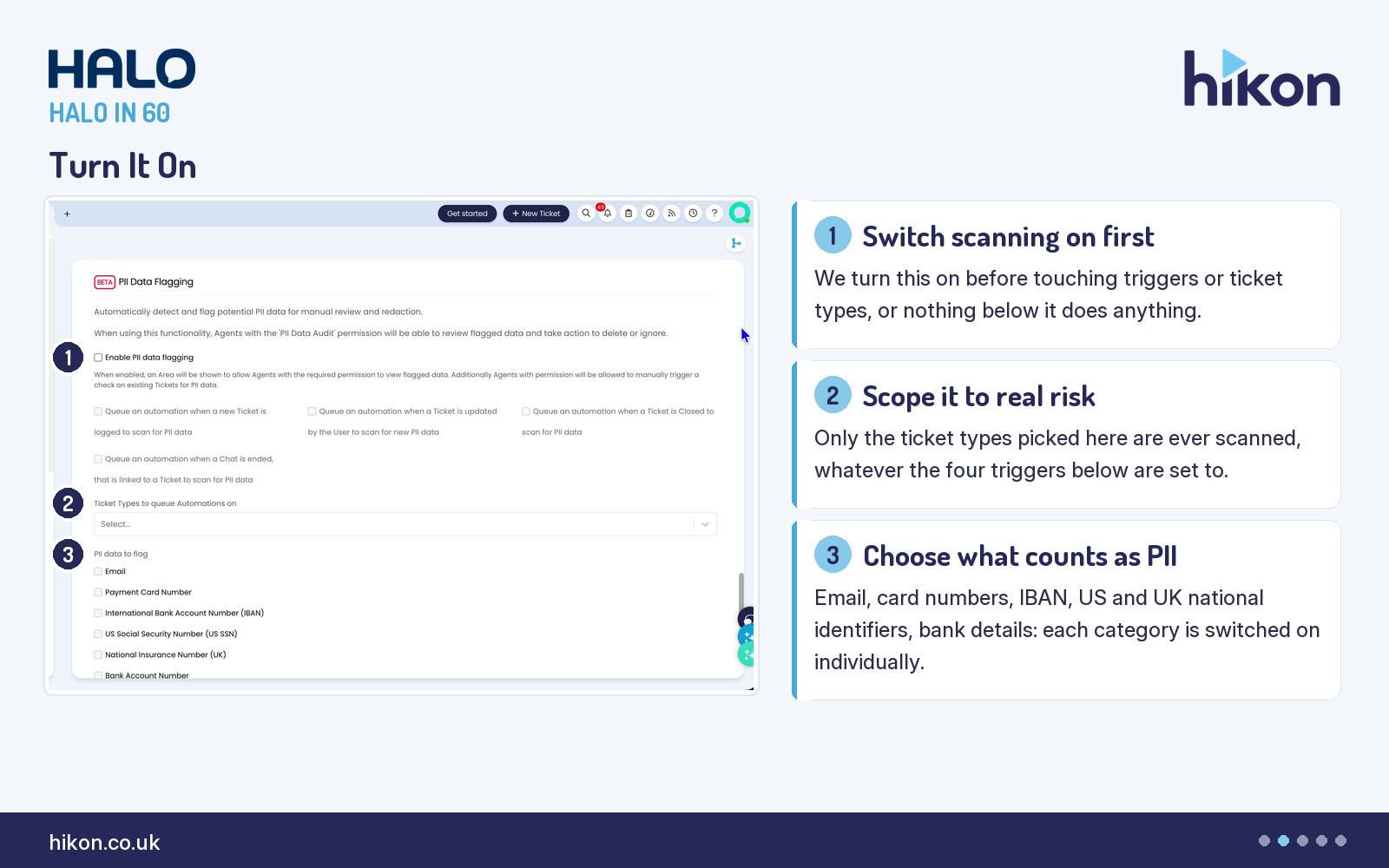
Enabling the master switch does nothing by itself: it only unlocks the triggers and the data types you configure next.
1. Enable PII data flagging
This is the master switch for the whole feature. Agents with the PII Data Audit permission can then review flagged data and choose to delete or ignore it.
2. Ticket Types to queue Automations on
This setting scopes automated scanning to the ticket types you choose. It works alongside the four trigger settings below: a ticket type left out here is never auto-scanned, regardless of how those triggers are set.
3. PII data to flag
Here you choose which categories of personal data are flagged when a ticket is scanned: email addresses, payment card numbers, International Bank Account Numbers, US Social Security Numbers, UK National Insurance Numbers, bank account numbers, and further categories below the fold on this screen. Only the categories you switch on are ever flagged.
Ticket-Triggered Scans
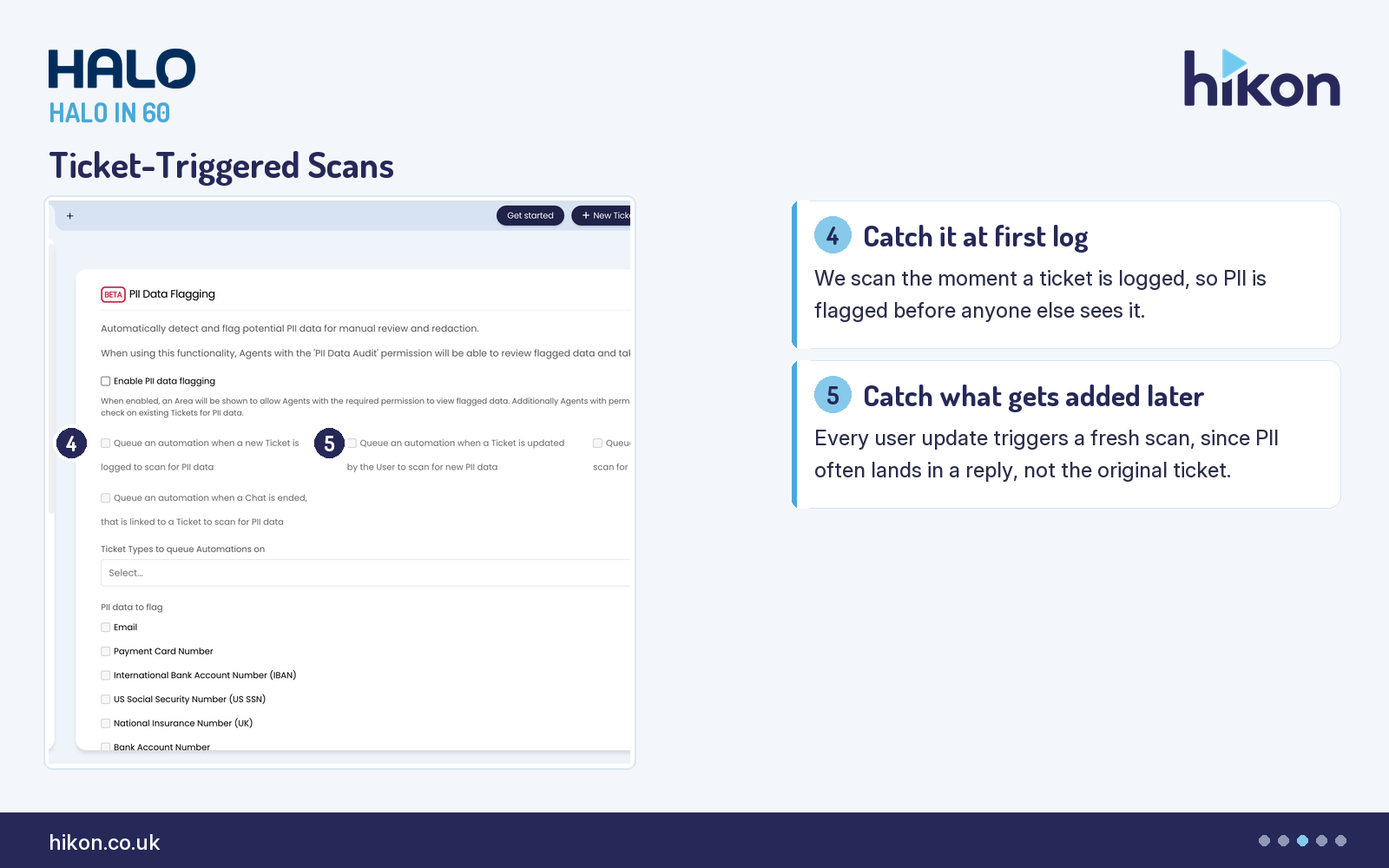
Four separate triggers control when a scan actually runs, and they are independent of each other.
4. Queue an automation when a new Ticket is logged to scan for PII data
With this enabled, a ticket is scanned for PII the moment it is logged.
5. Queue an automation when a Ticket is updated by the User to scan for new PII data
This re-scans a ticket every time a user updates it, which is where PII most often turns up after the original log.
Closed And Chat Scans
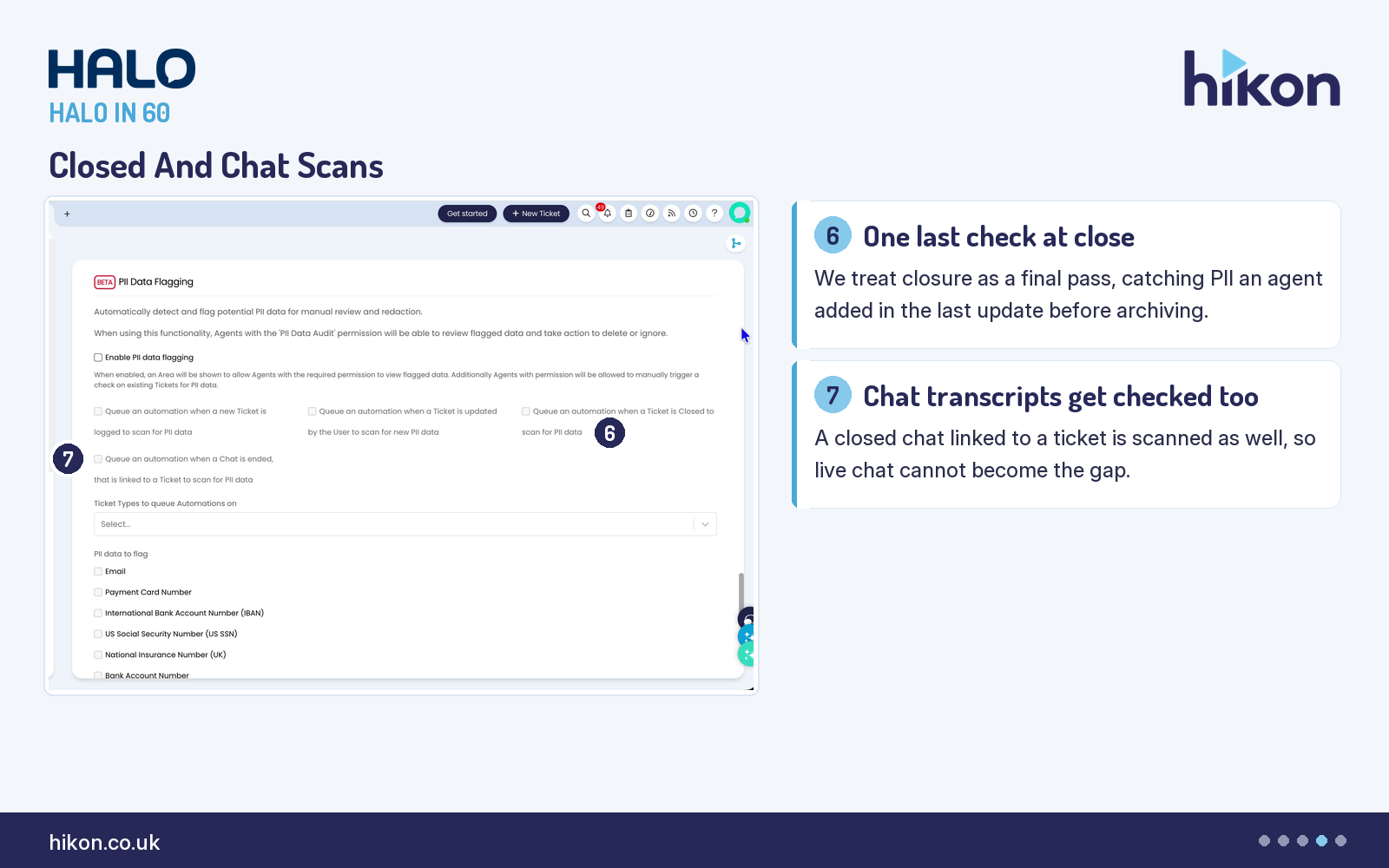
6. Queue an automation when a Ticket is Closed to scan for PII data
This scans a ticket a final time when it is closed, catching anything added in a late update.
7. Queue an automation when a Chat is ended, that is linked to a Ticket to scan for PII data
This extends the same scan to a chat that is linked to a ticket, once that chat ends.
Where teams get this wrong
The feature most often gets enabled and left inert: the master switch is turned on, but no ticket types are chosen in the scope setting, so nothing is ever actually scanned. The reverse mistake also happens, where every trigger is switched on with no ticket types excluded, producing scan volume on ticket types nobody meant to cover. Both are configuration errors in the same two settings, not a fault in the feature itself.
More HALO IN 60 guides
This episode is part of an ongoing series covering one HaloITSM configuration screen at a time. From the same screen: Users. Related episodes: Tickets, Notifications and Self Service Portal.
Need a hand?
Hikon configures HaloITSM for organisations that would rather it worked properly the first time. If you want a second pair of eyes on your PII Data Flagging configuration, see what we do with Halo.
Vendor reference: Users General Settings. Screens were captured from a live instance; where the guide and the interface differ, this article follows the interface.
Enjoying this?
Talk it through with the people who wrote it — a free 20-minute call, no pitch.
Let's talk →